Basic Audio Operation
Connect audio devices and operate buttons and displays for the audio system.

- USB Port
- Accessory Power Socket
- Audio Remote Controls
- Adjusting the Sound
■ USB Port
Install the iPod® USB connector or the USB flash drive to the USB port.

The USB port (1.0A) is for playing audio files on a USB flash drive, connecting a cellular phone and charging devices.
The USB ports (2.5A) are for charging devices, playing audio files and connecting compatible phones with Apple Carplay™ or Android Auto™.
■Accessory Power Socket
The accessory power socket can be used when the power mode is in ACCESSORY or ON.
Console panel
Open the cover to use it.

■Audio Remote Controls
You can operate certain functions of the audio system using the steering wheel controls.
Models with Color Audio
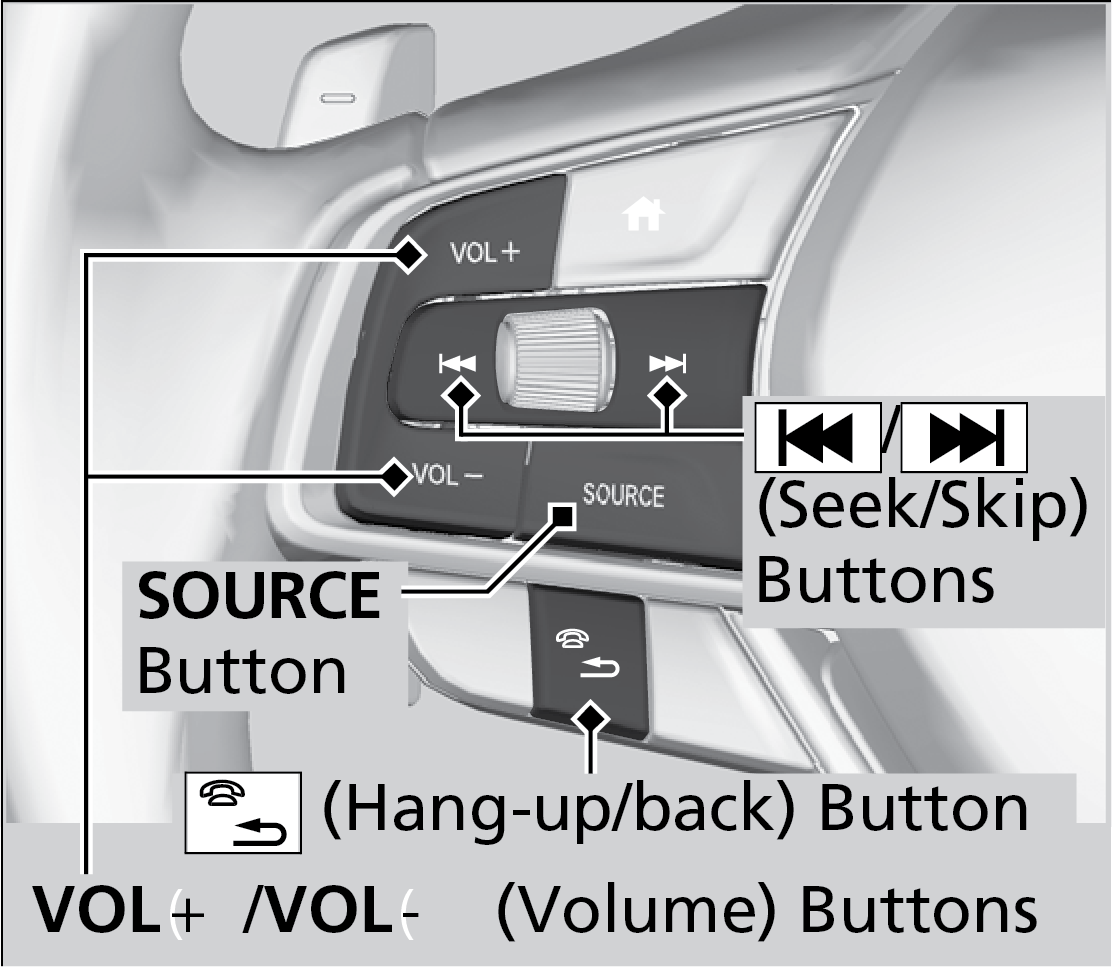
VOL +/VOL - (Volume) Buttons
Press VOL +: To increase the volume.
Press VOL -: To decrease the volume.
< / > (Seek/Skip) Buttons
When listening to the radio
Press >: To select the next preset radio station.
Press <: To select the previous preset station.
Press and hold >: To select the next strong station.
Press and hold <: To select the previous strong station.
When listening to an iPod, USB flash drive or Bluetooth® Audio
Press >: To skip to the next song.
Press <: To go back to the beginning of the current or previous song.
When listening to a USB flash drive, or Bluetooth® Audio
Press and hold >: To skip to the next folder/group.
Press and hold <: To go back to the previous folder/group.
When listening to Pandora®
Press >: To skip to the next track.
Press and hold >: To select the next station.
Press and hold <: To select the previous station.
Models with Display Audio
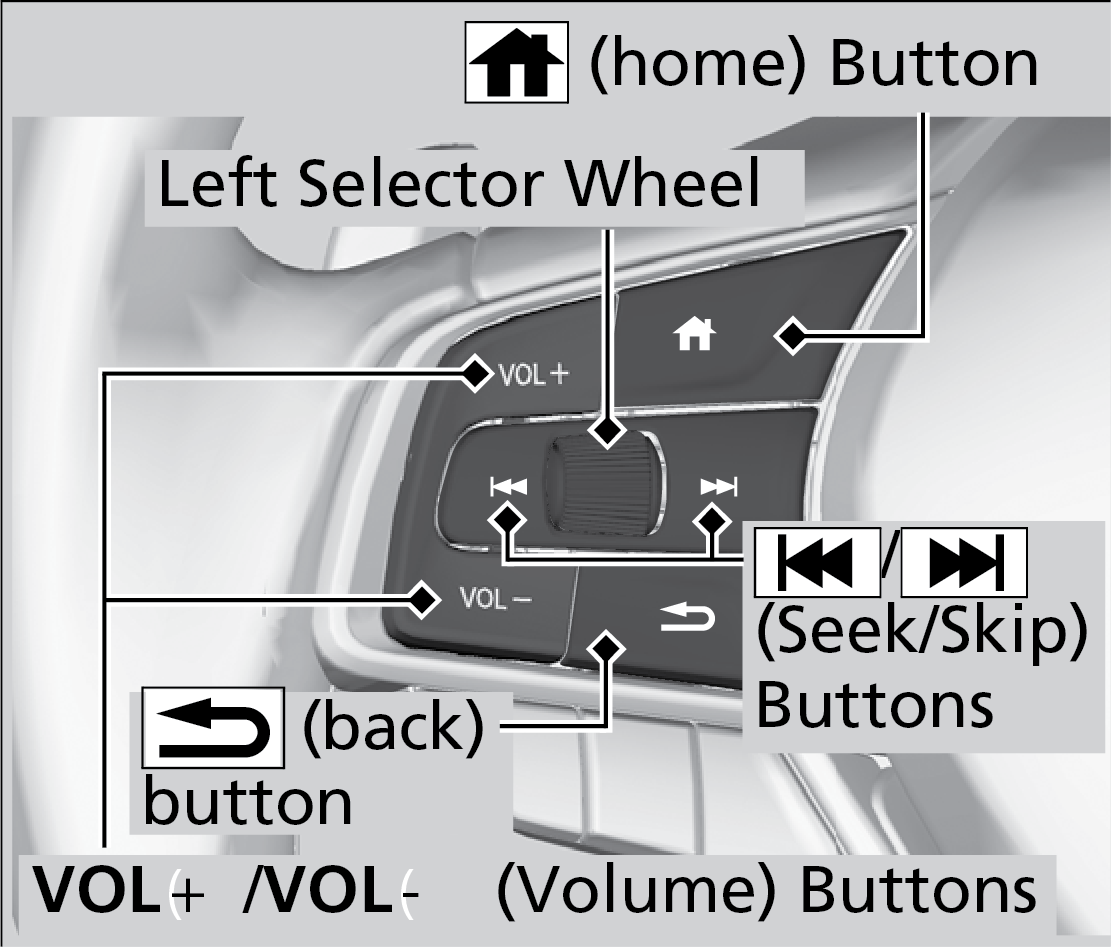
VOL +/ VOL - (Volume) Buttons
Press VOL + : To increase the volume.
Press VOL - : To decrease the volume.
Left Selector Wheel
When selecting the audio mode press the Home button, then roll up or down to select Audio on the driver information interface and then press the left selector wheel.
< / >(Seek/Skip) Buttons
When listening to the radio
Press >: To select the next preset radio station.
Press <: To select the previous preset radio station.
Press and hold >: To select the next strong station.
Press and hold <: To select the previous strong station.
When listening to an iPod, USB flash drive, or Bluetooth® Audio, or Smartphone Connection
Press >: To skip to the next song.
Press <: To go back to the beginning of the current or previous song.
When listening to a USB flash drive
Press and hold >: To skip to the next folder.
Press and hold <: To go back to the previous folder.
Audio Operation
■Adjusting the Sound
- Bass
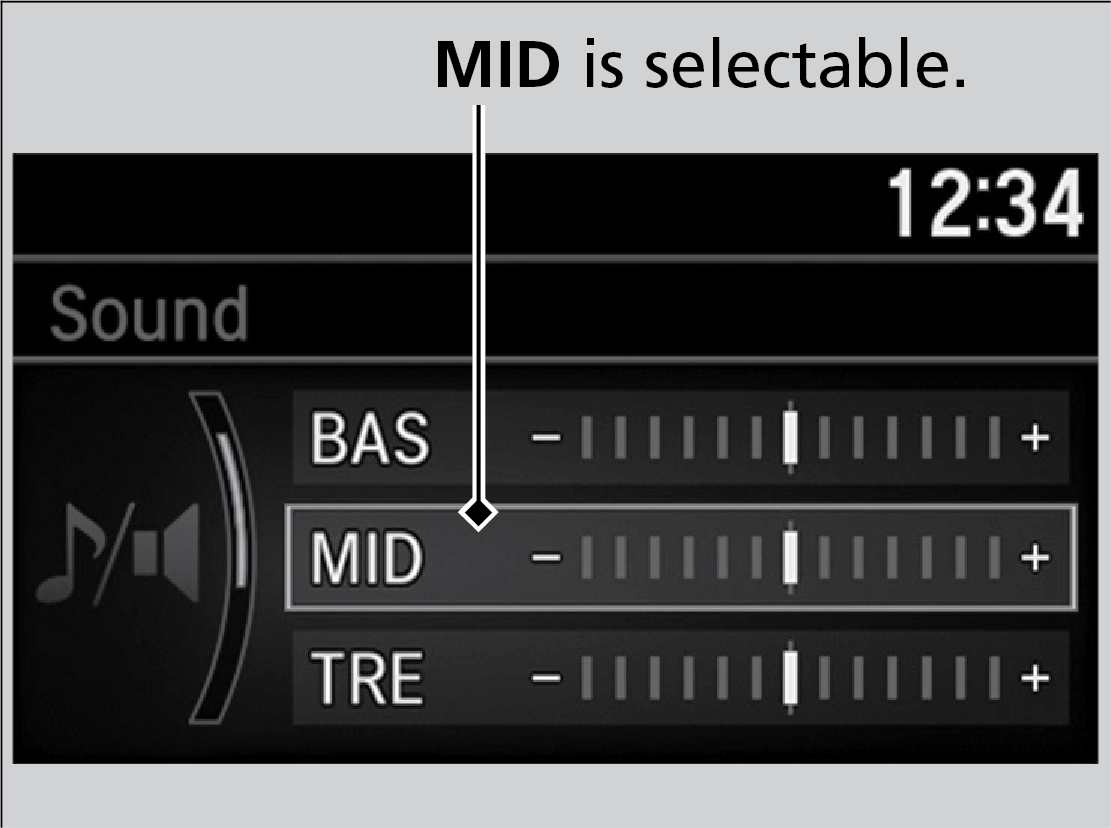
- Middle
- Treble
- Fader
- Speed-sensitive Volume Compensation
Rotate the selector knob to adjust the sound setting, then press the selector knob.
- From the HOME screen, select an audio source.
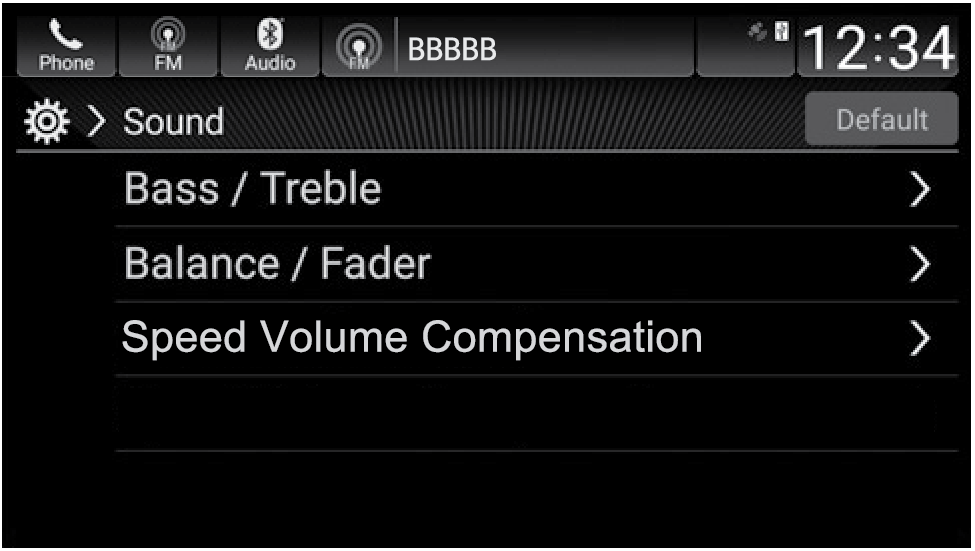
- Select Sound.
- Select an item to change and adjust the setting.
- Select Save when complete.
Download Manual