HomeLink® Universal Transceiver
The HomeLink® Universal Transceiver can be programmed to operate up to three remote controlled devices around your home, such as garage doors, lighting, or home security systems.
information, contact the manufacturer.
Before programming HomeLink, make sure that people and objects are out of the way of the garage or gate to prevent potential injury or damage.
When programming a garage door opener, park just outside the garage door’s path.
uuHomeLink® Universal Transceiver*uTraining HomeLink
If it is necessary to erase a previously entered learned code:
The instructions on the next page should work for most gate or garage openers, but may not work for all. For detailed instructions about your specific remote opener, visit http://www.homelink.com or call (800) 355-3515.
Continued
401
uuHomeLink® Universal Transceiver*uTraining HomeLink
 Programming a Button
 YES
3a. Hold the button on the remote transmitter. Does HomeLink indicator (LED) change from slowly flashing orange to rapidly flashing green or continuously on green? The process should take less than 60 seconds.
NO
3b. Canadian Garage Door Opener
A. Press and release the HomeLink button. Press, hold and release the button on the remote every 2 secs. Does the HomeLink indicator (LED) change from slowly flashing orange to rapidly flashing or continuously on green? The process should take less than 60 seconds.
YES NO
Models with color audio
Bluetooth® HandsFreeLink® (HFL) allows you to place and receive phone calls using your vehicle’s audio system, without handling your cell phone.
 (Pick-up) button: Press to go directly to the phone screen or to answer an incoming call.
(Hang-up/back) button: Press to end a call or to cancel a command.
(Talk) button: Press to call a number with a stored voice tag.
(Phone) button: Press to go directly to the phone screen.
Selector knob: Rotate  to select an item on the screen, then press
  .
.
Continued
403
uuBluetooth® HandsFreeLink® uUsing HFL
The audio/information screen notifies you when there is an incoming call.
Only previously stored speed dial entries can be called using voice commands while the vehicle is in motion.
2 Speed Dial P. 418
uuBluetooth® HandsFreeLink®uHFL Menus
The power mode must be in ACCESSORY or ON to use HFL.
 or Speed Dial*1 Add New
Call History
Select a phone number from the call history to store as a speed dial number.
Call History*1
(Existing entry list)
Dialed Calls
Received Calls
Missed Calls
Select a phone number from the phonebook to store as a speed dial number.
Phone Number Enter a phone number to store as a speed dial Display the last 20 outgoing calls.
Display the last 20 incoming calls.
Display the last 20 missed calls.
Phonebook*1
Dial*1
Display the phonebook of the paired phone.
Enter a phone number to dial.
*1: Appears only when a phone is connected to HFL.
Continued
uuBluetooth® HandsFreeLink® uHFL Menus
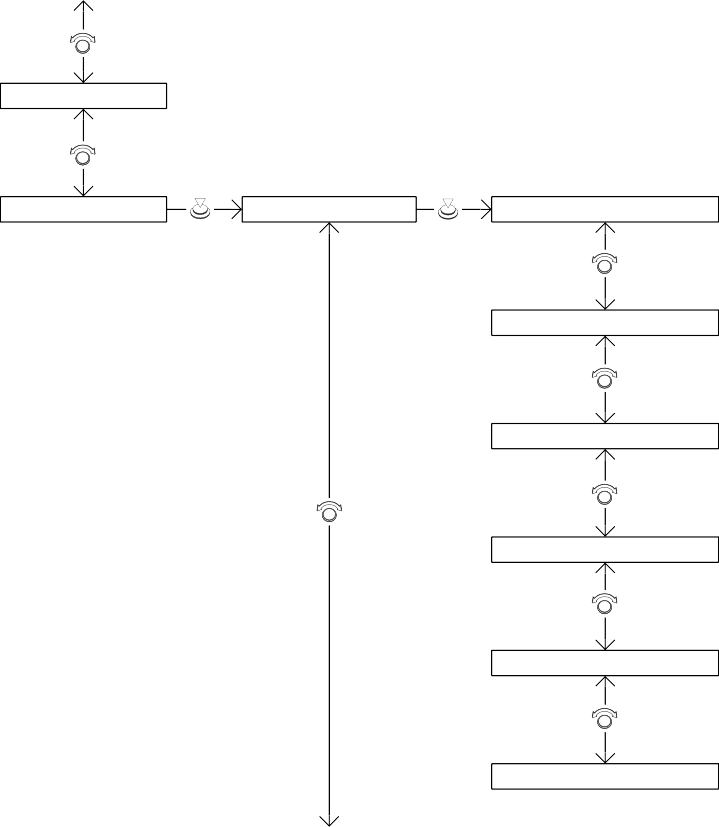 Redial*1 Redial the last number dialed in the phone’s history.
Phone Setup
Bluetooth Setup
Add New Device
Connect a Phone
Pair a phone to the system.
Connect a phone to the system.
Connect an Audio Device
Connect a Bluetooth® Audio device to the system.
Disconnect All Devices
Delete Device
Disconnect a paired phone from the system.
Delete a previously paired phone.
Pass-Key Create a code for a paired phone.
*1 : Appears only when a phone is connected to HFL.
uuBluetooth® HandsFreeLink®uHFL Menus
Select a phone number from the call history to store as a speed dial number.
Select a phone number from the phonebook to store as a speed dial number.
Enter a phone number to store as a speed dial number.
Change a previously stored speed dial number.
Delete a previously stored speed dial number.
Create a voice tag for a speed dial number.
Change a voice tag for a speed dial number.
*1: Appears only when a phone is connected to HFL.
Delete a voice tag for a speed dial number.
Continued
407
 uuBluetooth® HandsFreeLink® uHFL Menus
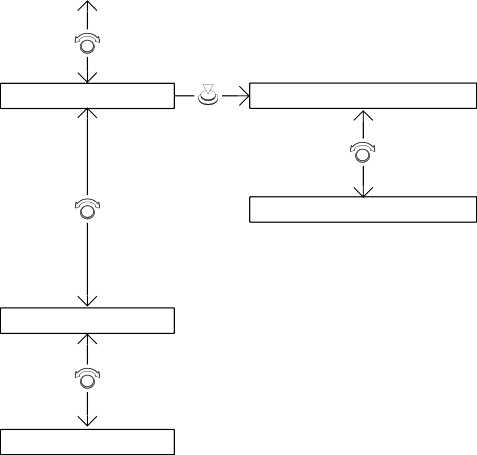
Ringtone
Mobile Phone
Select the ring tone stored in the connected cell phone.
Fixed Select the ring tone stored in HFL.
Auto Transfer Set calls to automatically transfer from your phone to HFL when you enter the vehicle.
System Clear
Clear the system of all paired phones, phonebook entries, and security codes.
uuBluetooth® HandsFreeLink®uHFL Menus
Phone Setup
 button.
 .
. .
.u HFL automatically searches for a
Bluetooth® device.
 .
.u If your phone doesn’t appear, select Phone Not Found? and search for Bluetooth® devices using your phone. From your phone, select HandsFreeLink.
u Confirm if the pairing code on the screen and your phone match.
This may vary by phone.
Continued 409
uuBluetooth® HandsFreeLink® uHFL Menus
 button or the
  button.
u If a prompt appears asking to connect to a phone, select No and proceed with step 2.
 Rotate to select Phone Setup, then press .
u The screen changes to device list.
410
uuBluetooth® HandsFreeLink®uHFL Menus
 . u HFL automatically searches for a
Bluetooth® device.
 .
.u If your phone does not appear, select Phone Not Found? and search for Bluetooth® devices using your phone. From your phone, select HandsFreeLink.
u Confirm if the pairing code on the screen and your phone match.
This may vary by a phone.
Continued
411
uuBluetooth® HandsFreeLink® uHFL Menus
 Press the button or the
  button.
 Rotate to select Connect a Phone, then press .
u The screen changes to a device list.
 Rotate to select a desired device name, then press .
u HFL disconnects the connected phone and starts searching for another paired phone.
uuBluetooth® HandsFreeLink®uHFL Menus
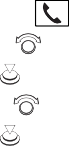 Press the button or the
  button.
 to select Pass-Key, then press
  .
. .
.Continued
413
uuBluetooth® HandsFreeLink® uHFL Menus
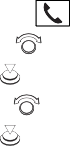 Press the button or the
  button.
 Rotate to select Delete Device, then press .
u The screen changes to a device list.
 to select a phone you want to delete, then press
  .
. to select Yes, then press
  .
.uuBluetooth® HandsFreeLink®uHFL Menus
You can change the ring tone setting.
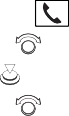 Press the button or the
  button.
 .
. to select Mobile Phone or
Fixed, then press  .
.
Automatic Transferring If you get into the vehicle while you are on the phone, the call can be automatically transferred to HFL.
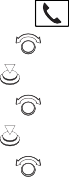 Press the button or the
  button.
 .
.Continued 415
uuBluetooth® HandsFreeLink® uHFL Menus
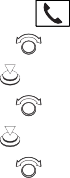
To Clear the System Pairing codes, paired phones, all stored voice tags, all speed dial entries, all call history data, and all imported phonebook data are erased.
 Press the button or the
  button.
 .
. to select Yes, then press
  .
. .
.uuBluetooth® HandsFreeLink®uHFL Menus
Automatic Import of Cellular Phonebook and Call History When your phone is paired, the contents of its phonebook and call history are automatically imported to HFL.
Continued 417
uuBluetooth® HandsFreeLink® uHFL Menus
Up to 20 speed dial numbers can be stored per phone.
To store a speed dial number:
 button.
 .
. to select Add New, then press
  .
. to select a place to choose a number from, then press
  .
.From Call History:
u Select a number from the call history. From Phonebook:
u Select a number from the connected cell phone’s imported phonebook.
From Phone Number:
u Input the number manually.
 to select Yes or No, then press .
uuBluetooth® HandsFreeLink®uHFL Menus
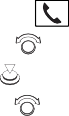 Press the button or the
  button.
 .
. Rotate to select Change Speed Dial, then press .
 .
.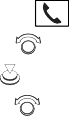 Press the button or the
  button.
 .
. Rotate to select Delete Speed Dial, then press .
u A confirmation message appears on the screen. Rotate  to select Yes, then press
  .
.
Continued
419
uuBluetooth® HandsFreeLink® uHFL Menus
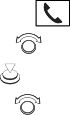 Press the button or the
  button.
 .
. Rotate to select Store Voice Tag, then press .
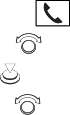 Press the button or the
  button.
 .
. Rotate to select Change Voice Tag, then press .
uuBluetooth® HandsFreeLink®uHFL Menus
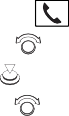 Press the button or the
  button.
 .
. Rotate to select Delete Voice Tag, then press .
u A confirmation message appears on the screen. Rotate  to select Yes, then press
  .
.
Making a Call You can make calls by inputting any phone number, or by using the imported phonebook, call history, speed dial entries, or redial.
Continued 421
uuBluetooth® HandsFreeLink® uHFL Menus
When your phone is paired, the contents of its phonebook are automatically imported to HFL.
 Press the button or the
  button.
 to select the initial, then press
  .
. Rotate to select a name, then press
  .
. .
.u Dialing starts automatically.
 Press the button or the
  button.
 .
. .
. to select
  , then press
  .
.u Dialing starts automatically.
uuBluetooth® HandsFreeLink®uHFL Menus
 button.
 .
.u Dialing starts automatically.
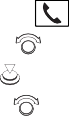 Press the button or the
  button.
 .
. to select a number, then press
  .
.u Dialing starts automatically.
Continued 423
uuBluetooth® HandsFreeLink® uHFL Menus
 button.
 .
. to select a number, then press
  .
.u Dialing starts automatically.
uuBluetooth® HandsFreeLink®uHFL Menus
When there is an incoming call, an audible notification sounds and the Incoming Call screen appears.
Press the button to answer the call.
Press the button to decline or end the call.
Continued 425
uuBluetooth® HandsFreeLink® uHFL Menus
The following options are available during a call.
Swap Call: Put the current call on hold to answer the incoming call.
Mute: Mute your voice.
Transfer Call: Transfer a call from HFL to your phone.
Dial Tones: Send numbers during a call. This is useful when you call a menu-driven phone system.
 button.
 to select the option, then press
  .
.u The check box is checked when Mute is selected. Select Mute again to turn it off.
Download Manual