Using the driving support systems
P. 261
P. 231
P. 271
P. 285
*: If equipped
244 4-5. Using the driving support systems
The pre-collision system does not record conversations, sounds or images of the inside of the vehicle.
Toyota may use the data recorded in this computer to diagnose malfunctions, conduct research and development, and improve quality.
Toyota will not disclose the recorded data to a third party except:
The image recording function can be disabled. However, if the func- tion is disabled, data from when the pre-collision system operates will not be available.
4-5. Using the driving support systems
245
Radar sensor Camera sensor
246 4-5. Using the driving support systems
4-5. Using the driving support systems
247
WARNING
Observe the following precautions.
Otherwise, the camera sensor may not operate properly, possibly leading to an accident resulting in death or serious injury.
A: From the top of the windshield to approximately 0.4 in. (1 cm) below the bottom of the camera sensor
B: Approximately 7.9 in. (20 cm) (Approximately 4.0 in. [10 cm] to the right and left from the center of the camera sensor)
If the wiper inserts or wiper blades need to be replaced, contact your Toy- ota dealer.
If the windshield needs to be replaced, contact your Toyota dealer.
When cleaning the inside of the windshield, do not allow glass cleaner to contact the lens. Also, do not touch the lens.
If the lens is dirty or damaged, contact your Toyota dealer.
248 4-5. Using the driving support systems
4-5. Using the driving support systems
249
For vehicles sold in the U.S.A.
 For vehicles sold in Canada
250 4-5. Using the driving support systems
When the system determines that the possibility of a frontal colli- sion is high, the system applies greater braking force in relation to how strongly the brake pedal is depressed.
When the system determines that the possibility of a frontal colli- sion is high, the system warns the driver. If the system determines that the possibility of a frontal collision is extremely high, the brakes are automatically applied to help avoid the collision or reduce the collision speed.
*: If equipped
4-5. Using the driving support systems
251
WARNING
Do not use the pre-collision system instead of normal braking operations under any circumstances. This system will not prevent collisions or lessen collision damage or injury in every situation. Do not overly rely on this sys- tem. Failure to do so may lead to an accident, resulting in death or serious injury.
Read the following conditions carefully. Do not overly rely on this system and always drive carefully.
252 4-5. Using the driving support systems
4-5. Using the driving support systems
253
The system is automatically enabled each time the engine switch is turned to IGNITION ON mode.
The pre-collision warning timing can be changed on (4.2-inch display) or  (7-inch display) (P. 100, 112) of the multi-informa- tion display.
The operation timing setting is retained when the engine switch is turned off.
The warning will begin to oper- ate earlier than with the default timing.
This is the default setting.
The warning will begin to oper- ate later than with the default timing.
254 4-5. Using the driving support systems
The pre-collision system is enabled and the system determines that the pos- sibility of a frontal collision with a vehicle or pedestrian is high.
Each function is operational at the following speeds:
The system may not operate in the following situations:
The pre-collision system detects pedestri- ans based on the size, profile, and motion of a detected object. However, a pedes- trian may not be detected depending on the surrounding brightness and the motion, posture, and angle of the detected object, preventing the system from operating properly. (P. 259)
If either of the following occur while the pre-collision braking function is oper- ating, it will be canceled:
4-5. Using the driving support systems
255
256 4-5. Using the driving support systems
4-5. Using the driving support systems
257
258 4-5. Using the driving support systems
4-5. Using the driving support systems
259
The pre-collision system may be temporarily unavailable or there may be a malfunction in the system.
(Defogging the windshield: P. 361, 367)
260 4-5. Using the driving support systems
4-5. Using the driving support systems
261
The LDA system recognizes visi- ble white (yellow) lines with the camera sensor on the upper por- tion of the front windshield.
*: If equipped
262 4-5. Using the driving support systems
When the warning buzzer sounds, check the surrounding road situation and carefully operate the steering wheel to move the vehicle back to the center of the lane.
If the system detects that the steering wheel has not been operated for a fixed amount of time or the steering wheel is not being firmly gripped, a warning is displayed on the multi-infor- mation display and the warning buzzer sounds.
4-5. Using the driving support systems
263
264 4-5. Using the driving support systems
4-5. Using the driving support systems
265
LDA system on.
The LDA indicator illuminates and a message is displayed on the multi-information display.
Press the LDA switch again to turn the LDA system off.
When the LDA system is turned on or off, operation of the LDA system continues in the same condition the next time the engine is started.
266 4-5. Using the driving support systems
LDA indicator
The illumination condition of the indicator informs the driver of the system operation status.
Illuminated in white:
LDA system is operating.
Illuminated in green:
Steering wheel assistance of the steering control function is operat- ing.
Flashing in yellow:
Lane departure alert function is operating.
Indicates that steering wheel assistance of the steering control function is operating.
Lane departure alert function display
Displayed when the multi-information display is switched to the driving assist system information screen.
Inside of displayed white lines is white
Inside of displayed white lines is black

 Indicates that the system is recog- nizing white (yellow) lines. When the vehicle departs from its lane, the white line displayed on the side the vehicle departs from flashes yellow.
Indicates that the system is not able to recognize white (yellow) lines or is temporarily canceled.
4-5. Using the driving support systems
267
This function operates when all of the following conditions are met.
This function operates when all of the following conditions are met in addi- tion to the operation conditions for the lane departure alert function.
 (7-inch dis- play) of the multi-information display is set to “On”. (P. 100, 112)
This function operates when all of the following conditions are met.
 (7-inch display) of the multi-information display is set to “On”. (P. 100, 112)
268 4-5. Using the driving support systems
When the operation conditions are no longer met, a function may be tempo- rarily canceled. However, when the operation conditions are met again, oper- ation of the function is automatically restored. (P. 267)
Depending on the vehicle speed, lane departure situation, road conditions, etc., the driver may not feel the function is operating or the function may not operate at all.
The warning buzzer may be difficult to hear due to external noise, audio play- back, etc.
When the system determines that the driver has removed their hands from the steering wheel while the steering control function is operating, a warning message urging the driver to hold the steering wheel and the symbol shown in the illus- tration are displayed on the multi-informa- tion display.
If the driver continues to keep their hands off of the steering wheel, a buzzer sounds and a warning message and the symbol shown in the illustration are displayed on the multi-information display. This warning also operates in the same way when the driver continuously operates the steering wheel only a small amount. Always keep your hands on the steering wheel when using this system, regardless of warnings.
Depending on the vehicle and road conditions, the warning may not operate.
When the system determines that the vehicle is swaying while the vehicle sway warning function is operating, a buzzer sounds and a warning message urging the driver to rest and the symbol shown in the illustration are simultaneously dis- played on the multi-information display.
Depending on the vehicle and road condi- tions, the warning may not operate.
The LDA system will not operate for the side on which white (yellow) lines could not be recognized.
4-5. Using the driving support systems
269
In the following situations, the camera sensor may not detect white (yellow) lines and various functions may not operate normally.
270 4-5. Using the driving support systems
P. 498
Some functions can be customized. (P. 100, 112)
4-5. Using the driving support systems
271
Use the dynamic radar cruise control with full-speed range on free- ways and highways.
Display Set speed Indicators
Vehicle-to-vehicle distance switch
“+ RES” switch
Cruise control main switch Cancel switch
“- SET” switch
*: If equipped
272 4-5. Using the driving support systems
4-5. Using the driving support systems
273
274 4-5. Using the driving support systems
4-5. Using the driving support systems
275
Note that vehicle-to-vehicle distance will close in when traveling on long downhill slopes.
The vehicle travels at the speed set by the driver. The desired vehicle-to- vehicle distance can also be set by operating the vehicle-to-vehicle dis- tance switch.
When a preceding vehicle driving slower than the set speed appears
When a vehicle is detected running ahead of you, the system automatically decelerates your vehicle. When a greater reduction in vehicle speed is necessary, the system applies the brakes (the stop lights will come on at this time). The system will respond to changes in the speed of the vehicle ahead in order to maintain the vehicle-to-vehicle distance set by the driver. Approach warning warns you when the system cannot decelerate suffi- ciently to prevent your vehicle from closing in on the vehicle ahead.
When the vehicle ahead of you stops, your vehicle will also stop (vehicle is stopped by system control). After the vehicle ahead starts off, pressing the “+ RES” switch or depressing the accelerator pedal will resume follow-up cruising.
276 4-5. Using the driving support systems
When there are no longer any preceding vehicles driving slower than the set speed
The system accelerates until the set speed is reached. The system then returns to constant speed cruising.
Radar cruise control indicator will come on and a message will be displayed on the multi-information display.
Press the switch again to deacti- vate the cruise control.
If the cruise control main switch is pressed and held for 1.5 seconds or more, the system turns on in constant speed control mode. (P. 281)
Cruise control “SET” indicator will come on.
The vehicle speed at the moment the switch is released becomes the set speed.
If the switch is operated while the vehicle speed is below approximately 30 mph (50 km/h) and a preceding vehicle is present, the set speed will be adjusted to approximately 30 mph (50 km/h).
4-5. Using the driving support systems
277
Increases the speed
(Except when the vehicle has been stopped by system control in vehi- cle-to-vehicle distance control mode)
Fine adjustment: Press the switch.
Large adjustment: Press and hold the switch to change the speed, and release when the desired speed is reached.
In the vehicle-to-vehicle distance control mode, the set speed will be increased or decreased as follows:
For U.S. mainland and Hawaii
Fine adjustment: By 1 mph (1.6 km/h)*1 or 1 km/h (0.6 mph)*2 each time the switch is pressed
Large adjustment: Increases or decreases in 1 mph (1.6 km/h)*1 or 1 km/h (0.6 mph)*2 increments for as long as the switch is held
For Canada, Guam, Saipan and Puerto Rico
Fine adjustment: By 1 mph (1.6 km/h)*1 or 1 km/h (0.6mph)*2 each time the switch is pressed
Large adjustment: Increases or decreases in 5 mph (8 km/h)*1 or 5 km/h (3.1 mph)*2 increments for as long as the switch is held
Fine adjustment: By 1 mph (1.6 km/h)*1 or 1 km/h (0.6 mph)*2 each time the switch is pressed
Large adjustment: The speed will continue to change while the switch is held.
*1: When the set speed is shown in “MPH”
*2: When the set speed is shown in “km/h”
278 4-5. Using the driving support systems
Long Medium Short
The vehicle-to-vehicle distance is set automatically to long mode when the engine switch is turned to IGNITION ON mode.
If a vehicle is running ahead of you, the preceding vehicle mark will also be displayed.
|
Distance options |
Vehicle-to-vehicle distance |
|
Long |
Approximately 160 ft. (50 m) |
|
Medium |
Approximately 130 ft. (40 m) |
|
Short |
Approximately 100 ft. (30 m) |
4-5. Using the driving support systems
279
starts off, press the “+ RES” 
 switch.
Your vehicle will also resume fol- low-up cruising if the accelerator pedal is depressed after the vehi- cle ahead of you starts off.
Pressing the cancel switch can-
cels the speed control.
The speed control is also canceled when the brake pedal is depressed.
(When the vehicle has been stopped by system control, depressing the brake pedal does not cancel the setting.)
However, when a vehicle ahead is not detected, cruise control does not resume when the vehicle speed is approximately 25 mph (40 km/h) or less.
280 4-5. Using the driving support systems
a vehicle ahead, and sufficient automatic deceleration via the cruise control is not possible, the display will flash and the buzzer will sound to alert the driver. An example of this would be if another driver cuts in front of you while you are following a vehicle. Depress the brake pedal to ensure an appropriate vehicle-to- vehicle distance.
In the following instances, warnings may not occur even when the vehicle-to-vehicle distance is small.
4-5. Using the driving support systems
281
With the cruise control off, press and hold the cruise con- trol main switch for 1.5 seconds or more.
Immediately after the switch is pressed, the radar cruise control indicator will come on. Afterwards, it switches to the cruise control indicator.
Switching to constant speed control mode is only possible when operating the switch with the cruise control off.
Cruise control “SET” indicator will come on.
The vehicle speed at the moment the switch is released becomes the set speed.
Adjusting the speed setting: P. 277
Canceling and resuming the speed setting: P. 279
282 4-5. Using the driving support systems
The vehicle can accelerate by operating the accelerator pedal. After acceler- ating, the set speed resumes. However, during vehicle-to-vehicle distance control mode, the vehicle speed may decrease below the set speed in order to maintain the distance to the preceding vehicle.
If vehicle-to-vehicle distance control mode is automatically canceled for any other reason, there may be a malfunction in the system. Contact your Toyota dealer.
4-5. Using the driving support systems
283
Constant speed control mode is automatically canceled in the following situa- tions:
If constant speed control mode is automatically canceled for any other rea- son, there may be a malfunction in the system. Contact your Toyota dealer.
If the brakes are applied automatically while the vehicle is in vehicle-to-vehi- cle distance control mode, a brake system operation sound may be heard. This does not indicate a malfunction.
Warning messages and buzzers are used to indicate a system malfunction or to inform the driver of the need for caution while driving. If a warning message is shown on the multi-information display, read the message and follow the instructions.
In the case of the following and depending on the conditions, operate the brake pedal when deceleration of the system is insufficient or operate the accelerator pedal when acceleration is required.
As the sensor may not be able to correctly detect these types of vehicles, the approach warning (P. 280) may not be activated.
284 4-5. Using the driving support systems
In the case of the following conditions, operate the brake pedal (or accelera- tor pedal, depending on the situation) as necessary.
As the sensor may not be able to correctly detect vehicles ahead, the system may not operate properly.
4-5. Using the driving support systems
285
Use the dynamic radar cruise control on freeways and highways.
Display Set speed Indicators
Vehicle-to-vehicle distance switch
“+ RES” switch
Cruise control main switch Cancel switch
“- SET” switch
*: If equipped
286 4-5. Using the driving support systems
4-5. Using the driving support systems
287
288 4-5. Using the driving support systems
4-5. Using the driving support systems
289
Note that vehicle-to-vehicle distance will close in when traveling on long downhill slopes.
The vehicle travels at the speed set by the driver. The desired vehicle-to- vehicle distance can also be set by operating the vehicle-to-vehicle dis- tance switch.
When a preceding vehicle driving slower than the set speed appears
When a vehicle is detected running ahead of you, the system automatically decelerates your vehicle. When a greater reduction in vehicle speed is necessary, the system applies the brakes (the stop lights will come on at this time). The system will respond to changes in the speed of the vehicle ahead in order to maintain the vehicle-to-vehicle distance set by the driver. Approach warning warns you when the system cannot decelerate suffi- ciently to prevent your vehicle from closing in on the vehicle ahead.
When there are no longer any preceding vehicles driving slower than the set speed
The system accelerates until the set speed is reached. The system then returns to constant speed cruising.
290 4-5. Using the driving support systems
Radar cruise control indicator will come on and a message will be displayed on the multi-information display.
Press the switch again to deacti- vate the cruise control.
If the cruise control main switch is pressed and held for 1.5 seconds or more, the system turns on in constant speed control mode. (P. 294)
Cruise control “SET” indicator will come on.
The vehicle speed at the moment the switch is released becomes the set speed.
4-5. Using the driving support systems
291
Increases the speed Decreases the speed
Fine adjustment: Press the switch.
Large adjustment: Press and hold the switch to change the speed, and release when the desired speed is reached.
In the vehicle-to-vehicle distance control mode, the set speed will be increased or decreased as follows:
For U.S.A
Fine adjustment: By 1 mph (1.6 km/h)*1 or 1 km/h (0.6 mph)*2 each time the switch is pressed
Large adjustment: Increases or decreases in 1 mph (1.6 km/h)*1 or 1 km/h (0.6 mph)*2 increments for as long as the switch is held
For Canada
Fine adjustment: By 1 mph (1.6 km/h)*1 or 1 km/h (0.6 mph)*2 each time the switch is pressed
Large adjustment: Increases or decreases in 5 mph (8 km/h)*1 or 5 km/h (3.1 mph)*2 increments for as long as the switch is held
Fine adjustment: By 1 mph (1.6 km/h)*1 or 1 km/h (0.6 mph)*2 each time the switch is pressed
Large adjustment: The speed will continue to change while the switch is held.
*1: When the set speed is shown in “MPH”
*2: When the set speed is shown in “km/h”
292 4-5. Using the driving support systems
Long Medium Short
The vehicle-to-vehicle distance is set automatically to long mode when the engine switch is turned to IGNITION ON mode.
If a vehicle is running ahead of you, the preceding vehicle mark will also be displayed.
|
Distance options |
Vehicle-to-vehicle distance |
|
Long |
Approximately 160 ft. (50 m) |
|
Medium |
Approximately 130 ft. (40 m) |
|
Short |
Approximately 100 ft. (30 m) |
4-5. Using the driving support systems
293
cels the speed control.
The speed control is also canceled when the brake pedal is depressed.
However, cruise control does not resume when the vehicle speed is approximately 25 mph (40 km/h) or less.
In the following instances, warnings may not occur even when the vehicle-to-vehicle distance is small.
294 4-5. Using the driving support systems
With the cruise control off, press and hold the cruise con- trol main switch for 1.5 seconds or more.
Immediately after the switch is pressed, the radar cruise control indicator will come on. Afterwards, it switches to the cruise control indicator.
Switching to constant speed control mode is only possible when operating the switch with the cruise control off.
Cruise control “SET” indicator will come on.
The vehicle speed at the moment the switch is released becomes the set speed.
Adjusting the speed setting: P. 291
Canceling and resuming the speed setting: P. 293
4-5. Using the driving support systems
295
The vehicle can accelerate by operating the accelerator pedal. After acceler- ating, the set speed resumes. However, during vehicle-to-vehicle distance control mode, the vehicle speed may decrease below the set speed in order to maintain the distance to the preceding vehicle.
If vehicle-to-vehicle distance control mode is automatically canceled for any other reason, there may be a malfunction in the system. Contact your Toyota dealer.
296 4-5. Using the driving support systems
Constant speed control mode is automatically canceled in the following situa- tions:
If constant speed control mode is automatically canceled for any other rea- son, there may be a malfunction in the system. Contact your Toyota dealer.
If the brakes are applied automatically while the vehicle is in vehicle-to-vehi- cle distance control mode, a brake system operation sound may be heard. This does not indicate a malfunction.
4-5. Using the driving support systems
297
In the case of the following and depending on the conditions, operate the brake pedal when deceleration of the system is insufficient or operate the accelerator pedal when acceleration is required.
As the sensor may not be able to correctly detect these types of vehicles, the approach warning (P. 293) may not be activated.
298 4-5. Using the driving support systems
In the case of the following conditions, operate the brake pedal (or accelera- tor pedal, depending on the situation) as necessary.
As the sensor may not be able to correctly detect vehicles ahead, the system may not operate properly.
4-5. Using the driving support systems
299
Cruise control main switch Cancel switch
“- SET” switch
*: If equipped
300 4-5. Using the driving support systems
Cruise control indicator will be dis- played.
Press the switch again to deacti- vate the cruise control.
Cruise control “SET” indicator will be displayed.
The vehicle speed at the moment the switch is released becomes the set speed.
4-5. Using the driving support systems
301
Increases the speed Decreases the speed
Fine adjustment: Press the switch.
Large adjustment: Press and hold the switch to change the speed, and release when the desired speed is reached.
The set speed will be increased or decreased as follows:
Fine adjustment: By approximately 1 mph (1.6 km/h) each time the switch is operated.
Large adjustment: The set speed can be increased or decreased contin- ually until the switch is released.
Fine adjustment: By approximately 1 km/h (0.6 mph) each time the switch is operated
Large adjustment: The set speed can be increased or decreased contin- ually until the switch is released.
The speed setting is also canceled when the brakes are applied.
Resuming is available when the vehicle speed is more than approx- imately 25 mph (40 km/h).
302 4-5. Using the driving support systems
Cruise control will stop maintaining the vehicle speed in any of the following situations.
At this time, the memorized set speed is not retained.
Press the cruise control main switch once to deactivate the system, and then press the button again to reactivate the system.
If the cruise control speed cannot be set or if the cruise control cancels imme- diately after being activated, there may be a malfunction in the cruise control system. Have the vehicle inspected by your Toyota dealer.
4-5. Using the driving support systems
303
304 4-5. Using the driving support systems
Generates an increased level of braking force after the brake pedal is depressed when the system detects a panic stop situation
Helps the driver to control skidding when swerving suddenly or turning on slippery road surfaces.
Provides cooperative control of the ABS, TRAC, VSC and EPS. Helps to maintain directional stability when swerving on slippery road surfaces by controlling steering performance.
When the airbag sensor detects a collision, the brakes and stop lights are automatically controlled to reduce the vehicle speed and that helps reduce the possibility of further damage due to a second- ary collision
Helps to maintain drive power and prevent the drive wheels from spinning when starting the vehicle or accelerating on slippery roads
Helps to reduce the backward movement of the vehicle when start- ing on an uphill
4-5. Using the driving support systems
305
P. 250
P. 310
The slip indicator light will flash while the TRAC/VSC systems are operating.
If the vehicle gets stuck in mud, dirt or snow, the TRAC system may
reduce power from the engine to the wheels. Pressing  to turn the system off may make it easier for you to rock the vehicle in order to free it.
To turn the TRAC system off,
quickly press and release  .
.
“Traction Control Turned Off” will be shown on the multi-information display.
Press  again to turn the sys- tem back on.
306 4-5. Using the driving support systems
To turn the TRAC and VSC systems off, press and hold  for more than 3 seconds while the vehicle is stopped.
The VSC OFF indicator light will come on and the “Traction Control Turned Off” will be shown on the multi-information display*.
Press  again to turn the systems back on.
*: On vehicles with pre-collision system, pre-collision brake assist and pre- collision braking will also be disabled. The pre-collision system warning light will come on and the message will be shown on the multi-information display. (P. 260)
 has not been pressed
TRAC is temporary deactivated. If the information continues to show, contact
your Toyota dealer.
When the following four conditions are met, the hill-start assist control will operate:
The hill-start assist control will turn off in any of the following situations:
4-5. Using the driving support systems
307
When the steering wheel is operated, a motor sound (whirring sound) may be heard. This does not indicate a malfunction.
After turning the TRAC and VSC systems off, the systems will be automati- cally re-enabled in the following situations:
If both the TRAC and VSC systems are turned off, automatic re-enabling will not occur when vehicle speed increases.
The vehicle speed is approximately 6 mph (10 km/h) or more and the airbag sensor detects a collision. (The Secondary Collision Brake will not operate when the vehicle speed is below approximately 6 mph [10km/h].)
The Secondary Collision Brake is automatically canceled in the following situ- ations:
The effectiveness of the EPS system is reduced to prevent the system from overheating when there is frequent steering input over an extended period of time. The steering wheel may feel heavy as a result.
Should this occur, refrain from excessive steering input or stop the vehicle and turn the engine off. The EPS system should return to normal within 10 minutes.
308 4-5. Using the driving support systems
WARNING
The ABS is not designed to shorten the vehicle’s stopping distance. Always maintain a safe distance from the vehicle in front of you, especially in the following situations:
Directional control and power may not be achievable while driving on slip- pery road surfaces, even if the TRAC/VSC system is operating.
Drive the vehicle carefully in conditions where stability and power may be lost.
The slip indicator light flashes. Always drive carefully. Reckless driving may cause an accident. Exercise particular care when the indicator light flashes.
Be especially careful and drive at a speed appropriate to the road condi- tions. As these are the systems to help ensure vehicle stability and driving force, do not turn the TRAC/VSC systems off unless necessary.
Do not overly rely on the Secondary Collision Brake. This system is designed to help reduce the possibility of further damage due to a second- ary collision, however, that effect changes according to various conditions. Overly relying on the system may result in death or serious injury.
4-5. Using the driving support systems
309
310 4-5. Using the driving support systems
Assists the driver in making a decision when changing lanes
These functions use same sensors.
Multi-information display
Turning the BSM function/RCTA function on/off. (P. 311)
BSM function:
When a vehicle is detected in the blind spot, the outside rear view mirror indicator comes on while the turn signal lever is not operated and the out- side rear view mirror indicator flashes while the turn signal lever is oper- ated.
RCTA function:
When a vehicle approaching from the right or left rear of the vehicle is detected, the outside rear view mirror indicators flash.
When the BSM function/RCTA function is turned on, the indicator illumi- nates.
*: If equipped
4-5. Using the driving support systems
311
If a vehicle approaching from the right or left at the rear of the vehicle is detected, the RCTA icon (P. 316) for the detected side will be displayed.
RCTA buzzer (RCTA function only)
When a vehicle approaching from the right or left rear of the vehicle is detected, a buzzer sounds from behind the rear seat.

 Press
Press  /
/  of the meter control switches, select . Press / of the meter control switches, select or
  . Press
  of the meter control switch.
Each time  is pressed, the function changes on/off.
Vehicles with 7-inch multi-information display

 Press / of the meter control switches, select .
Press  /
/  of the meter control switches, select or
  . Press
  of the meter control switch.
Each time  is pressed, the function changes on/off.
When under strong sunlight, the outside rear view mirror indicator may be dif- ficult to see.
RCTA function may be difficult to hear over loud noises such as high audio volume.
Ice, snow, mud, etc., may be attached to the rear bumper around the sensors. (P. 313)
The system should return to normal operation after removing the ice, snow, mud, etc. from the rear bumper.
Additionally, the sensors may not operate normally when driving in extremely hot or cold environments.
312 4-5. Using the driving support systems
If a system malfunction is detected due to any of the following reasons, a warning message will be displayed:
For vehicles sold in the U.S.A.
For vehicles sold in Canada
4-5. Using the driving support systems
313
314 4-5. Using the driving support systems
The areas that vehicles can be detected in are outlined below.
The range of the detection area extends to:
Approximately 11.5 ft. (3.5 m) from the side of the vehicle
The first 1.6 ft. (0.5 m) from the side of the vehicle is not in the detection area
Approximately 3.3 ft. (1 m) for- ward of the rear bumper
4-5. Using the driving support systems
315
The BSM function is not designed to detect the following types of vehicles and/or objects:
*: Depending on the conditions, detection of a vehicle and/or object may occur.
316 4-5. Using the driving support systems
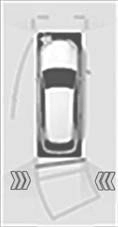
When a vehicle approaching from the right or left at the rear of the vehicle is detected, the following will be displayed on the audio sys- tem screen.
|
Toyota parking assist monitor |
Panoramic view monitor |
Content |
|
|
A vehicle is approaching from the left or right at the rear of the vehicle |
 : The RCTA function is malfunctioning (P. 312)
4-5. Using the driving support systems
317
318 4-5. Using the driving support systems
To give the driver a more consistent time to react, the buzzer can alert for faster vehicles from farther away.
Example:
|
Approaching vehicle |
Speed |
1 Approximate alert distance |
|
Fast |
18 mph (28 km/h) |
65 ft. (20 m) |
|
Slow |
5 mph (8 km/h) |
18 ft. (5.5 m) |
The RCTA function is not designed to detect the following types of vehicles and/or objects:
*: Depending on the conditions, detection of a vehicle and/or object may occur.
4-5. Using the driving support systems
319
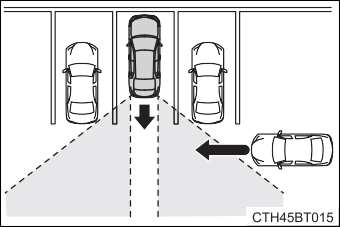 Vehicles that the sensors cannot detect because of obstacles
320 4-5. Using the driving support systems
Pedestrian detection icon
Displayed automatically when a pedestrian is detected.
Select to mute the buzzer. The buzzer will be re-enabled when the shift lever is shifted to a position other than R.
The buzzer volume of this function changes with the RCTA buzzer volume. (P. 102, 114)
*: If equipped
4-5. Using the driving support systems
321

tion detects a pedestrian in the detection area, the buzzer and icon will operate as shown in the following table:
|
Area |
Buzzer |
Icon |
|
1 |
Sounds repeatedly |
Blinks 3 times and then stays on |
|
2 |
When the vehicle is stationary: Sounds 3 times When the vehicle is backing up: Sounds repeatedly |
|
|
3 |
When it is determined that a pedestrian will enter area 1 within a few seconds: Sounds repeatedly |
When it is determined that a pedestrian will enter area 1 within a few seconds: Blinks 3 times and then stays on |


 The rear camera detection function is operational when the following condi- tions are met:
If a malfunction of the rear camera detection function is detected, one of the following messages will be displayed on the audio system screen. Have the vehicle inspected by your Toyota dealer.
322 4-5. Using the driving support systems
4-5. Using the driving support systems
323
324 4-5. Using the driving support systems
Front center sensors Rear corner sensors Rear center sensors
Press / of the meter con- trol switches, select  .
.

 Press
Press  /
/  of the meter con- trol switches, select
  .
.
Press  of the meter con-
trol switch.
Each time  is pressed, the function changes on/off.
When on, the indicator light comes on to inform the driver that the sys- tem is operational.
*: If equipped
4-5. Using the driving support systems
325
Front corner sensor opera- tion
Front center sensor opera- tion
Rear corner sensor operation Rear center sensor operation
Select to mute the buzzer sounds.
Intuitive parking assist
When the vehicle is moving backward.
A simplified image is displayed on the upper part of the screen when an obstacle is detected.
The buzzer can be temporarily muted by pressing  of the meter con- trol switches while an obstacle detection display is shown on the multi-infor- mation display.
Mute will be automatically cancelled in the following situations.
Vehicles with a smart key system:
326 4-5. Using the driving support systems
|
Multi- informa- tion dis- play* |
Insert display |
Approximate distance to obstacle |
|||
|
Toyota parking assist monitor |
Pan- oramic view mon- itor |
Front and rear center sensor |
Front and rear corner sensor |
||
|
(continu- ous) |
(blinking slowly) |
(blinking slowly) |
Far Near |
Front center sensor: 3.3 ft. (100 cm) to 2.0 ft. (60 cm) Rear center sensor: 4.9 ft. (150 cm) to 2.0 ft. (60 cm) |
- |
|
(continu- ous) |
(blinking) |
(blinking) |
2.0 ft. (60 cm) to 1.5 ft. (45 cm) |
2.0 ft. (60 cm) to 1.5 ft. (45 cm) |
|
|
(continu- ous) |
(blinking rapidly) |
(blinking rapidly) |
1.5 ft. (45 cm) to 1.2 ft. (35 cm) |
1.5 ft. (45 cm) to 1.2 ft. (35 cm) |
|
|
(blinking) |
(continu- ous) |
(continu- ous) |
Less than 1.2 ft. (35 cm) |
Less than 1.2 ft. (35 cm) |
*: The images may differ from those shown in the illustrations. (P. 325)
4-5. Using the driving support systems
327
Approximately 3.3 ft. (100 cm)
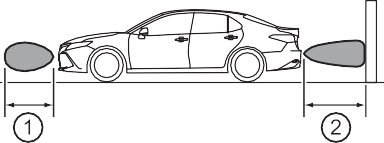 Approximately 4.9 ft. (150 cm)
Approximately 2.0 ft. (60 cm)
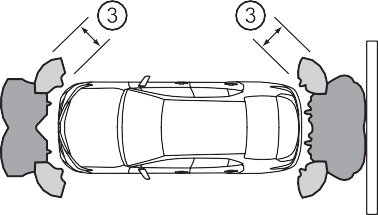 The diagram shows the detection range of the sensors. Note that the sensors cannot detect obstacles that are extremely close to the vehicle.
The range of the sensors may change depending on the shape of the object, etc.
328 4-5. Using the driving support systems
Vehicles with a smart key system: The buzzer volume can be changed on the multi-information display (P. 114) when the engine switch is in the IGNITION ON mode.
When an obstacle is detected while the Toyota parking assist monitor or pan- oramic view monitor is in use, the warning indicator will appear in the upper part of the screen even if the display setting has been set to off.
4-5. Using the driving support systems
329
A sensor may be dirty or covered with snow or ice. In such cases, if it is removed from the sensor, the system should return to normal.
Also, due to the sensor being frozen at low temperatures, a malfunction dis- play may appear or an obstacle may not be detected. If the sensor thaws out, the system should return to normal.
For vehicles sold in Canada
This ISM device complies with Canadian ICES-001.
Cet appareil ISM est conforme a la norme NMB-001 du Canada.
330 4-5. Using the driving support systems
WARNING
Certain vehicle conditions and the surrounding environment may affect the ability of a sensor to correctly detect an obstacle. Particular instances where this may occur are listed below.
In especially cold weather, if a sensor is frozen the screen may show an abnormal display, or obstacles may not be detected.
In addition to the examples above, there are instances in which, because of their shape, signs and other objects may be judged by a sensor to be closer than they are.
4-5. Using the driving support systems
331
332 4-5. Using the driving support systems
*: If equipped
4-5. Using the driving support systems
333
334 4-5. Using the driving support systems
The system will operate in situations such as the following if an object is detected in the traveling direction of the vehicle.
4-5. Using the driving support systems
335
Front center sensors Rear corner sensors Rear center sensors
Press / of the meter con- trol switches, select  .
.

 Press
Press  /
/  of the meter con- trol switches, select
  .
.
Press  of the meter con- trol switch.
Select the “Yes” and push  .
.
When the Intelligent Clearance Sonar is disabled, the ICS OFF indicator illuminates.
To re-enable the system when it was disabled, select  on the multi-infor- mation display, select
  and then “On”. If disabled using this method, the system will not be re-enabled by turning the engine switch off and then to
IGNITION ON mode.
336 4-5. Using the driving support systems
Depending on the situation, engine output restriction control will operate to either limit acceleration or restrict output as much as possible.
|
Control |
Situation |
Multi-information display |
ICS OFF Indicator |
Buzzer |
|
Engine output restriction con- trol is operating (acceleration restriction) |
Acceleration greater than a certain amount is not possible. |
“Object Detected Acceleration Reduced” |
Not illu- minated |
Short beep |
|
Engine output restriction con- trol is operating (output restricted as much as pos- sible) |
Stronger-than- normal brake operation is nec- essary. |
“Brake!” |
||
|
Brake control is operating |
Emergency brak- ing is necessary. |
|||
|
Vehicle stopped by system opera- tion |
The vehicle has been stopped by brake control operation. |
“Switch to Brake” |
Illumi- nated |
4-5. Using the driving support systems
337
Additionally, if the accelerator pedal continues to be depressed, the brakes will be applied automatically to reduce the vehicle speed. (Brake control: See B below.)
338 4-5. Using the driving support systems
5 Start of control
High possibility of a collision
Extremely high possibility of a collision
4-5. Using the driving support systems
339
The function will operate when the ICS OFF indicator is not illuminated or flashing (P. 335, 343) and all of the following conditions are met:
The function will stop operating if any of the following conditions are met:
The detection range of the Intelligent Clearance Sonar function differs from the detection range of the intuitive parking assist. (P. 327)
Therefore, even if the intuitive parking assist detects an object and provides a warning, the Intelligent Clearance Sonar function may not start operating.
If the vehicle is stopped due to operation of the Intelligent Clearance Sonar function, the Intelligent Clearance Sonar system will be disabled and the ICS OFF indicator will illuminate.
340 4-5. Using the driving support systems
To re-enable the Intelligent Clearance Sonar system when it is disabled due to operation of the Intelligent Clearance Sonar function, either enable the sys- tem again (P. 335), or turn the engine switch off and then back to IGNITION ON mode.
Additionally, if the object becomes no longer in the traveling direction of the vehicle or if the traveling direction of the vehicle changes (such as changing from moving forward to backing up, or from backing up to moving forward), the system will be re-enabled automatically.
The sensors may not be able to detect certain objects, such as the following.
(People may also not be detected depending on the type of clothing they are wearing.)
Regardless of whether the intuitive parking assist system is enabled or not (P. 324), if the Intelligent Clearance Sonar system is enabled (P. 335), the front or rear sensors detect an object and brake control is performed, the intuitive parking assist buzzer will sound to notify the driver of the approxi- mate distance to the object.
4-5. Using the driving support systems
341
In some situations such as the following, the Intelligent Clearance Sonar function may operate even though there is no possibility of a collision.
342 4-5. Using the driving support systems
Even in the event that the Intelligent Clearance Sonar function operates unnecessarily, such as at a railroad crossing, brake control will be canceled after approximately 2 seconds, allowing you to proceed forward and leave the area, Brake control can also be canceled by depressing the brake pedal. Depressing the accelerator pedal again will allow you to proceed forward and leave the area.
In some situations such as the following, this function may not operate prop- erly.
4-5. Using the driving support systems
343
The system needs to be initialized.
To initialize the system, drive the vehicle straight ahead for 5 seconds or more at a speed of approximately 22 mph (35 km/h) or more.
Also, due to ice forming on a sensor at low temperatures, a warning mes- sage may be displayed or the sensor may not be able to detect an object. Once the ice melts, the system will return to normal.
344 4-5. Using the driving support systems
4-5. Using the driving support systems
345
346 4-5. Using the driving support systems
Additionally, if the accelerator pedal continues to be depressed, the brakes will be applied automatically to reduce the vehicle speed. (Brake control: See B below.)
4-5. Using the driving support systems
347
5 Start of control
High possibility of a collision
Extremely high possibility of a collision
348 4-5. Using the driving support systems
The function will operate when the ICS OFF indicator is not illuminated or flashing (P. 335, 343) and all of the following conditions are met:
The function will stop operating if any of the following conditions are met:
The detection area of the Rear Cross Traffic Auto Brake function differs from the detection area of the RCTA function (P. 318).
Therefore, even if the RCTA function detects a vehicle and provides an alert, the Rear Cross Traffic Auto Brake function may not start operating.
If the vehicle is stopped due to operation of the Rear Cross Traffic Auto Brake function, the Rear Cross Traffic Auto Brake function will be disabled and the ICS OFF indicator will illuminate.
4-5. Using the driving support systems
349
To re-enable the Rear Cross Traffic Auto Brake function when it is disabled while it is operating, either enable the Intelligent Clearance Sonar system again (P. 335), or turn the engine switch off and then back to IGNITION ON mode. When the function is disabled, the ICS OFF indicator will illuminate. (P. 89)
If there is no longer a vehicle approaching from the right or left at the rear of the vehicle when backing up, or if the traveling direction of the vehicle changes (such as changing from backing up to moving forward), the system will be re-enabled automatically. When the function is re-enabled, the ICS OFF indicator will turn off.
The Rear Cross Traffic Auto Brake function is not designed to detect the fol- lowing types of vehicles and/or objects:
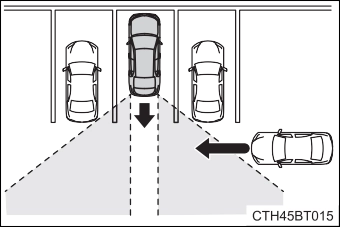 Vehicles that the sensors cannot detect due to obstructions
*: Depending on the conditions, detection of a vehicle and/or object may occur.
Regardless of whether the RCTA function is enabled or not (P. 311), if the Rear Cross Traffic Auto Brake function is enabled and brake control is per- formed, a buzzer will sound to notify the driver.
350 4-5. Using the driving support systems
In some situations such as the following, the Rear Cross Traffic Auto Brake function may operate even though there is no possibility of a collision.
4-5. Using the driving support systems
351
In some situations such as the following, this function may not operate prop- erly.
*: Depending on conditions, detection of a vehicle and/or object may occur.
352 4-5. Using the driving support systems
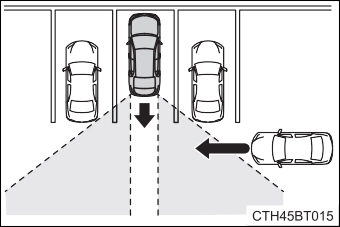 Vehicles that the sensors cannot detect due to obstructions
P. 313
4-5. Using the driving support systems
353
Use for normal driving.
While in Eco drive mode or sport mode, press the switch to change the driving mode to normal mode.
Use Eco drive mode to help achieve low fuel consumption during trips that involve frequent accelerating.
When the “ECO” switch is pressed, the “ECO MODE” indicator comes on in the instrument cluster.
Use sport mode when increased acceleration response and precise handling is desired, for example, when driving on mountain roads.
When the “SPORT” switch is pressed, the “SPORT” indicator comes on in the instrument cluster.
*: If equipped
354 4-5. Using the driving support systems
Eco drive mode controls the heating/cooling operations and fan speed of the air conditioning system to enhance fuel efficiency (P. 360, 365). To improve air conditioning performance, adjust the fan speed or turn off Eco drive mode.
Sport mode is automatically deactivated if the engine switch is turned off after driving in sport mode.
Download Manual