360° View Monitor (Some Models)
360° View Monitor
The 360°View Monitor consists of the following functions which assist the driver in checking the area surrounding the vehicle using various indications in the center display and a warning sound while the vehicle is being driven at low speeds or while parking.
-
Top view
The top view displays an image of the vehicle from directly above on the center display by combining the images taken from the 4 cameras set on all sides of the vehicle. The top view displays on the right side of the screen when the front view or rear view screen is being displayed. The top view assists the driver in checking the area surrounding the vehicle when the vehicle is moving forward or in reverse.
-
Front view/front wide view
The image from the front of the vehicle is displayed on the center display.
The view from the front assists the driver in checking the front of the vehicle by displaying guide lines on the displayed image taken from the front of the vehicle.
-
Side view
The images taken from the front left and right sides of the vehicle are displayed on the center display.
The side view assists the driver in checking the front sides of the vehicle by displaying guide lines on the displayed image taken from the front left and right sides of the vehicle.
-
Rear view/rear wide view
The image from the rear of the vehicle is displayed on the center display.
The image from the rear assists the driver in checking the rear of the vehicle by displaying guide lines on the displayed image taken from the rear of the vehicle.
-
Parking sensor
If there are any obstructions near the vehicle while the top view/side view is displayed, an obstruction detection indication turns on around the bumper in the center display.
The parking sensors use ultrasonic sensors to detect obstructions around the vehicle when the vehicle is driven at low speeds, such as during garage or parallel parking, and notifies the driver of the approximate distance from the vehicle to the surrounding obstruction using sound and an obstruction detection indication.
Refer to Parking Sensor System .
-
Front Cross Traffic Alert (FCTA)
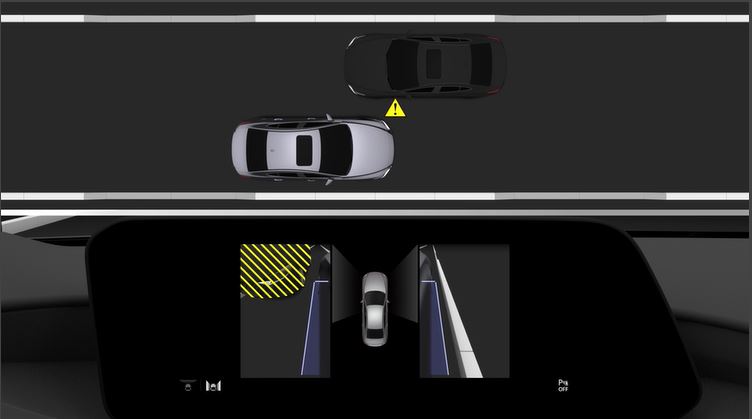
If there is the possibility of a collision with an approaching vehicle while the front view/front wide view/side view is displayed, a warning is displayed on the center display.
The Front Cross Traffic Alert (FCTA) is designed to assist the driver in checking both sides of the vehicle when the vehicle starts to drive at an intersection.
Refer to Front Cross Traffic Alert (FCTA) .
-
Rear Cross Traffic Alert (RCTA)
If there is the possibility of a collision with an approaching vehicle while the rear view/rear wide view is displayed, a warning is displayed on the center display.
The Rear Cross Traffic Alert (RCTA) uses rear side radar sensor to detect vehicles approaching from the rear left and right sides of the vehicle, and it assists the driver in checking the rear of the vehicle while reversing by flashing the Blind Spot Monitoring (BSM) warning lights and activating the warning sound.
Refer to Rear Cross Traffic Alert (RCTA) .
360°View Monitor Range
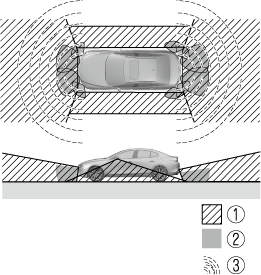
-
Cameras
-
Ultrasonic sensors
-
Front/Rear side radar sensors
Always confirm the safety of the area around the vehicle with the mirrors and directly with your eyes when driving:
The 360°View Monitor is an auxiliary device which assists the driver in checking the safety of the area around the vehicle.
The shooting range of the cameras and detection range of the sensors are limited. For example, the areas in black at the front and rear of the vehicle image and the seams where each of the camera images merge are blind spots where an obstruction may not be visible. In addition, the extended vehicle width lines and projected vehicle path lines are only to be used as references, and the images on the screen may differ from the actual conditions.
-
Do not use the 360°View Monitor under any of the following conditions.
-
Icy or snow-covered roads.
-
Tire chains or a temporary spare tire is installed.
-
The front or rear doors are not fully closed.
-
The vehicle is on a road incline.
-
Bumpy roads.
-
The door mirrors are retracted.
-
-
Do not hit the front/rear camera, front/rear bumper, and door mirrors forcefully. The camera position or installation angle may shift.
-
The cameras are waterproof. Do not disassemble, modify, or remove a camera.
-
The camera cover is made of hard plastic, therefore do not apply oil film remover, organic solvents, wax, or coating agents. If any such agent gets on the camera cover, wipe it off using a soft cloth immediately.
-
Do not rub the camera lens forcefully, or clean it with an abrasive or hard brush. Otherwise, it could scratch the camera lens and negatively affect the images.
-
If a camera lens is severely damaged by flying gravel, have the camera replaced. For camera replacement, consult an Authorized Mazda Dealer.
-
Consult an Authorized Mazda Dealer for repair, painting, or replacement of the front/rear camera, front/rear bumper and door mirrors.
-
Heed the following cautions to assure that the 360°View Monitor operates normally.
-
Do not modify the vehicle suspensions or lower/raise the vehicle body, or both.
-
Always use tires of the specified type and size for the front and rear wheels. Consult an Authorized Mazda Dealer for tire replacement.
-
-
When the display is cold, images may leave trails or the screen might be darker than usual, making it difficult to check the vehicle surroundings. Always confirm the safety at the front and around the vehicle visually when driving.
-
The method for parking/stopping the vehicle using the 360°View Monitor differs depending on the road circumstances/conditions and the vehicle conditions. When and how much you turn the steering wheel will differ depending on the situation, therefore always check the vehicle surroundings directly with your eyes while using the system.
Also, before using the system, always make sure that the vehicle can be parked/stopped in the parking/stopping space.
-
If there are water droplets, snow, or mud on the camera lens, wipe it off using a soft cloth. If the camera lens is especially dirty, wash it off with mild detergent.
-
If the camera lens is touched or there is any dirt on it, it could affect the screen image. Wipe the lens using a soft cloth.
-
If the area where the camera is installed, such as the front/rear bumper or door mirrors, has been damaged in a vehicle accident, the camera (position, installation angle) may have shifted. Always consult an Authorized Mazda Dealer to have the vehicle inspected.
-
If the camera is subjected to excessive changes in temperature such as by pouring hot water on the camera during cold weather, the 360°View Monitor may not operate normally.
-
If the vehicle is driven during cold temperatures and the camera temperature decreases, the top view and the side view may become unclear. However, this does not indicate a problem. If the vehicle is stopped for a while and the camera temperature increases, the top view and the side view will return to the normal condition.
-
If the battery voltage is low, the screen might be temporarily difficult to view, however, this does not indicate a problem.
-
The 360°View Monitor has limitations. Objects under the bumper or near both ends of the bumper cannot be displayed.
-
Obstructions above the upper image range of the camera are not displayed.
-
Under the following conditions, the screen might be difficult to view, however this does not indicate a problem.
-
The temperature near the lens is high/low.
-
Rainy conditions, water droplets on the camera, or high humidity.
-
Mud or foreign matter near the camera.
-
The area around the vehicle is dark.
-
Extremely bright light such as sunlight or headlights hitting the camera lens directly.
-
The surroundings are illuminated by vehicle lights, fluorescent lights, or LED lights (display may flicker).
-
Extremely small dark or white dots appear on the screen (dots may flicker).
-
An object is close to a camera.
-
-
Because the 360°View Monitor camera uses a special lens, the distance displayed on the screen differs from the actual distance.
-
Obstructions displayed on the screen may appear differently than in actuality. (Obstructions may appear fallen, larger, or longer than they actually are.)
-
Do not apply stickers to a camera or the area around it. In addition, do not install accessories or an illuminated number/character license plate to the area around a camera. Otherwise, the camera may not correctly display the surrounding conditions.
-
Only rear and rear wide images displayed on the monitor from the 360° view monitor camera are reversed images (mirror images).
-
Free/open source software information
This product includes free/open sources. Information about the licensing and source code is available at the following URL.
Types of Images Displayed on the Screen
Top view/Front view
Displays the image of the area around the vehicle and the vehicle front.
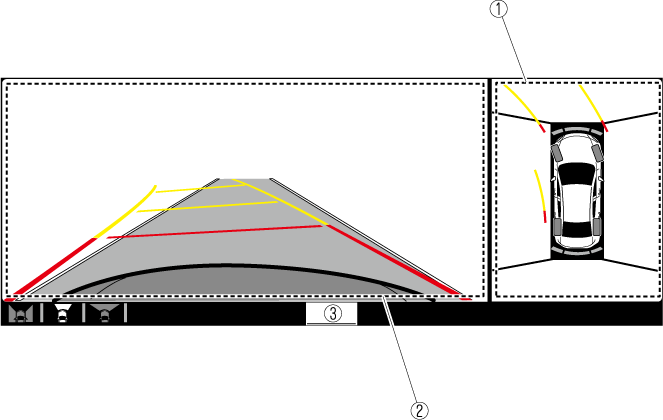
-
Top view screen
-
Front view screen
-
“Check surroundings for safety.” message is displayed
Top view/Front wide view
Displays the image of the area around the vehicle and the front of the vehicle (wide-area).
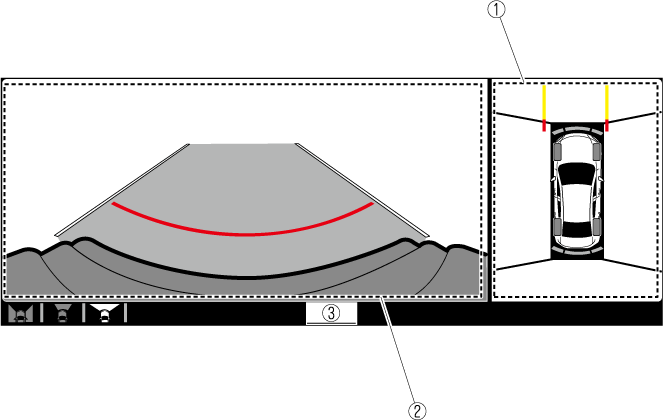
-
Top view screen
-
Front wide view screen
-
“Check surroundings for safety.” message is displayed
Side view
Displays the image of the left and right sides of the vehicle.
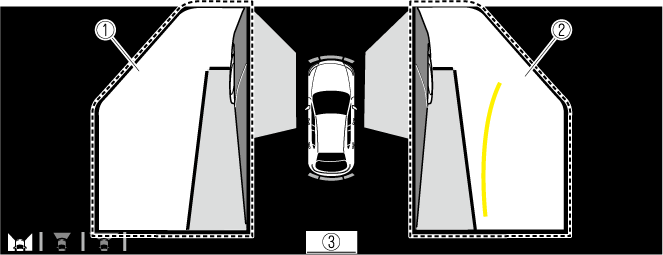
-
Left side view screen
-
Right side view screen
-
“Check surroundings for safety.” message is displayed
Top view/Rear view
Displays the image of the area around the vehicle and the rear of the vehicle.
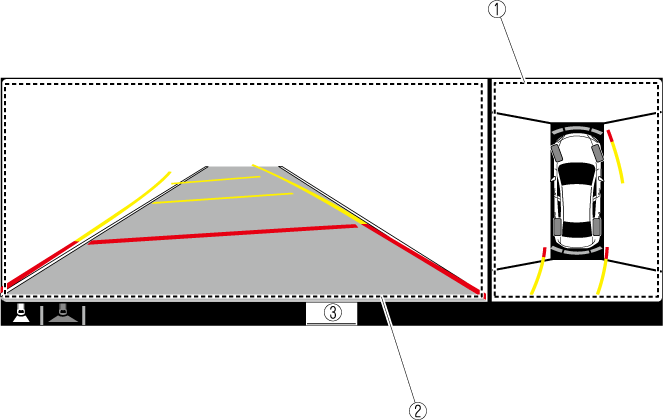
-
Top view screen
-
Rear view screen
-
“Check surroundings for safety.” message is displayed
Top view/Rear wide view
Displays the image of the area around the vehicle and the rear of the vehicle (wide-area).
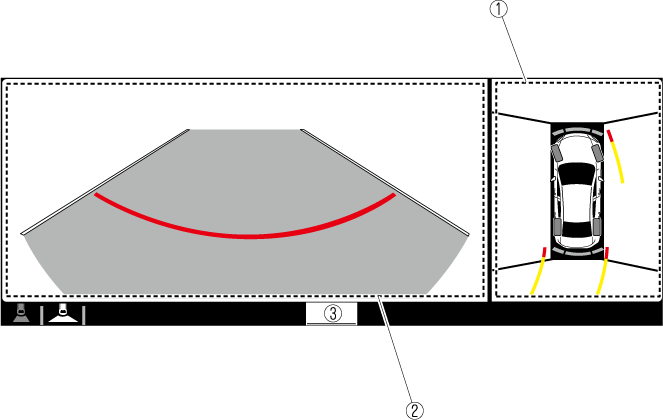
-
Top view screen
-
Rear wide view screen
-
“Check surroundings for safety.” message is displayed
How to Use the System
Top view/Front view, Top view/Front wide view, Side view
Indication
Images are displayed on the screen when the 360°View Monitor switch is pressed with all of the following conditions met.
-
The ignition is switched ON.
-
The shift lever/selector lever is in a position other than R.
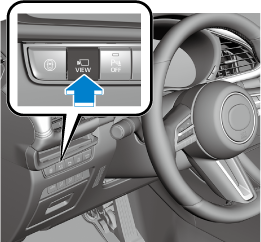
Display switching
The displayed screen can be changed each time the 360°view monitor switch is pressed.
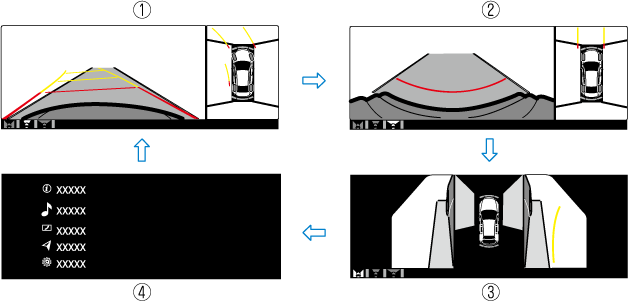
-
Top view/Front view
-
Top view/Front wide view
-
Side view
-
Home screen
-
When the shift lever/selector lever is in R position, the displayed screen does not switch to the top view/front view, top view/front wide view, or the side view.
-
Display of the top view/front view, top view/front wide view, or the side view stops even with the display conditions met if any of the following conditions occurs.
-
When a switch around the commander knob is pressed.
-
(Manual transmission)
The parking brake is applied.
-
(Automatic transmission)
The selector lever is shifted to P position (displayed when the selector lever is in a position other than P).
-
(Displayed when vehicle speed is less than 15 km/h (9.3 mph))
-
4 minutes and 30 seconds have passed.
-
The vehicle speed is about 15 km/h (9.3 mph) or faster.
-
-
(Displayed when the vehicle speed is about 15 km/h (9.3 mph) or faster)
-
The vehicle speed is about 15 km/h (9.3 mph) or faster after 8 seconds have passed since pressing the 360°View Monitor switch.
-
4 minutes and 22 seconds have passed from the point when the vehicle speed was less than 15 km/h (9.3 mph) after 8 seconds have passed since pressing the 360°View Monitor switch.
-
-
-
The 360°View Monitor settings can be changed as follows.
Refer to the Settings section in the Mazda Connect Owner's Manual.
-
Automatic display of the 360°View Monitor when the ultrasonic sensor detects an obstruction.
-
Automatic display of the 360°View Monitor when the ignition is switched ON.
-
Screen priority level when the system launches.
-
Top view/Rear view, Top view/Rear wide view
The top view/rear view, top view/rear wide view displays when all of the following conditions are met.
-
The ignition is switched ON.
-
Shift lever/selector lever is in R position.
Display switching
The displayed screen can be changed each time the 360°view monitor switch is pressed.
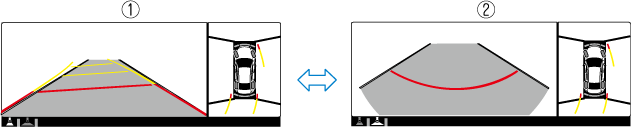
-
Top view/Rear view
-
Top view/Rear wide view
-
The top view/rear view and top view/rear wide view automatically display whether or not the 360°View Monitor switch is turned on or off when shifting the shift lever/selector lever to R position.
-
The top view/rear view and top view/rear wide view displays the previously displayed screen.
-
The setting can be changed to display the top view/front view when shifting from reverse to a forward gear without operating the 360°View Monitor switch to check the front of the vehicle while parallel parking.
Refer to the Settings section in the Mazda Connect Owner's Manual.
Screen operation/icon
Always stop the vehicle when adjusting the 360°View Monitor image quality.
Do not adjust the 360°View Monitor image quality while driving. If you adjust the 360°View Monitor image quality (such as brightness, contrast, tone, and color density) while driving, it could lead to an unexpected accident.
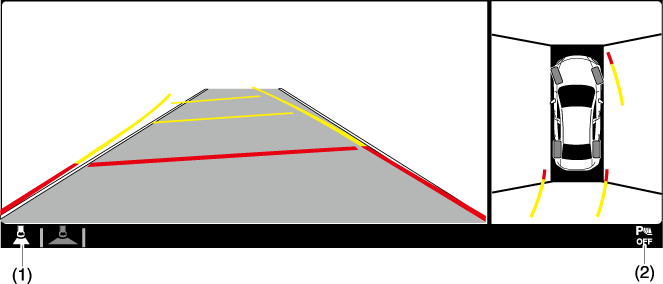
|
Display/Icon |
Content |
|
|---|---|---|
|
(1) |
View status icon |
Indicates which image is displayed among the front view/front wide view/side view/rear view/rear wide view. |
|
(2) |
Parking sensor status icon |
Indicates that the parking sensor has a problem or it is switched off. |
Top View/Front View
Use the top view/front view to assist in checking the safety of the surrounding area when accelerating from a stop, parking, or stopping the vehicle.
Display range
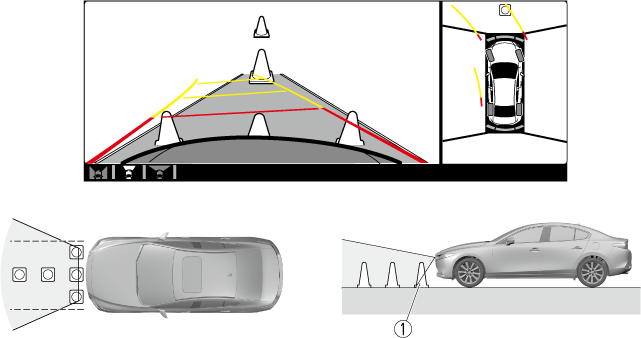
-
Target object
-
In the top view screen, the areas in black at the front and rear of the vehicle image and the seams where each of the camera images merge are blind spots.
-
Because images displayed in the top view screen are processed from each camera, the top view screen may display in the following ways.
-
Depending on the surrounding environment, the color of objects may be displayed on the screen in a color different from the actual one.
-
Depending on the surrounding environment, it may take a few seconds for the color of the screen display to adjust.
-
Obstructions displayed in the front view may not display on the top view screen.
-
If the position or angle of each camera changes due to tilting of the vehicle, the image may appear distorted.
-
Lines on the road may appear distorted at the seams where each of the camera images merge.
-
The screen area for each camera may appear bright/dark depending on the illumination level around any of the cameras.
-
Viewing the screen
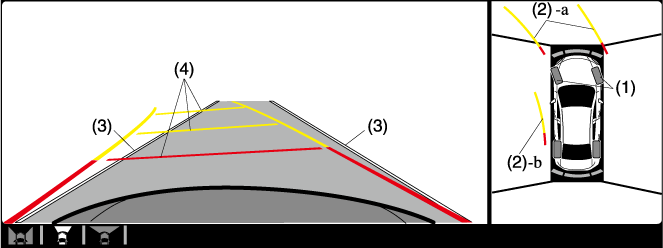
|
Display/Icon |
Content |
|
|---|---|---|
|
(1) |
Tire icon |
Indicates the tire direction. Moves in conjunction with the steering wheel operation. |
|
(2) |
Projected vehicle path lines (yellow & red) |
Indicates the approximate projected path of the vehicle. Moves in conjunction with the steering wheel operation. a) Indicates the path where the edge of the front bumper is expected to travel. b) Indicates the path where the inner side of the vehicle is expected to travel. |
|
(3) |
Extended vehicle width lines (blue) |
Indicates the approximate width of the vehicle. |
|
(4) |
Projected vehicle path distance guide lines (yellow & red) |
Indicates the distance (from front end of bumper) in front of the vehicle.
|
The parking sensor detection range has limitations. For example, obstructions closing in from the side and objects short in height may not be detected. Always confirm the safety around the vehicle visually when driving.
For details, refer to the parking sensor obstruction detection indication and warning sound.
Refer to Parking Sensor System .
The setting can be changed so that the projected vehicle path lines are not displayed.
Refer to the Settings section in the Mazda Connect Owner's Manual.
How to use the projected vehicle path line function
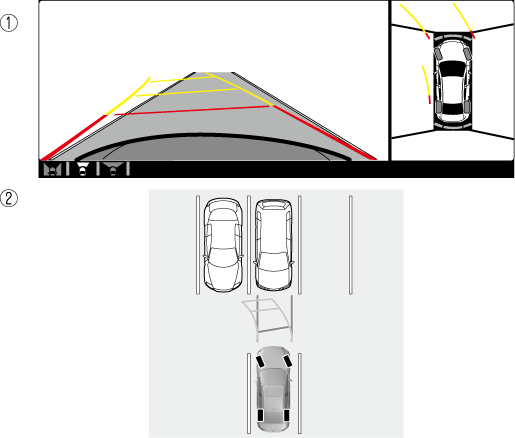
-
(Screen display)
-
(Actual condition)
Make sure that there are no obstructions within the projected vehicle path lines.
Drive the vehicle forward while turning the steering wheel so that no obstructions come within the projected vehicle path lines.
Top View/Front Wide View
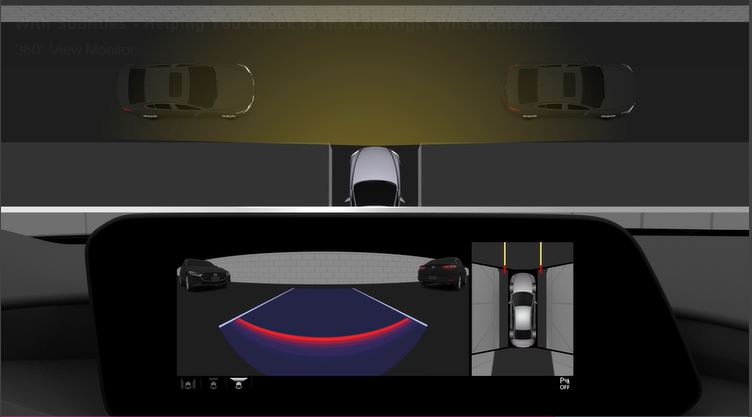

Use the top view/front wide view to assist in checking the safety of the surrounding area when accelerating from a stop or entering a T-shaped intersection and intersection.
Display range
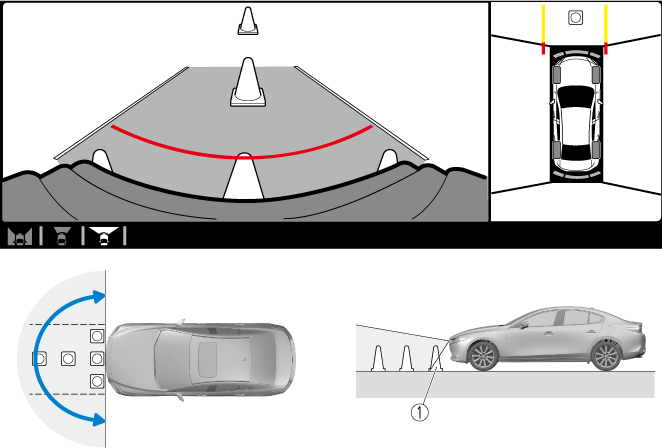
-
Target object
-
In the top view screen, the areas in black at the front and rear of the vehicle image and the seams where each of the camera images merge are blind spots.
-
Because images displayed in the top view screen are processed from each camera, the top view screen may display in the following ways.
-
Depending on the surrounding environment, the color of objects may be displayed on the screen in a color different from the actual one.
-
Depending on the surrounding environment, it may take a few seconds for the color of the screen display to adjust.
-
Obstructions displayed in the front view may not display on the top view screen.
-
If the position or angle of each camera changes due to tilting of the vehicle, the image may appear distorted.
-
Lines on the road may appear distorted at the seams where each of the camera images merge.
-
The screen area for each camera may appear bright/dark depending on the illumination level around any of the cameras.
-
Viewing the screen
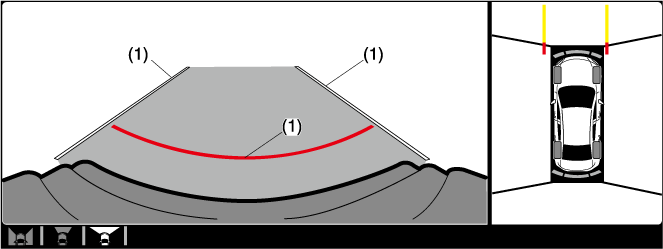
|
Display/Icon |
Content |
|
|---|---|---|
|
(1) |
Extended vehicle width lines and distance guide lines (blue & red) |
Indicates the approximate width of the vehicle and the distance (from front end of bumper) in front of the vehicle.
|
The front wide view screen displays the image in front of the vehicle at a wide angle and corrects the image to help detect approaching obstructions from the side. Therefore, it differs from the actual view.
Side View
Use the side view to assist in checking the safety of the surrounding area when accelerating from a stop, parking, or stopping the vehicle.
Display range
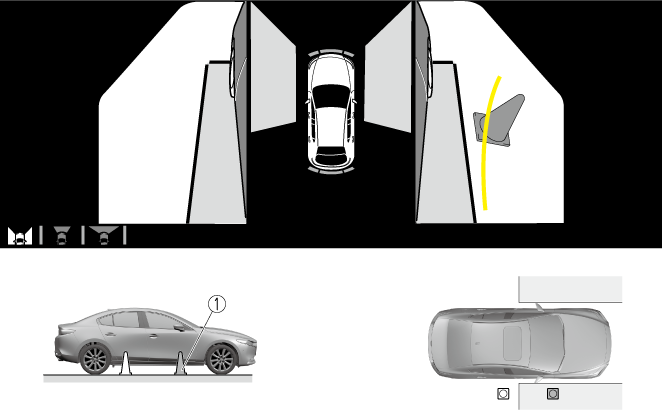
-
Target object
Viewing the screen
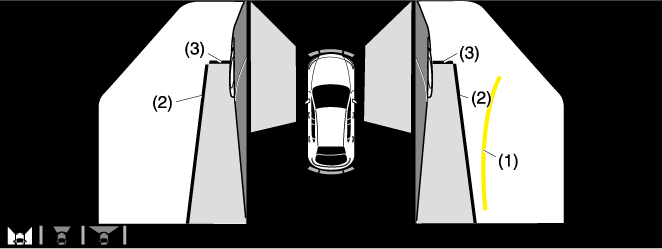
|
Display/Icon |
Content |
|
|---|---|---|
|
(1) |
Projected vehicle path lines (yellow) |
Indicates the approximate projected path of the vehicle. Moves in conjunction with the steering wheel operation. The projected vehicle path lines (yellow) indicate the path the inner side of the vehicle is expected to travel. |
|
(2) |
Vehicle parallel guide lines (blue) |
Indicates the approximate vehicle width including the door mirrors. |
|
(3) |
Vehicle front end guide lines (blue) |
Indicates the point about 0.25 m (9.84 in) from the front edge of the vehicle (front edge of the bumper). |
The setting can be changed so that the projected vehicle path lines are not displayed.
Refer to the Settings section in the Mazda Connect Owner's Manual.
How to use the projected vehicle path line function
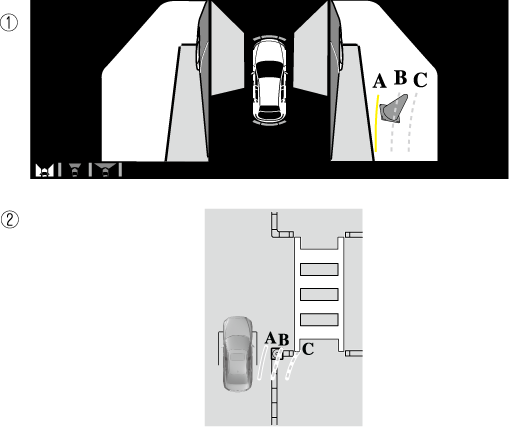
-
(Screen display)
-
(Actual condition)
Make sure that there are no obstructions within the projected vehicle path lines.
Turn the steering wheel so that the projected vehicle path lines travel inside of the obstruction (A), and drive the vehicle forward until it passes the obstruction.
If the projected vehicle path lines are on an obstruction (B) or outside of the obstruction (C), the vehicle may contact the obstruction when turning the vehicle sharply.
-
The parking sensor detection range has limitations. For example, obstructions closing in from the side and objects short in height may not be detected. Always confirm the safety around the vehicle visually when driving.
For details, refer to the parking sensor obstruction detection indication and warning sound.
Refer to Parking Sensor System .
-
Do not turn the steering wheel any more until the vehicle has passed the obstruction, even if the obstruction is not visible on the side view image. If the steering wheel is turned even more, the vehicle may contact the obstruction if it is turned sharply.
-
Because there might be a difference between the image displayed on the screen and the actual conditions, always check the safety of the surrounding area using the mirrors and directly with your eyes when driving.
-
Even though the object displayed on the screen, such as a road curb or a division line of a parking space, and the vehicle parallel guide lines appear parallel, they may not actually be parallel.
Top View/Rear View
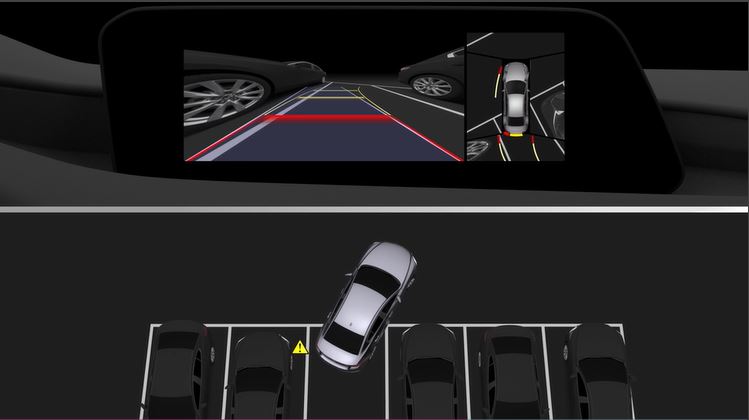
Use the top view/rear view to assist in checking the safety of the surrounding area when accelerating from a stop, parking, or stopping the vehicle.
Range of displayed screen image
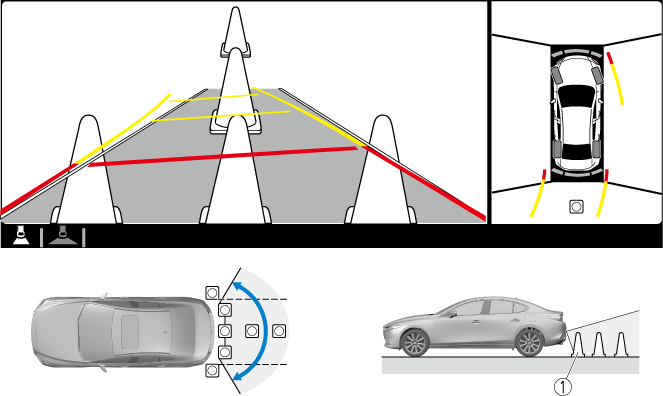
-
Target object
-
In the top view screen, the areas in black at the front and rear of the vehicle image and the seams where each of the camera images merge are blind spots.
-
Because images displayed in the top view screen are processed from each camera, the top view screen may display in the following ways.
-
Depending on the surrounding environment, the color of objects may be displayed on the screen in a color different from the actual one.
-
Depending on the surrounding environment, it may take a few seconds for the color of the screen display to adjust.
-
Obstructions displayed in the rear view may not display on the top view screen.
-
If the position or angle of each camera changes due to tilting of the vehicle, the image may appear distorted.
-
Lines on the road may appear distorted at the seams where each of the camera images merge.
-
The screen area for each camera may appear bright/dark depending on the illumination level around any of the cameras.
-
Viewing the screen
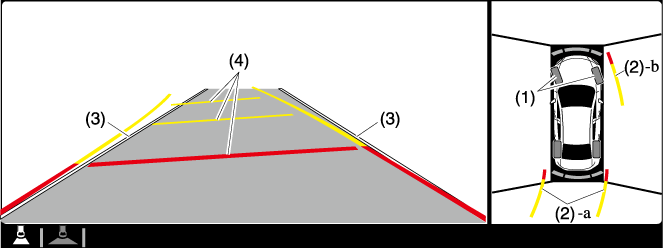
|
Display/Icon |
Content |
|
|---|---|---|
|
(1) |
Tire icon |
Indicates the tire direction. Moves in conjunction with the steering wheel operation. |
|
(2) |
Projected vehicle path lines (yellow & red) |
Indicates the approximate projected path of the vehicle. Moves in conjunction with the steering wheel operation. a) Indicates the path where the edge of the rear bumper is expected to travel. b) Indicates the path where the outer side of the vehicle is expected to travel. |
|
(3) |
Extended vehicle width lines (blue) |
These guide lines indicate the approximate width of the vehicle. |
|
(4) |
Projected vehicle path distance guide lines (yellow & red) |
These guide lines indicate the approximate distance to a point measured from the rear of the vehicle (from the end of the bumper).
|
The setting can be changed so that the projected vehicle path lines are not displayed.
Refer to the Settings section in the Mazda Connect Owner's Manual.
How to use the projected vehicle path line function
-
The front of the vehicle swings out wide when turning the steering wheel while reversing. Maintain sufficient distance between the vehicle and an obstruction.
-
The parking sensor detection range has limitations. For example, obstructions closing in from the side and objects short in height may not be detected. Always confirm the safety around the vehicle visually when driving.
For details, refer to the parking sensor obstruction detection indication and warning sound.
Refer to Parking Sensor System .
-
Because there might be a difference between the image displayed on the screen, such as indicated in the following, and the actual conditions when parking, always check the safety at the rear of the vehicle and the surrounding area directly with your eyes.
-
Even though the back end of the parking space (or garage) displayed on the screen and distance guide lines appear parallel, they may not actually be parallel.
-
When parking in a space with a division line on only one side of the parking space, even though the division line and the vehicle width guide line appear parallel, they may not actually be parallel.
-
-
The following shows an example of vehicle parking with the steering wheel turned to the left while backing up the vehicle. When backing into a parking space from the opposite direction, the steering operation is reversed.
-
Back the vehicle into the parking space by turning the steering wheel so that the vehicle enters the center of the parking space.
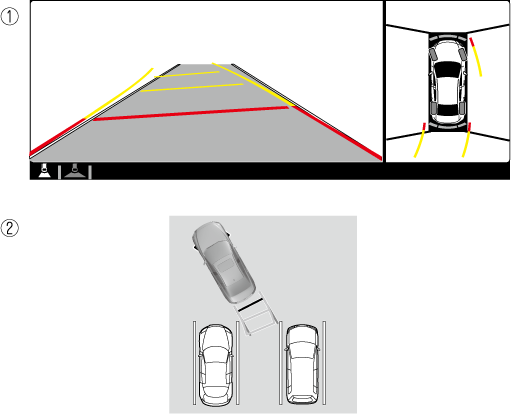
-
(Screen display)
-
(Actual condition)
-
-
After the vehicle starts entering the parking space, stop and adjust the steering wheel so that the distance between the vehicle width lines and the sides of the parking space on the left and right are roughly equal, and then continue backing up slowly.
-
Once the vehicle width lines and the sides of the parking space on the left and right are parallel, straighten the wheels and back the vehicle slowly into the parking space. Continue checking the vehicle's surroundings and then stop the vehicle in the best possible position. (If the parking space has division lines, check whether the vehicle width guide lines are parallel to them.)
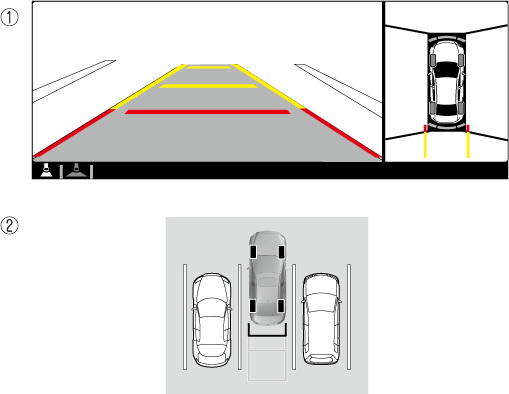
-
(Screen display)
-
(Actual condition)
-
Top View/Rear Wide View
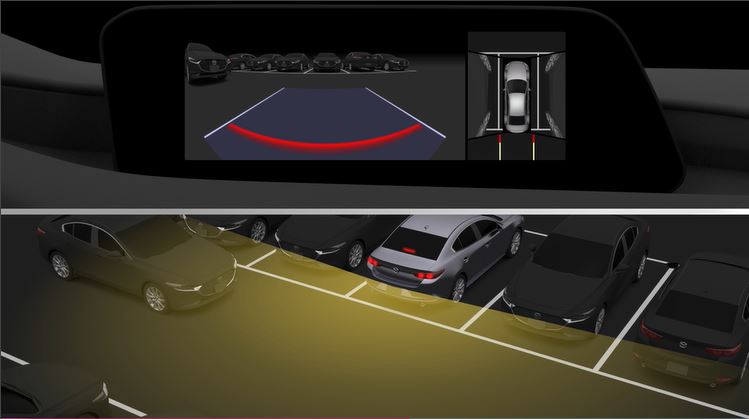
Use the top view/rear wide view to assist in checking the safety of the surrounding area when accelerating from a stop, parking, or stopping the vehicle.
Range of displayed screen image
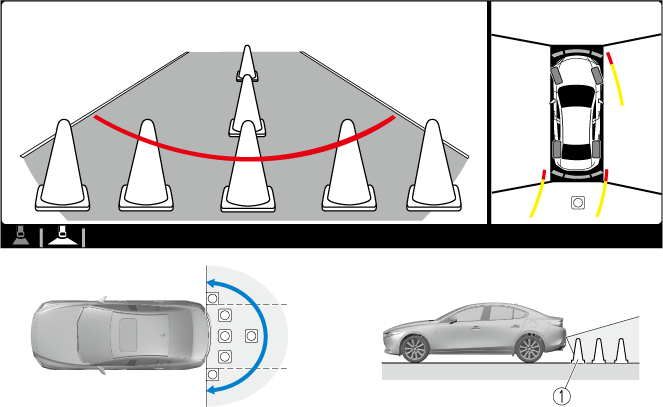
-
Target object
-
In the top view screen, the areas in black at the front and rear of the vehicle image and the seams where each of the camera images merge are blind spots.
-
Because images displayed in the top view screen are processed from each camera, the top view screen may display in the following ways.
-
Depending on the surrounding environment, the color of objects may be displayed on the screen in a color different from the actual one.
-
Depending on the surrounding environment, it may take a few seconds for the color of the screen display to adjust.
-
Obstructions displayed in the front view may not display on the top view screen.
-
If the position or angle of each camera changes due to tilting of the vehicle, the image may appear distorted.
-
Lines on the road may appear distorted at the seams where each of the camera images merge.
-
The screen area for each camera may appear bright/dark depending on the illumination level around any of the cameras.
-
Viewing the screen
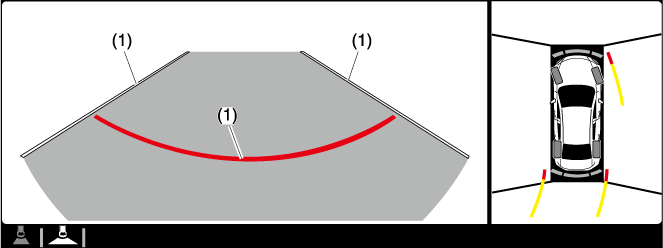
|
Display/Icon |
Content |
|
|---|---|---|
|
(1) |
Extended vehicle width lines and distance guide lines (blue & red) |
These guide lines indicate the approximate width of the vehicle and distance to a point measured from the rear of the vehicle (from the end of the bumper).
|
The top view/rear wide view screen displays the image at the rear of the vehicle at a wide angle and corrects the image to help detect approaching obstructions from the side. Therefore, it differs from the actual view.
Margin of Error Between Road Surface on Screen and Actual Road Surface
There might be some margin of error between the road surface appearing on the screen and the actual road surface. A margin of error in the perceived distance could lead to an accident, therefore be aware of the following conditions which can more easily produce errors in the perceived distance.
The vehicle tilts due to weight of passengers and cargo.
If the vehicle is tilted, obstructions picked up by a camera can appear farther or closer than the actual distance from the vehicle.
Front camera
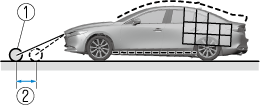
-
Obstruction
-
Margin of error
Side camera
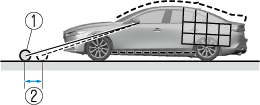
-
Obstruction
-
Margin of error
Rear camera
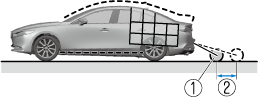
-
Obstruction
-
Margin of error
There is a steep up or down grade in the road at the front or rear of the vehicle
If there is a steep up or down grade in the road at the front or rear of the vehicle, obstructions picked up by the camera can appear farther or closer than the actual distance from the vehicle.
Front camera
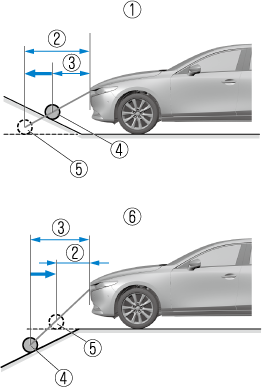
-
Appears further than actual distance
-
Distance of obstruction being viewed on screen
-
Actual distance of obstruction from vehicle
-
Actual obstruction
-
Obstruction appearing on screen
-
Appears closer than actual distance
Side camera
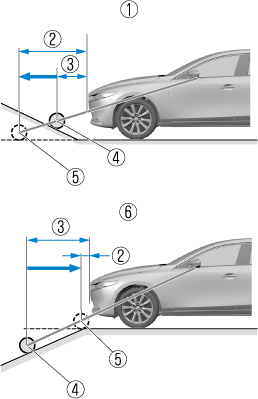
-
Appears further than actual distance
-
Distance of obstruction being viewed on screen
-
Actual distance of obstruction from vehicle
-
Actual obstruction
-
Obstruction appearing on screen
-
Appears closer than actual distance
Rear camera
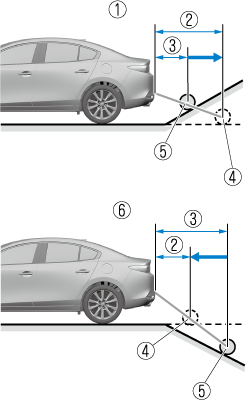
-
Appears further than actual distance
-
Distance of obstruction being viewed on screen
-
Actual distance of obstruction from vehicle
-
Obstruction appearing on screen
-
Actual obstruction
-
Appears closer than actual distance
If the vehicle is on a slope, obstructions taken by the camera can appear farther or closer than the actual distance from the vehicle.
Three-dimensional object at vehicle front or rear
Because the vehicle front end guide lines (side camera) or the distance guide lines (rear camera) are displayed based on a flat surface, the distance to the three-dimensional object displayed on the screen is different from the actual distance.
Side camera
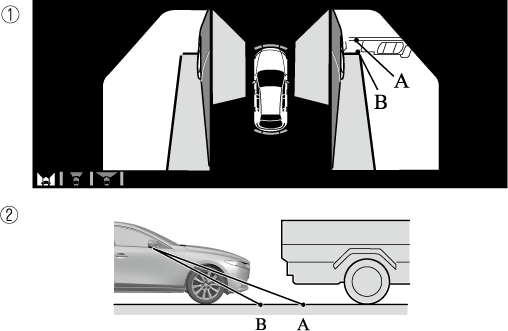
-
(Screen display)
-
(Actual condition)
Rear camera
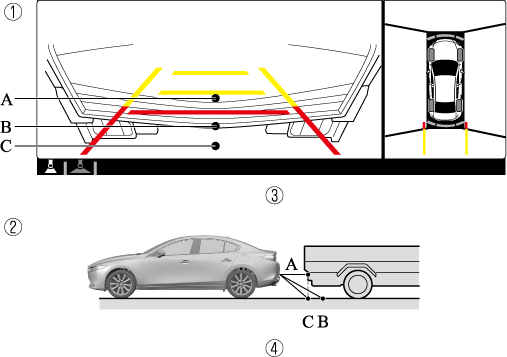
-
(Screen display)
-
(Actual condition)
-
Sensed distance on screen A>B>C
-
Actual distance B>C=A
System Problem Indication
|
Center display indication |
Cause |
Action to be taken |
|---|---|---|
|
“No camera signal.” is displayed |
The control unit might be damaged. |
Have your vehicle inspected by an Authorized Mazda Dealer. |
|
Screen is pitch-black and blank |
The camera might be damaged. |
|
Forward Sensing Camera (FSC)
Your vehicle is equipped with a Forward Sensing Camera (FSC). The Forward Sensing Camera (FSC) is positioned near the rearview mirror and used by the following systems.
-
High Beam Control System (HBC)
-
Lane Departure Warning System (LDWS)
-
Traffic Sign Recognition System (TSR)
-
Distance & Speed Alert (DSA)
-
Driver Attention Alert (DAA)
-
Mazda Radar Cruise Control (MRCC)
-
Mazda Radar Cruise Control with Stop & Go function (MRCC with Stop & Go function)
-
Lane-keep Assist System (LAS)
-
Traffic Jam Assist (TJA)
-
Smart Brake Support (SBS) forward drive detection
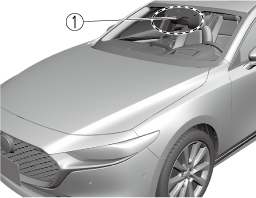
-
Forward Sensing Camera (FSC)
The Forward Sensing Camera (FSC) determines the conditions ahead of the vehicle while traveling at night and detects traffic lanes. The distance in which the Forward Sensing Camera (FSC) can detect objects varies depending on the surrounding conditions.
Do not modify the suspension:
If the vehicle height or inclination is changed, the system will not be able to correctly detect vehicles ahead. This will result in the system not operating normally or mistakenly operating, which could cause a serious accident.
-
Do not apply accessories, stickers or film to the windshield near the Forward Sensing Camera (FSC).
If the area in front of the Forward Sensing Camera (FSC) lens is obstructed, it will cause the system to not operate correctly. Consequently, each system may not operate normally which could lead to an unexpected accident.
-
Do not disassemble or modify the Forward Sensing Camera (FSC).
Disassembly or modification of the Forward Sensing Camera (FSC) will cause a malfunction or mistaken operation. Consequently, each system may not operate normally which could lead to an unexpected accident.
-
Heed the following cautions to assure the correct operation of the Forward Sensing Camera (FSC).
-
Be careful not to scratch the Forward Sensing Camera (FSC) lens or allow it to get dirty.
-
Do not remove the Forward Sensing Camera (FSC) cover.
-
Do not place objects on the dashboard which reflect light.
-
Always keep the windshield glass around the camera clean by removing dirt or fogging. Use the windshield defroster to remove fogging on the windshield.
-
Consult an Authorized Mazda Dealer regarding cleaning the interior side of the windshield around the Forward Sensing Camera (FSC).
-
Consult an Authorized Mazda Dealer before performing repairs around the Forward Sensing Camera (FSC).
-
The Forward Sensing Camera (FSC) is installed to the windshield. Consult an Authorized Mazda Dealer for windshield repair and replacement.
-
When cleaning the windshield, do not allow glass cleaners or similar cleaning fluids to get on the Forward Sensing Camera (FSC) lens. In addition, do not touch the Forward Sensing Camera (FSC) lens.
-
When performing repairs around the rearview mirror, consult an Authorized Mazda Dealer.
-
Consult an Authorized Mazda Dealer regarding cleaning of the camera lens.
-
Do not hit or apply strong force to the Forward Sensing Camera (FSC) or the area around it. If the Forward Sensing Camera (FSC) is severely hit or if there are cracks or damage caused by flying gravel or debris in the area around it, stop using the following systems and consult an Authorized Mazda Dealer.
-
High Beam Control System (HBC)
-
Lane Departure Warning System (LDWS)
-
Traffic Sign Recognition System (TSR)
-
Distance & Speed Alert (DSA)
-
Driver Attention Alert (DAA)
-
Mazda Radar Cruise Control (MRCC)
-
Mazda Radar Cruise Control with Stop & Go function (MRCC with Stop & Go function)
-
Lane-keep Assist System (LAS)
-
Traffic Jam Assist (TJA)
-
Smart Brake Support (SBS) forward drive detection
-
-
The direction in which the Forward Sensing Camera (FSC) is pointed has been finely adjusted. Do not change the installation position of the Forward Sensing Camera (FSC) or remove it. Otherwise, it could result in damage or malfunction.
-
-
Always use tires for all wheels that are of the specified size, and the same manufacturer, brand, and tread pattern. In addition, do not use tires with significantly different wear patterns on the same vehicle as the system may not operate normally.
-
The Forward Sensing Camera (FSC) includes a function for detecting a soiled windshield and informing the driver, however, depending on the conditions, it may not detect plastic shopping bags, ice or snow on the windshield. In such cases, the system cannot accurately determine a vehicle ahead and may not be able to operate normally. Always drive carefully and pay attention to the road ahead.
-
In the following cases, the Forward Sensing Camera (FSC) cannot detect target objects correctly, and each system may be unable to operate normally.
-
The height of the vehicle ahead is low.
-
You drive your vehicle at the same speed as the vehicle ahead.
-
Headlights are not turned on during the night or when going through a tunnel.
-
-
In the following cases, the Forward Sensing Camera (FSC) may not be able to detect target objects correctly.
-
Under bad weather condition, such as rain, fog and snow.
-
The window washer is being used or the windshield wipers are not used when it's raining.
-
Ice, fog, snow, frost, rainfall, dirt, or foreign matter such as a plastic bag is stuck on the windshield.
-
Trucks with low loading platforms and vehicles with an extremely low or high profile.
-
When driving next to walls with no patterning (including fences and longitudinally striped walls).
-
The taillights of the vehicle ahead are turned off.
-
A vehicle is outside the illumination range of the headlights.
-
The vehicle is making a sharp turn, or ascending or descending a steep slope.
-
Entering or exiting a tunnel.
-
Heavy luggage is loaded causing the vehicle to tilt.
-
Strong light is shone at the front of the vehicle (back light or high-beam light from on-coming vehicles).
-
There are many light emitters on the vehicle ahead.
-
When the vehicle ahead is not equipped with taillights or the taillights are turned off at nighttime.
-
Elongated luggage or cargo is loaded onto installed roof rails and covers the Forward Sensing Camera (FSC).
-
Exhaust gas from the vehicle in front, sand, snow, and water vapor rising from manholes and grating, and water splashed into the air.
-
When towing a malfunctioning vehicle.
-
The vehicle is driven with tires having significantly different wear.
-
The vehicle is driven on down slopes or bumpy roads.
-
There are water puddles on the road.
-
The surroundings are dark such as during the night, early evening, or early morning, or in a tunnel or indoor parking lot.
-
The illumination brightness of the headlights is reduced or the headlight illumination is weakened due to dirt or a deviated optical axis.
-
The target object enters the blind spot of the Forward Sensing Camera (FSC).
-
A person or object bursts onto the road from the shoulder or cuts right in front of you.
-
You change lanes and approach a vehicle ahead.
-
When driving extremely close to the target object.
-
Tire chains or a temporary spare tire is installed.
-
The vehicle ahead has a special shape. For example, a vehicle towing a trailer house or a boat, or a vehicle carrier carrying a vehicle with its front pointed rearward.
-
-
If the Forward Sensing Camera (FSC) cannot operate normally due to rain, backlight, or fog, the system functions related to the Forward Sensing Camera (FSC) are temporarily stopped and the following warning lights turn on. However, this does not indicate a malfunction.
-
High Beam Control System (HBC) warning indication/warning light (amber)
-
i-ACTIVSENSE warning indication/warning light
-
-
If the Forward Sensing Camera (FSC) cannot operate normally due to high temperatures, the system functions related to the Forward Sensing Camera (FSC) are temporarily stopped and the following warning lights turn on. However, this does not indicate a malfunction. Cool down the area around the Forward Sensing Camera (FSC) such as by turning on the air conditioner.
-
High Beam Control System (HBC) warning indication/warning light (amber)
-
i-ACTIVSENSE warning indication/warning light
-
-
If the Forward Sensing Camera (FSC) detects that the windshield is dirty or foggy, the system functions related to the Forward Sensing Camera (FSC) are temporarily stopped and the following warning lights turn on. However, this does not indicate a problem. Remove the dirt from the windshield or press the defroster switch and defog the windshield.
-
High Beam Control System (HBC) warning indication/warning light (amber)
-
i-ACTIVSENSE warning indication/warning light
-
-
If there are recognizable cracks or damage caused by flying gravel or debris on the windshield, always have the windshield replaced. Consult an Authorized Mazda Dealer for replacement.
-
The Forward Sensing Camera (FSC) recognizes pedestrians when all of the following conditions are met:
-
The height of a pedestrian is about 1 to 2 meters.
-
An outline such as the head, both shoulders, or the legs can be determined.
-
-
In the following cases, the Forward Sensing Camera (FSC) may not be able to detect target objects correctly:
-
Multiple pedestrians are walking, or there are groups of people.
-
A pedestrian is close to a separate object.
-
A pedestrian is crouching, lying, or slouching.
-
A pedestrian suddenly jumps into the road right in front of the vehicle.
-
A pedestrian opens an umbrella, or is carrying large baggage or articles.
-
A pedestrian is in a dark location such as during the night, or blends into the background by wearing clothes matching the background color.
-
Front Radar Sensor
Your vehicle is equipped with a front radar sensor.
The following systems also use the front radar sensor.
-
Distance & Speed Alert (DSA)
-
Mazda Radar Cruise Control (MRCC)
-
Mazda Radar Cruise Control with Stop & Go function (MRCC with Stop & Go function)
-
Traffic Jam Assist (TJA)
-
Smart Brake Support (SBS) forward drive detection
The front radar sensor functions by detecting the radio waves reflected off a vehicle ahead or an obstruction sent from the radar sensor.
The front radar sensor is mounted behind the front emblem.
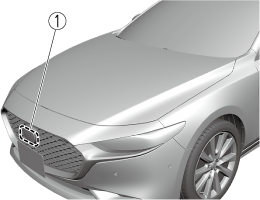
-
Front radar sensor
If “Safety and Driver Support Systems Temporarily Disabled. Front Radar Obscured. Drive Safely” is displayed on the multi-information display of the instrument cluster, clean the area around the front radar sensor.
Heed the following precautions to assure correct operation of each system.
-
Do not adhere stickers (including transparent stickers) to the surface of the radiator grille and front emblem in and around the front radar sensor, and do not replace the radiator grille and front emblem with any product that is not a genuine product designed for use with the front radar sensor.
-
The front radar sensor includes a function for detecting soiling of the radar sensor's front surface and informing the driver, however, depending on the conditions, it may require time to detect or it may not detect plastic shopping bags, ice or snow. If this occurs, the system may not operate correctly, therefore always keep the front radar sensor clean.
-
Do not install a grille guard.
-
If the front part of the vehicle has been damaged in a vehicle accident, the position of the front radar sensor may have moved. Stop the system immediately and always have the vehicle inspected at an Authorized Mazda Dealer.
-
Do not use the front bumper to push other vehicles or obstructions such as when pulling out of a parking space. Otherwise, the front radar sensor could be hit and its position deviated.
-
Do not remove, disassemble, or modify the front radar sensor.
-
For repairs, replacement or paint work around the front radar sensor, consult an Authorized Mazda Dealer.
-
Do not modify the suspensions. If the suspensions are modified, the vehicle's posture could change and the front radar sensor may not be able to correctly detect a vehicle ahead or an obstruction.
-
When the vehicle is driven on roads in which there is an elevated road on one side, the front radar sensor function may be restricted temporarily.
-
Under the following conditions, the front radar sensor may not be able to detect vehicles ahead or obstructions correctly and each system may not operate normally.
-
The rear surface of a vehicle ahead does not reflect radio waves effectively, such as an unloaded trailer or an automobile with a loading platform covered by a soft top, vehicles with a hard plastic tailgate, and round-shaped vehicles.
-
Vehicles ahead with low vehicle height and thus less area for reflecting radio waves.
-
Visibility is reduced due to a vehicle ahead casting off water, snow, or sand from its tires and onto your windshield.
-
The trunk/luggage compartment is loaded with heavy objects or the rear passenger seats are occupied.
-
Ice, snow, or soiling is on the front surface of the front emblem.
-
During inclement weather such as rain, snow, or sand storms.
-
When driving near facilities or objects emitting strong radio waves.
-
-
Under the following conditions, the front radar sensor may not be able to detect vehicles ahead or obstructions.
-
The beginning and end of a curve.
-
Roads with continuous curves.
-
Narrow lane roads due to road construction or lane closures.
-
The vehicle ahead enters the radar sensor's blind spot.
-
The vehicle ahead is running abnormally due to accident or vehicle damage.
-
Roads with repeated up and down slopes
-
Driving on poor roads or unpaved roads.
-
The distance between your vehicle and the vehicle ahead is extremely short.
-
A vehicle suddenly comes close, such as by cutting into your lane.
-
-
To prevent incorrect operation of the system, use tires of the same specified size, manufacturer, brand, and tread pattern on all four wheels. In addition, do not use tires with significantly different wear patterns or tire pressures on the same vehicle (Including the temporary spare tire).
-
If the battery power is weak, the system may not operate correctly.
-
When driving on roads with little traffic and few vehicles ahead or obstructions for the front radar sensor to detect, “Safety and Driver Support Systems Temporarily Disabled. Front Radar Obscured. Drive Safely” may be temporarily displayed, however, this does not indicate a problem.
-
The radar sensors are regulated by the relevant radio wave laws of the country in which the vehicle is driven. If the vehicle is driven abroad, authorization from the country in which the vehicle is driven may be required.
Front Side Radar Sensor
Your vehicle is equipped with front side radar sensor. The following systems also use the front side radar sensor.
-
Front Cross Traffic Alert (FCTA)
The front side radar sensor function by detecting the radio waves reflected off a vehicle approaching from the front or an obstruction sent from the radar sensor.
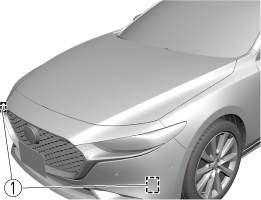
-
Front side radar sensor
The front side radar sensors are installed inside the front bumper, one on each side.
Always keep the surface of the front bumper near the front side radar sensors clean so that they operate normally. Also, do not apply items such as stickers.
Refer to Exterior Care .
If the front bumper receives a severe impact, the system may no longer operate normally. Stop the system immediately and have the vehicle inspected at an Authorized Mazda Dealer.
-
The detection ability of the front side radar sensor has limitations. In the following cases, the detection ability may lower and the system may not operate normally.
-
The front bumper near the front side radar sensor has become deformed.
-
Snow, ice or mud adheres to the front side radar sensor on the front bumper.
-
Under bad weather conditions such as rain, snow and fog.
-
-
Under the following conditions, the front side radar sensor cannot detect target objects or it may be difficult to detect them.
-
Small motorcycles, bicycles, pedestrians, animals, shopping carts, and stationary objects on a road or a road side.
-
Vehicle shapes which do not reflect radar waves well such as empty trailers with a low vehicle height and sports cars.
-
-
Vehicles are shipped with the direction of the front side radar sensor adjusted for each vehicle to a loaded vehicle condition so that the front side radar sensor detect approaching vehicles correctly. If the direction of the front side radar sensor has deviated for some reason, have the vehicle inspected at an Authorized Mazda Dealer.
-
For repairs or replacement of the front side radar sensor, or bumper repairs, paintwork, and replacement near the radar sensors, consult an Authorized Mazda Dealer.
-
The radar sensors are regulated by the relevant radio wave laws of the country in which the vehicle is driven. If the vehicle is driven abroad, authorization from the country in which the vehicle is driven may be required.
Rear Side Radar Sensor
Your vehicle is equipped with rear side radar sensor. The following systems also use the rear side radar sensor.
-
Blind Spot Monitoring (BSM)
-
Rear Cross Traffic Alert (RCTA)
-
Smart Brake Support (SBS) reverse drive detection
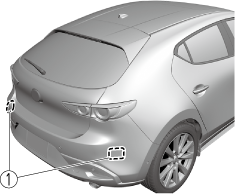
The rear side radar sensors emit radio waves and detect the radio waves reflected off a vehicle approaching from the rear or an obstruction.
4–Door
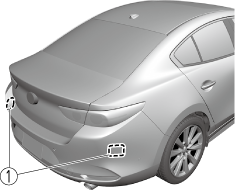
-
Rear side radar sensor
5–Door
-
Rear side radar sensor
The rear side radar sensors are installed inside the rear bumper, one on each side.
Always keep the surface of the rear bumper near the rear side radar sensors clean so that they operate normally. Also, do not apply items such as stickers.
Refer to Exterior Care .
If the rear bumper receives a severe impact, the system may no longer operate normally. Stop the system immediately and have the vehicle inspected at an Authorized Mazda Dealer.
-
The detection ability of the rear side radar sensor has limitations. In the following cases, the detection ability may lower and the system may not operate normally.
-
The rear bumper near the rear side radar sensor has become deformed.
-
Snow, ice or mud adheres to the rear side radar sensor on the rear bumper.
-
Under bad weather conditions such as rain, snow and fog.
-
-
Under the following conditions, the rear side radar sensor cannot detect target objects or it may be difficult to detect them.
-
Small motorcycles, bicycles, pedestrians, animals, shopping carts, and stationary objects on a road or a road side.
-
Vehicle shapes which do not reflect radar waves well such as empty trailers with a low vehicle height and sports cars.
-
-
Vehicles are shipped with the direction of the rear side radar sensor adjusted for each vehicle to a loaded vehicle condition so that the rear side radar sensor detect approaching vehicles correctly. If the direction of the rear side radar sensor has deviated for some reason, have the vehicle inspected at an Authorized Mazda Dealer.
-
For repairs or replacement of the rear side radar sensor, or bumper repairs, paintwork, and replacement near the radar sensors, consult an Authorized Mazda Dealer.
-
The radar sensors are regulated by the relevant radio wave laws of the country in which the vehicle is driven. If the vehicle is driven abroad, authorization from the country in which the vehicle is driven may be required.
Rear/Rear Corner Ultrasonic Sensor
The ultrasonic sensors function by emitting ultrasonic waves which are reflected off obstructions at the rear and the returning ultrasonic waves are picked up by the ultrasonic sensors.
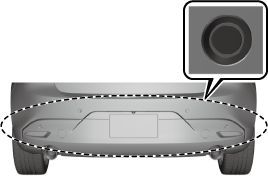
The ultrasonic sensors are mounted in the rear bumper.
Front Camera/Side Cameras/Rear Camera
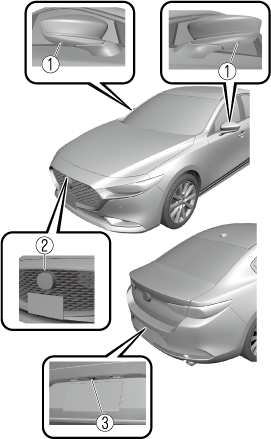
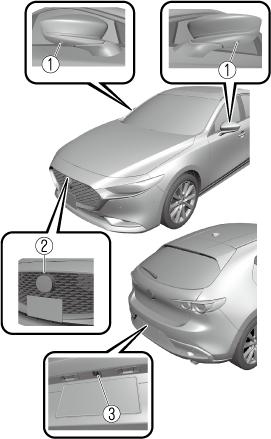
Your vehicle is equipped with a front camera, side cameras, and a rear camera. The 360°View Monitor uses each camera.
Refer to 360°View Monitor .
The front camera, side cameras, and rear camera shoot images of the area surrounding the vehicle.
Each camera is installed to the following positions.
4–Door
-
Side cameras
-
Front camera
-
Rear camera
5–Door
-
Side cameras
-
Front camera
-
Rear camera
Driver Monitoring Camera
The driver monitoring camera detects changes in the driver's facial features and estimates the amount of accumulated fatigue and sleepiness of the driver.
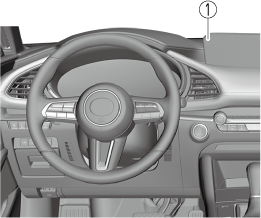
-
Driver monitoring camera
-
Driver Monitoring (DM) and the earlier collision warning may not operate normally under the following conditions.
-
The driver monitoring camera is covered with something.
-
You are driving the vehicle while leaning on the steering wheel.
-
You are wearing glasses or sunglasses.
-
A cap or hat you are wearing partially blocks the driver monitoring camera's view of your eyes, you have long bangs partially covering your eyes, or a part of your face is invisible due to a face mask.
-
The lighting conditions change significantly (such as backlight, light from the side, or direct light from the setting sun, and the headlights of on-coming vehicles).
-
You are driving the vehicle with your head excessively tilted to one side or the other.
-
You are moving around extensively.
-
Your face or your eyes frequently turn in direction other than straight ahead (direction of travel).
-
Your line of sight moves or directly after it has moved.
-
There is a large difference between your line of sight and the direction your face is pointed.
-
You are driving the vehicle with your head largely tilted to one side.
-
Free/open source software information
This product includes free/open sources. Information about the licensing and source code is available at the following URL.
-
Download Manual