Lights
Vehicle equipment and options
This chapter describes model-specific equipment, systems and functions that are available now and will be available in the future, even if they are not available in the owned vehicle.
Lights and lighting
Overview
Buttons in the vehicle
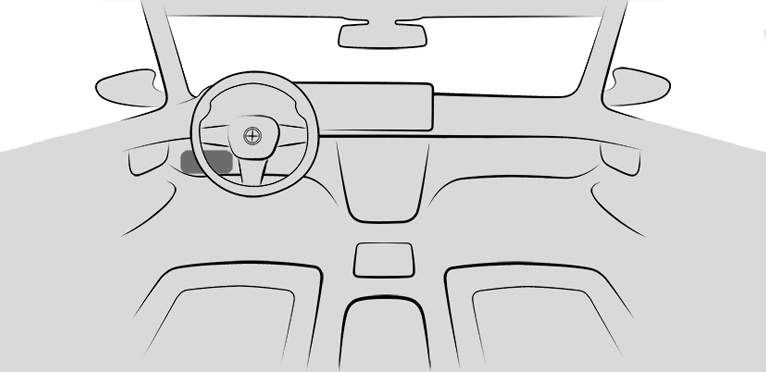
|
Icon |
Function |
|---|---|
|
|
Exterior lighting menu. |
|
|
Automatic headlight control. Low beams. Lights off. |
|
|
Lights off. |

Functions via iDrive
|
Icon |
Function |
|---|---|
|
|
Automatic headlight control. |
|
|
Low beams. |
|
|
Parking lights. |
|
|
Lights off. |
|
|
Left roadside parking light. |
|
|
Right roadside parking light. |





Buttons on the vehicle key
|
Icon |
Function |
|---|---|
|
|
Interior lighting. Parts of the exterior lighting. |
|
|
Pathway lighting. |
Automatic headlight control
Principle
The low beams are switched on and off automatically depending on the ambient brightness, for example in tunnels, in twilight or if there is precipitation.
General information
A blue sky with the sun low on the horizon can cause the lights to be turned on.
If the low beams are switched on manually, the automatic headlight control is deactivated.
Activate automatic headlight control

Press the button on the light switch element.
The LED in the button lights up.

The indicator light in the instrument cluster is illuminated when the low beams are switched on.
System limits
The automatic headlight control cannot replace your personal judgment of lighting conditions.
For example, the sensors are unable to detect fog or hazy weather. In these situations, turn the lights on manually.
Parking lights, low beams and roadside parking lights
General information
If the driver's door is opened when the drive-ready state is switched off, the exterior lighting is automatically switched off after a period of time.
Parking lights
General information
The parking lights can only be switched on in the low speed range.
Turn on parking lights
- "MENU"
- "Vehicle apps"
- "Exterior lighting"
- "Parking light"

The indicator light in the instrument cluster lights up.
The vehicle is illuminated on all sides.
Do not use the parking lights for extended periods; otherwise, they might drain the vehicle battery and it would then be impossible to switch on drive-ready state.
Turn off parking lights
The following options are available to turn off the parking lights:

Press the button on the light switch element.
Press and hold the button on the light switch element.
- Turn off light via iDrive.
- Turn on drive-ready state.
After the drive-ready state is switched on, the automatic headlight control will be activated.
Low beams
Turn on low beams
Press the button on the light switch element.
The low beams illuminate when drive-ready state is switched on.
The indicator light in the instrument cluster lights up.
Press the button again to switch on the low beams when the standby state is switched on.
Turn off low beams
Depending on the national-market version, the low beams can be turned off in the low speed range:
Press the button on the light switch element.
Press and hold the button on the light switch element.
Turn off light via iDrive.
Roadside parking lights
When the vehicle is parked, a one-sided roadside parking light can be switched on.
- "MENU"
- "Vehicle apps"
- "Exterior lighting"
- "Left roadside parking light" or "Right roadside parking light"
Welcome lights
Principle
The welcome light turns on automatically for a limited period of time when approaching or unlocking the vehicle.
General information
Depending on the equipment, the exterior lighting of the vehicle can be set individually.
Activating/deactivating welcome light
"MENU"
"Vehicle apps"
"Exterior lighting"
If necessary, "Additional settings"
Depending on the equipment, select the following setting:
"Welcome and goodbye"
When unlocking the vehicle, individual lighting functions are turned on.
Turning on the welcome light
Automatically on approach.
During unlocking.

Press the button on the vehicle key with the vehicle locked.
Depending on the settings, the interior lighting and parts of the exterior lighting will be turned on.
The function is not available for the first 10 seconds after locking.
LED light carpet
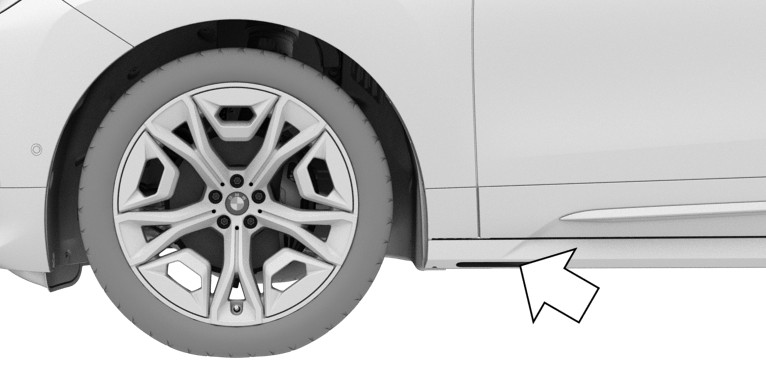
The light source is located in the position indicated.
Keep the light source clean and unobstructed.
Pathway lighting
Principle
For the pathway lighting, the exterior lighting turns on for a certain period of time after leaving the vehicle in order to illuminate the area surrounding the vehicle.
Switching pathway lighting on
After switching off the drive-ready state, briefly push the turn signal lever forward.

Press and hold the button on the vehicle key for approx. 1 second.
Setting the duration
- "MENU"
- "Vehicle apps"
- "Exterior lighting"
- If necessary, "Additional settings"
- "Pathway lighting"
- Select the desired setting.
Daytime driving lights
General information
The daytime driving lights light up when drive-ready state is switched on.
Activate/deactivate daytime driving lights
In some countries, daytime driving lights are mandatory, so it may not be possible to deactivate the daytime driving lights in front.
- "MENU"
- "Vehicle apps"
- "Exterior lighting"
- If necessary, "Additional settings"
- Depending on the national-market version: "Daytime driving lights" or "Rear daytime driving lights"
Adaptive lighting functions
Principle
Adaptive lighting functions enable dynamic illumination of the road.
General information
The adaptive lighting functions may consist of one system or multiple systems, depending on the equipment version:
Adaptive Light Control.
Cornering light.
Activating the adaptive lighting functions
Press the button on the light switch element.
The LED in the button lights up.
The adaptive lighting functions are active when the drive-ready state is switched on.
Adaptive Light Control
General information
Depending on the steering-wheel angle and other parameters, the laser high beams follow the course of the road.
Cornering light
Principle
In tight curves, for instance on mountainous roads or when turning, an additional, cornering light is switched on that lights up the inside of the curve when the vehicle is moving below a certain speed.
General information
The cornering light is automatically switched on depending on the steering-wheel angle or, where applicable, the use of turn signals.
When driving in reverse, the cornering lights may be automatically switched on regardless of the steering-wheel angle.
Adaptive headlight range control
The adaptive headlight range control feature balances out acceleration and braking processes as well as the vehicle load conditions in order to avoid blinding oncoming traffic.
Automatic High Beam Assistant
Principle
The Automatic High Beam Assistant detects other road users early on and automatically switches the high beams on or off depending on the traffic situation.
General information
The Automatic High Beam Assistant ensures that the high beams are switched on, whenever the traffic situation allows. In the low speed range, the high beams are not switched on by the system.
The system responds to light from oncoming traffic and traffic driving ahead of you, and to ambient lighting, for instance in towns and cities.
The high beams can be switched on and off manually at any time.
Functional requirements
Automatic headlight control is activated.
Low beams are switched on.
Activate Automatic High Beam Assistant
- "MENU"
- "Vehicle apps"
- "Exterior lighting"
- "Additional settings"
- "Automatic High Beams"

The indicator light in the instrument cluster is illuminated when the low beams are switched on.
The headlights are automatically changed between low beams and high beams.

The blue indicator light in the instrument cluster lights up when the system switches on the high beams.
Interruption of the journey with activated Automatic High Beam Assistant: the Automatic High Beam Assistant remains activated when continuing the journey.
The Automatic High Beam Assistant is deactivated when manually switching the high beams on and off.
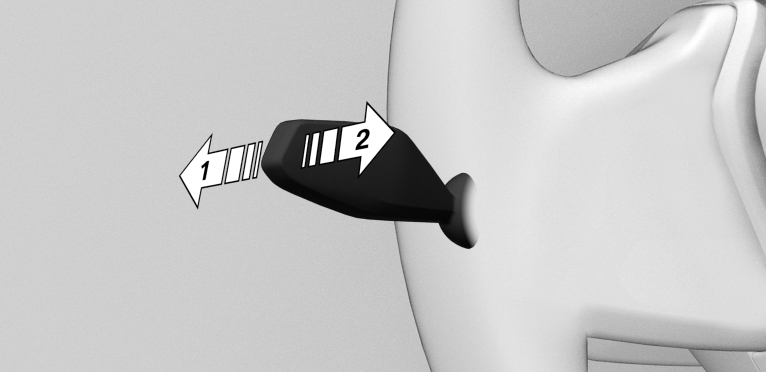
To reactivate the Automatic High Beam Assistant, press the turn signal lever up, arrow 1.
Deactivate Automatic High Beam Assistant
Press the turn signal lever forward, arrow 1, or pull the turn signal lever backward when the high beams are switched on, arrow 2.
When the Automatic High Beam Assistant is deactivated via iDrive, the operation with the turn signal lever is not possible.
Sensitivity of the Automatic High Beam Assistant
General information
The sensitivity of the Automatic High Beam Assistant can be adjusted.
Safety information
 Warning
If adjustments have been made or the sensitivity has been modified, oncoming traffic may be momentarily blinded. There is a risk of accident. If adjustments have been made and the sensitivity has been modified, make sure that oncoming traffic is not momentarily blinded. Switch off the high beams manually if required.
Functional requirements
Setting at standstill only.
Drive-ready state is switched on.
Light is turned off.
Increase sensitivity
Push the turn signal lever to the front for approximately 10 seconds.
A Check Control message is displayed. The system responds more sensitively.
Resetting the sensitivity
Push the turn signal lever to the front again for approx. 10 seconds or switch off the drive-ready state.
The sensitivity of the Automatic High Beam Assistant is reset to the factory settings.
System limits
The Automatic High Beam Assistant cannot replace the driver's personal judgment of when to use the high beams. In situation that require this, therefore dimming manually.
The system is not fully functional in the following situations, and driver intervention may be necessary:
- In very unfavorable weather conditions, such as fog or heavy precipitation.
- When detecting poorly-lit road users such as pedestrians, cyclists, horseback riders and wagons; when driving close to train or ship traffic; or at animal crossings.
- In tight curves, on hilltops or in depressions, in crossing traffic or half-obscured oncoming traffic on highways.
- In poorly-lit towns and cities or in the presence of highly reflective signs.
- When the windshield in front of the interior mirror is fogged up, dirty or covered with stickers, etc.
Laser high beams
Principle
The headlight range of the high beams is increased and provides better illumination of the road.
General information
The laser high beams are integrated into the headlights and emit from there.
When the high beams are turned on, starting with a speed of approx. 37 mph/60 km/h, the laser high beams are automatically turned on in addition to the LED high beams.
Depending on the national-market version, additional information can be taken from the laser sign on the headlight.
Safety information
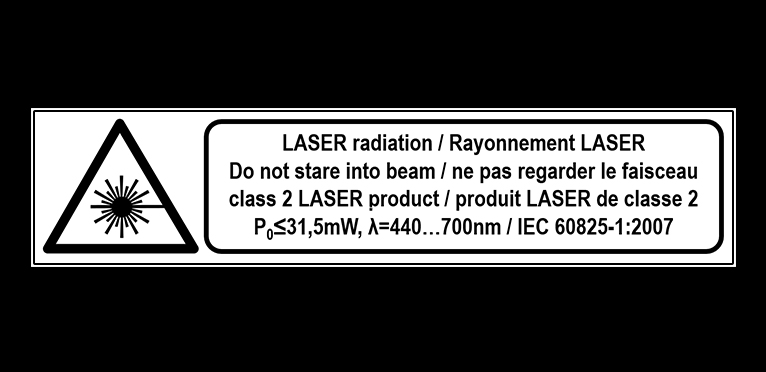
The sign is in the headlight and is visible from the outside.

The info label is located on the headlight and is visible when the hood is open.
Instrument lighting
Functional requirement
The brightness can only be adjusted in darkness and with turned on parking lights or low beams.
Setting the brightness
- "MENU"
- "Vehicle apps"
- "Interior lighting"
- "Cockpit brightness at night"
- Select the desired setting.
Interior lighting
General information
Depending on the equipment version, interior lights, footwell lights, entry lights, ambient lighting, and speaker lighting are automatically controlled.
Overview
Buttons in the vehicle
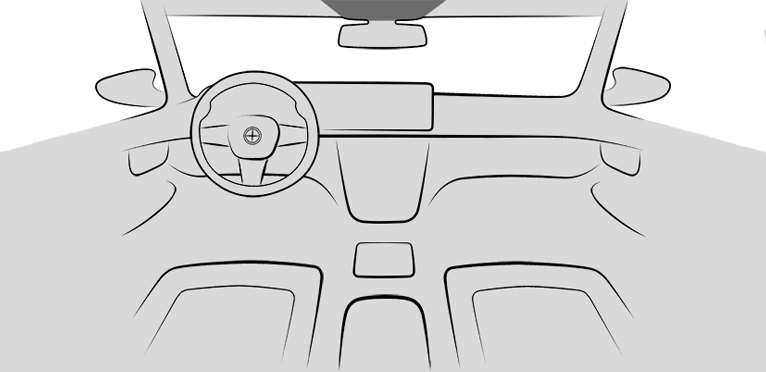

Interior lighting menu

Reading lights

Interior lights
Turning interior lights on/off
Using the button:
Press the button.
To switch off permanently: press the button and hold for approx. 3 seconds.
The interior lights in the rear of the vehicle can be switched on and off independently. The button is located in the rear headliner.
Via iDrive:
- "MENU"
- "Vehicle apps"
- "Interior lighting"
- "Reading light"
 Tap on the icon.
Turning reading lights on/off
Using the button:
Press the button.
Depending on the vehicle equipment, the reading lights are located next to the interior lights in the front and rear.
Via iDrive:
- "MENU"
- "Vehicle apps"
- "Interior lighting"
- "Reading light"
- Tap the desired seat.
Ambient light
General information
Depending on the equipment version, lighting can be adjusted for some lights in the car's interior.
Activating/deactivating ambient light
- "MENU"
- "Vehicle apps"
- "Interior lighting"
- If necessary, "Ambience"
- "Ambient lighting"
Turning ambient light on/off
The ambient light is switched on when the vehicle is unlocked, and switched off when the vehicle is locked.
If the ambient light was deactivated via iDrive, it will not be turned on when the vehicle is unlocked.
Selecting the color
- "MENU"
- "Vehicle apps"
- "Interior lighting"
- If necessary, "Ambience"
- "Color"
- Select the desired setting.
Setting the brightness
- "MENU"
- "Vehicle apps"
- "Interior lighting"
- If necessary, "Ambience"
- "Background light" or "Accent lighting"
- Select the desired setting.
Dynamic light
Individual actions, for example incoming calls or opened doors, are indicated by light effects.
- "MENU"
- "Vehicle apps"
- "Interior lighting"
- If necessary, "Ambience"
- "Lighting events"
- Select the desired setting.
Reduced for night drive
Some lights of the interior lighting are reduced when the vehicle is driven in the dark.
- "MENU"
- "Vehicle apps"
- "Interior lighting"
- If necessary, "Ambience"
- "Reduced for night driving"
Speaker lighting
Principle
Some speakers in the vehicle are illuminated.
General information
When the speakers are muted, the speaker lighting is turned off.
Turning speaker lighting on/off
The speaker lighting is switched on when the vehicle is unlocked, and switched off when the vehicle is locked.