Using the audio system
Audio system type
- With navigation system
Owners of models equipped with a navigation system should refer to the “Navigation System Owner’s Manual”.
Without navigation system
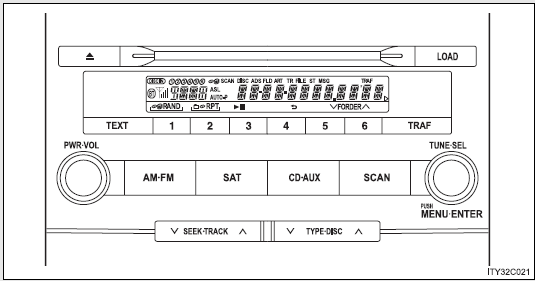
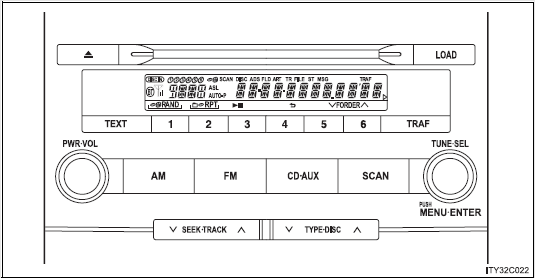
- CD player with changer and AM/FM radio.
● Type A
● Type B
- Using cellular phones
Interference may be heard through the audio system’s speakers if a cellular phone is being used inside or close to the vehicle while the audio system is operating.
| CAUTION
FCC Warning: Any unauthorized changes or modifications to this equipment will void the user’s authority to operate this device.
|
| NOTICE
Do not leave the audio system on longer than necessary with the engine off.
Take care not to spill drinks or other fluids over the audio system. |
Using the radio
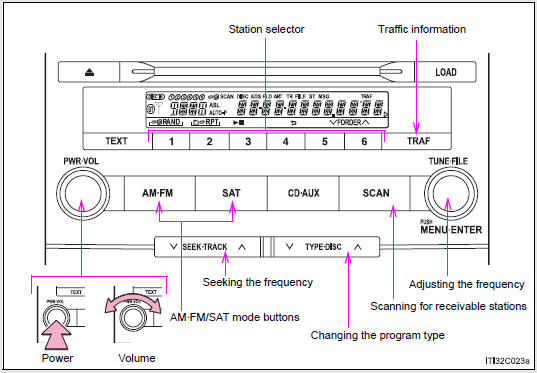
- Type A
- Type B
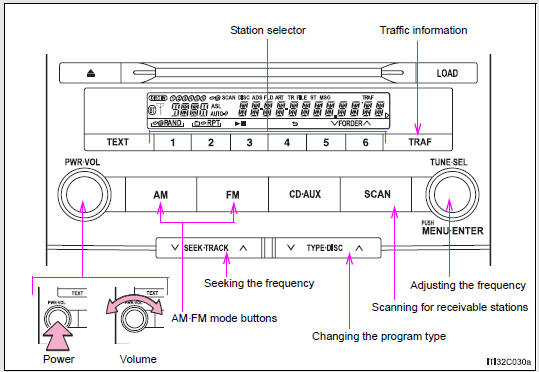
Setting station presets (excluding XM® Satellite Radio)
STEP 1
Search for desired stations by turning  or pressing “∧” or “∨” on
  .
.
STEP 2
Press and hold the button (from  to
to  ) the station is to be set to, and you hear a beep.
Scanning radio stations (excluding XM® Satellite Radio)
- Scanning the preset radio stations
STEP 1
Press and hold  until you hear a beep.
Preset stations will be played for a few seconds each.
STEP 2
When the desired station is reached, press  once again.
- Scanning all radio stations within range
STEP 1
Press  .
.
“SCAN” appears on the display and all stations with reception will be played for a few seconds each.
STEP 2
When the desired station is reached, press  once again.
XM® Satellite Radio (type A)
- Receiving XM® Satellite Radio
STEP 1
Press  .
.
The display changes as follows each time the button is pressed.
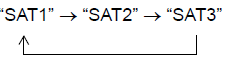 STEP 2
Turn  to select a desired channel from all the categories or press “∧” or “∨” on
  to select a desired channel in the current category.
- Presetting XM® Satellite Radio channels
Select the desired channel. Press and hold the button (from  to
to  ) until you hear a beep.
- Changing the channel category
Press “∧” or “∨” on  .
.
- Scanning XM® Satellite Radio channels
- Scanning channels in the current category
STEP 1
Press  .
.
STEP 2
When the desired channel is reached, press the button again.
- Scanning preset channels
STEP 1
Press and hold  until you hear a beep.
STEP 2
When the desired channel is reached, press the button again.
RDS (Radio Data System)
This feature allows your radio to receive station identification information and program information (classical, jazz, etc.) from radio stations which broadcast this information.
- Receiving RDS broadcasts
STEP 1
Press “∧” or “∨” on the  during FM reception.
The type of program changes each time the button is pressed.
- ROCK
- EASYLIS (Easy listening)
- CLS/JAZZ (Classical music and Jazz)
- R & B (Rhythm and Blues)
- INFORM (Information)
- RELIGION
- MISC (Miscellaneous)
- ALERT (Emergency messages)
STEP 2
Press  , or “∧” or “∨” on
  .
.
The radio seeks scans the station by the relevant program type.
If no radio station of that type is found, “NOTHING” appears on the display.
- Displaying radio station names
Press  .
.
- Displaying radio text messages
Press  .
.
If MSG is shown on the display, a text message will be displayed.
If the text continues past the end of the display,  is displayed. Press and hold
  until you hear a beep.
- Traffic announcement
Press  .
.
“TRAF SEEK” appears on the display, and the radio will start seeking any station broadcasting traffic program information.
If no traffic program station is found, “NO TRAF INFO” appears on the display.
- When the battery is disconnected
All preset stations are erased.
- Reception sensitivity
- Maintaining perfect radio reception at all times is difficult due to the continually changing position of the antenna, differences in signal strength and surrounding objects, such as trains, transmitters, etc.
- The radio antenna is mounted inside the rear quarter window. To maintain clear radio reception, do not attach metallic window tinting or other metallic objects to the antenna wire mounted inside the rear quarter window.
- Receiving XM® Satellite Radio
An XM® Satellite Radio is a tuner designed exclusively to receive broadcasts provided under a separate subscription. Availability is limited to the 48 contiguous states and some Canadian provinces.
- XM® subscriptions
For detailed information about XM® Satellite Radio or to subscribe: Visit on the web at www.xmradio.com or call 1-800-967-2346. - Radio ID
You will need the radio ID when activating XM® service or reporting a problem. Select “CH000” using , and the receiver’s 8-character ID number will appear.
 - Satellite tuner
The tuner supports only Audio Services (Music and Talk) and the accompanying Text Information of XM® Satellite Radio.
- If the satellite radio does not operate normally
If a problem occurs with the XM® tuner, a message will appear on the display.
Refer to the table below to identify the problem, and take the suggested corrective action.
| ANTENNA | The XM® antenna is not connected. Check whether the XM® antenna cable is attached securely. |
| There is a short-circuit in the antenna or the surrounding antenna cable. See a Toyota certified dealer. | |
| UNAUTH | You have not subscribed to XM® Satellite Radio.
The radio is being updated with the latest encryption code. Contact XM® Satellite Radio for subscription information. When a contract is canceled, you can choose “CH000” and all free-to-air channels. |
| The premium channel you selected is not authorized.
Wait for about 2 seconds until the radio returns to the previous channel or “CH001”. If it does not change automatically, select another channel. If you want to listen to the premium channel, contact XM® Satellite Radio. |
|
| NO SIGNAL | The premium channel you selected is not authorized.
Wait for about 2 seconds until the radio returns to the previous channel or “CH001”. If it does not change automatically, select another channel. If you want to listen to the premium channel, contact XM® Satellite Radio. |
| LOADING | The unit is acquiring audio or program information.
Wait until the unit has received the information. |
| OFF AIR | The channel you selected is not broadcasting any programming. Select another channel. |
| ----- | There is no song/program title or artist name/feature associated with the channel at that time. No action needed. |
| CH UNAVL | The channel you selected is no longer available.
Wait for about 2 seconds until the radio returns to the previous channel or “CH001”. If it does not change automatically, select another channel. |
Contact the XM® Listener Care Center at 1-800-967-2346.
- Certifications for the radio tuner
This equipment has been tested and found to comply with the limits for a class B digital device, pursuant to Part 15 of the FCC Rules. These limits are designed to provide reasonable protection against harmful interference in a residential installation. This equipment generates, uses and can radiate radio frequency energy and, if not installed and used in accordance with the instructions, may cause harmful interference to radio communications. However, there is no guarantee that interference will not occur in a particular installation.
If this equipment does cause harmful interference to radio or television reception, which can be determined by turning the equipment off and on, the user is encouraged to try to correct the interference by trying one or more of the following:
- Reorienting or relocating the receiving antenna.
- Increasing the separation between the equipment and receiver.
- Connecting the equipment into an outlet on a circuit different from that to which the receiver is connected.
- Consulting the dealer or an experienced radio/TV technician for help.
Using the CD player
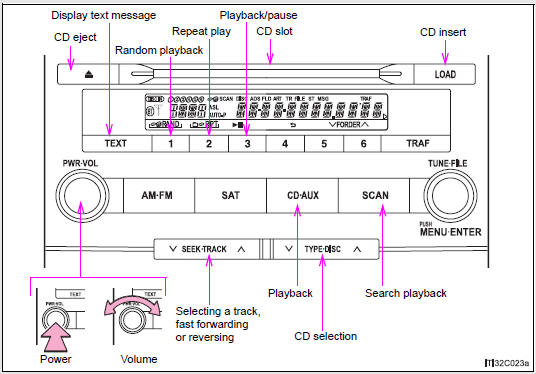
Loading a CDs
- Loading a single CD
STEP 1
Press  .
.
“WAIT” appears on the display.
STEP 2
Insert a CD when the indicator on the slot turns from amber to green.
The display changes from “WAIT” to “LOAD”.
- Loading multiple CDs
STEP 1
Press and hold  until you hear a beep.
“WAIT” appears on the display.
STEP 2
Insert a CD when the indicator on the slot turns from amber to green.
The display changes from “WAIT” to “LOAD”.
The indicator on the slot turns to amber when the CD is inserted.
STEP 3
Insert the next CD when the indicator on the slot turns from amber to green again.
Repeat the procedure for the remaining CDs.
To cancel the operation, press  or
or  . If you do not insert a CD within 15 seconds, loading will be canceled automatically.
Ejecting CDs
- Ejecting a CD
STEP 1
To select the CD to be ejected, press “∧” or “∨” on  .
.
The number of the CD selected is shown on the display.
STEP 2
Press  and remove the CD.
- Ejecting all CDs
Press and hold  until you hear a beep, then remove the CDs.
- Loading multiple CDs
STEP 1
Press and hold  until you hear a beep.
“WAIT” appears on the display.
STEP 2
Insert a CD when the indicator on the slot turns from amber to green.
The display changes from “WAIT” to “LOAD”.
The indicator on the slot turns to amber when the CD is inserted.
STEP 3
Insert the next CD when the indicator on the slot turns from amber to green again.
Repeat the procedure for the remaining CDs.
To cancel the operation, press  or
or  . If you do not insert a CD within 15 seconds, loading will be canceled automatically.
Ejecting CDs
- Ejecting a CD
STEP 1
To select the CD to be ejected, press “∧” or “∨” on  .
.
The number of the CD selected is shown on the display.
STEP 2
Press  and remove the CD.
- Ejecting all CDs
Press and hold  until you hear a beep, then remove the CDs
Selecting a CD
- To select a CD to play
Press “∧” or “∨” on  until the desired CD number appears on the display.
- To scan loaded CDs
STEP 1
Press and hold  until you hear a beep.
The first 10 seconds of the first track on each CD will be played.
STEP 2
Press  once again when the desired CD is reached.
Selecting a track
Press “∧” to move up or “∨” to move down using  until the desired track number appears on the display.
Playing and pausing tracks
To play or pause a track, press  (
( ).
).
Fast forwarding and rewinding tracks
Press and hold “∧” or “∨” on .
Scanning a CD
STEP 1
Press  .
.
“SCAN” appears on the display.
The first 10 seconds of each track will be played.
STEP 2
Press  once again when the desired track is reached.
Random playback
- Current CD
Press  (RAND).
Tracks are played in random order until the button is pressed once again.
- All CDs
Press and hold  (RAND) until you hear a beep.
Tracks on all loaded CDs are played in random order until the button is pressed once again.
Repeating a track or a disc
- Repeating a track
Press  (RPT).
- Repeating a disc
Press and hold  (RPT) until you hear a beep.
Switching the display
Press  .
.
Each time the button is pressed, the display changes in the order of Track no./Elapsed time → CD title → Track name.
- Display
Up to 12 characters can be displayed at a time.
If there are 13 characters or more, pressing and holding  for 1 second or more will display the remaining characters.
A maximum of 24 characters can be displayed.
If  is pressed for 1 second or more again or has not been pressed for 6 seconds or more, the display will return to the first 12 characters.
Depending on the contents recorded, the characters may not be displayed properly or may not be displayed at all.
- Canceling random, repeat and scan playback
Press  (RAND),
  (RPT) or
  again.
- Error messages
“ERROR”: This indicates a trouble either in the CD or inside the player.
The CD may be dirty, damaged or inserted up-side down.
- Discs that can be used
Discs with the marks shown below can be used.
Playback may not be possible depending on recording format or disc features, or due to scratches, dirt or deterioration.
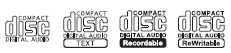
CDs with copy-protect features may not play correctly.
- CD player protection feature
To protect the internal components, playback is automatically stopped when a problem is detected.
- If CDs are left inside the CD player or in the ejected position for extended periods
CDs may be damaged and may not play properly.
- Lens cleaners
Do not use lens cleaners. Doing so may damage the CD player.
| NOTICE
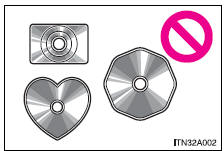
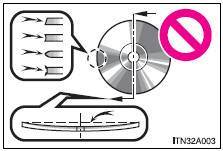
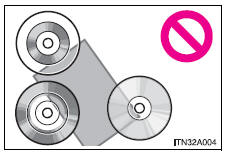
Do not use the following types of CDs. Also, do not use 3 in. (8 cm) CD adapters, DualDiscs or printable discs. Doing so may damage the player and/or the CD insert/eject function.
|
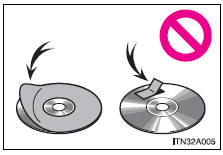
| NOTICE
Failure to follow the precautions below may result in damage to the CDs or the player itself.
|
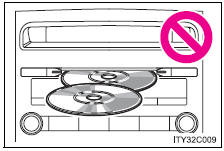
Playing back MP3 and WMA discs
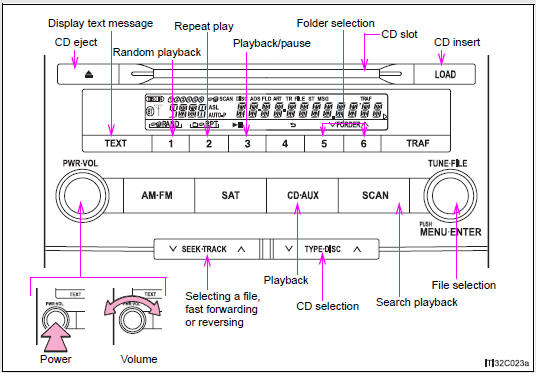
Loading and ejecting MP3 and WMA discs
Selecting a CD
Playing and pausing files
To play or pause a file, press  (
( ).
).
Selecting and scanning a folder
- Selecting folders one at a time
Press  (∨) or
  (∧) to select the desired folder.
To return to the first folder, press and hold  (∨) until you hear a beep.
- Selecting the desired folder by cueing the first file of each folder
Press and hold  until you hear a beep.
When the desired folder is reached, press the switch once again.
Selecting and scanning a file
- Selecting one file at a time
Turn the  dial or press “∧” or “∨” on
  to select the desired file.
- Selecting the desired file by cueing the files in the folder
Press  .
.
When the desired file is reached, press  once again.
Fast forwarding and reversing files
Press and hold “∧” or “∨” on .
Random playback
- To play files from a particular folder in random order
Press  (RAND).
- To play all of the files on a disc in random order
Press and hold  (RAND) until you hear a beep.
Repeating a file or a folder
- Repeating a fil
e
Press  (RPT).
- Repeating a folde
r
Press and hold  (RPT) until you hear a beep.
Switching the display
Press  .
.
Each time the switch is pressed, the display changes in the order of Folder no./File no./Elapsed time→Folder name→File name→Album title (MP3 only)→Track title→Artist name.
- Display
- Canceling random, repeat and scan playback
Press (RAND), (RPT) or again.
- Error messages
“ERROR”: This indicates a trouble either in the CD or inside the player.
The CD may be dirty, damaged or inserted up-side down.
“NO MUSIC”: This indicates that the MP3/WMA file is not included in the CD.
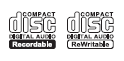
- Discs that can be used
Discs with the marks shown below can be used.
Playback may not be possible depending on recording format or disc features, or due to scratches, dirt or deterioration.
- CD player protection feature
To protect the internal components, playback is automatically stopped when a problem is detected.
- If CDs are left inside the CD player or in the ejected position for extended periods
CDs may be damaged and may not play properly.
- Lens cleaners
Do not use lens cleaners. Doing so may damage the CD player.
- MP3 and WMA files
MP3 (MPEG Audio LAYER3) is a standard audio compression format.
Files can be compressed to approximately 1/10 of their original size by using MP3 compression.
WMA (Windows Media Audio) is a Microsoft audio compression format.
This format compresses audio data to a size smaller than that of the MP3 format.
There is a limit to the MP3 and WMA file standards and to the media/formats recorded by them that can be used.
- MP3 file compatibility
- Compatible standards MP3 (MPEG1 LAYER3, MPEG2 LSF LAYER3)
- Compatible sampling frequencies MPEG1 LAYER3: 32, 44.1, 48 (kHz) MPEG2 LSF LAYER3: 16, 22.05, 24 (kHz)
- Compatible bit rates MPEG1 LAYER3: 64, 80, 96, 112, 128, 160, 192, 224, 256, 320 (kbps)
- MPEG2 LSF LAYER3: 64, 80, 96, 112, 128, 144, 160 (kbps)
* Compatible with VBR
- Compatible channel modes: stereo, joint stereo, dual channel and monaural
- WMA file compatibility
- Compatible standards WMA Ver. 7, 8, 9
- Compatible sampling frequencies 32, 44.1, 48 (kHz)
- Compatible bit rates Ver. 7, 8: CBR 48, 64, 80, 96, 128, 160, 192 (kbps) Ver. 9: CBR 48, 64, 80, 96, 128, 160, 192, 256, 320 (kbps)
* Only compatible with 2-channel playback
- Compatible media
Media that can be used for MP3 and WMA playback are CD-Rs and CDRWs.
Playback in some instances may not be possible, depending on the status of the CD-R or CD-RW. Playback may not be possible or the audio may jump if the disc is scratched or marked with fingerprints.
- Compatible disc formats
The following disc formats can be used.
- Disc formats: CD-ROM Mode 1 and Mode 2 CD-ROM XA Mode 2, Form 1 and Form 2
- File formats: ISO9660 Level 1, Level 2, (Romeo, Joliet) MP3 and WMA files written in any format other than those listed above may not play correctly, and their file names and folder names may not be displayed correctly.
Items related to standards and limitations are as follows.
- Maximum directory hierarchy: 8 levels
- Maximum length of folder names/file names: 32 characters
- Maximum number of folders: 192 (including the root)
- Maximum number of files per disc: 255
- File names
The only files that can be recognized as MP3/WMA and played are those with the extension .mp3 or .wma. - Multi-sessions
As the audio system is compatible with multi-sessions, it is possible to play discs that contain MP3 and WMA files. However, only the first session can be played. - ID3 and WMA tags
ID3 tags can be added to MP3 files, making it possible to record the track title and artist name, etc.
The system is compatible with ID3 Ver. 1.0, 1.1, and Ver. 2.2, 2.3 ID3 tags.
(The number of characters is based on ID3 Ver. 1.0 and 1.1.) WMA tags can be added to WMA files, making it possible to record the track title and artist name in the same way as with ID3 tags.
- MP3 and WMA playback When a disc containing MP3 or WMA files is inserted, all files on the disc are first checked. Once the file check is finished, the first MP3 or WMA file is played. To make the file check finish more quickly, we recommend you do not write in any files other than MP3 or WMA files or create any unnecessary folders.
If the discs contain a mixture of music data and MP3 or WMA format data, only music data can be played.
- Extensions
If the file extensions .mp3 and .wma are used for files other than MP3 and WMA files, they will be mistakenly recognized and played as MP3 and WMA files. This may result in large amounts of interference and damage to the speakers. - Playback
- To play MP3 file with steady sound quality, we recommend a fixed bit rate of 128 kbps and a sampling frequency of 44.1 kHz.
- CD-R or CD-RW playback may not be possible in some instances, depending on the characteristics of the disc.
- There is a wide variety of freeware and other encoding software for MP3 and WMA files on the market, and depending on the status of the encoding and the file format, poor sound quality or noise at the start of playback may result. In some cases, playback may not be possible at all.
- When files other than MP3 or WMA files are recorded on a disc, it may take more time to recognize the disc and in some cases, playback may not be possible at all.
- Microsoft, Windows, and Windows Media are the registered trademarks of Microsoft Corporation in the U.S. and other countries.
| NOTICE
|
Operating an iPod
Connecting an iPod enables you to enjoy music from the vehicle speakers.
- Connecting an iPod
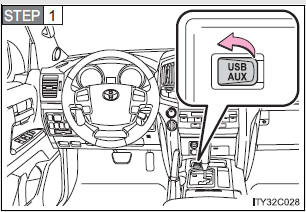
Open the cover and connect an iPod using an iPod cable.
Turn on the power of the iPod if it is not turned on.
STEP 2
Press  .
.
- Control panel
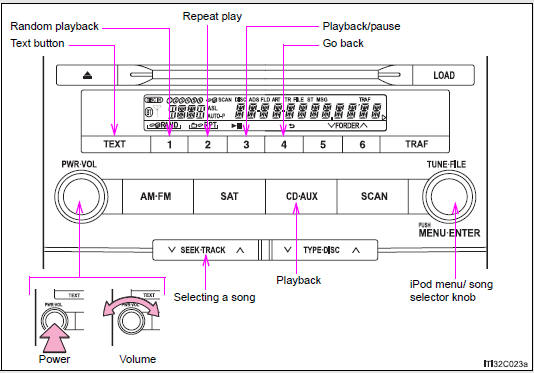
Selecting a play mode
STEP 1
Press to select iPod menu mode.
STEP 2
Turning  changes the play mode in the following order:
“PLAYLISTS”→“ARTISTS”→“ALBUMS”→“SONGS”→ “PODCASTS”→“GENRES”→“COMPOSERS”→ “AUDIOBOOKS”
STEP 3
Press  to select the desired play mode.
- Play mode list
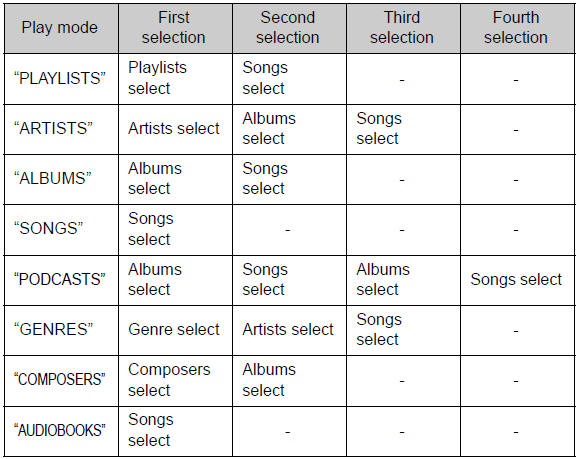
- Selecting a list
STEP 1
Turn  to display the first selection list.
STEP 2
Press  to select the desired item.
Pressing the knob changes to the second selection list.
STEP 3
Repeat the same procedure to select the desired song name.
To return to the previous selection list, select “GO BACK” or press  (
( ).
).
Selecting songs
Turn  or press “∧” or “∨” on
  to select the desired song.
Playing and pausing songs
To play or pause a song, press  (
(  ).
).
Fast-forwarding and rewinding songs
To fast-forward or rewind, press and hold “∧” or “∨” on  until you hear a beep.
Shuffle playback
- Playing songs from one playlist or album in random order
Press  (RAND).
To cancel, press  (RAND) again.
- Playing songs from all the playlists or albums in random orde
r
Press and hold  (RAND) until you hear a beep.
To cancel, press  (RAND) again.
Repeat play
Press  (RPT).
To cancel, press  (RPT) again.
Switching the display
STEP 1
Press  .
.
STEP 2
Each time the button is pressed, the display changes in the following order: Elapsed time → Album title → Track title → Artist name
Adjusting sound quality and volume balance
Press  to enter iPod menu mode.
Pressing  changes sound modes.
- About iPod
- Apple is not responsible for the operation of this device or its compliance with safety and regulatory standards.
- iPod is a trademark of Apple Inc., registered in the U.S. and other countries.
- iPod functions
- When an iPod is connected and the audio source is changed to iPod mode, the iPod will resume play from the same point in which it was last used.
- Depending on the iPod that is connected to the system, certain functions may not be available. Disconnecting the device and reconnecting it once again may resolve some malfunctions.
- iPod problems
To resolve most problems encountered when using your iPod, disconnect your iPod from the vehicle iPod connection and reset it.
For instructions on how to reset your iPod, refer to your iPod Owner’s Manual.
- Display
- Error messages
“ERROR”:This indicates a problem in the iPod or its connection.
“NO MUSIC”:This indicates that there is no music data in the iPod.
“EMPTY”: This indicates that an empty playlist is selected.
“UPDATE”: This indicates that the version of the iPod is not compatible.
Upgrade your iPod software to the latest version.
- Compatible models
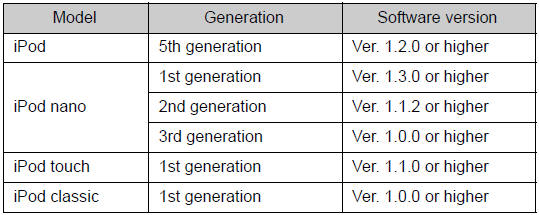
Depending on differences between models or software version etc., some models listed above might be incompatible with this system.
iPod 4th generation and earlier models are not compatible with this system.
iPhone, iPod mini, iPod shuffle and iPod photo are not compatible with this system.
Items related to standards and limitations are as follows:
- Maximum number of lists in device: 9999
- Maximum number of songs in device: 65535
- Maximum number of songs per list: 65535
| CAUTION
Do not connect iPod or operate the controls. |
| NOTICE
|
Operating a USB memory
Connecting a USB memory enables you to enjoy music from the vehicle speakers.
- Connecting a USB memory
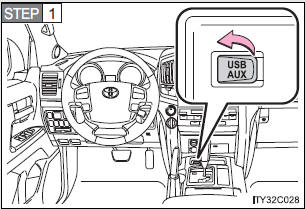
Open the cover and connect a USB memory.
Turn on the power of the USB memory if it is not turned on.
STEP 2
Press  .
.
- Control panel
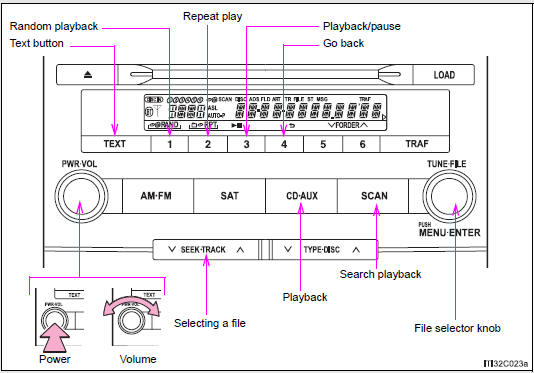
Selecting and scanning a folder
- Selecting folders one at a time
Press  (∧) or
  (∨) to select the desired folder.
- Returning to the first folder
Press and hold  (∨) until you hear a beep.
- Scanning the first file of all the folders
STEP 1
Press and hold  until you hear a beep.
The first ten seconds of the first file in each folder will be played.
STEP 2
When the desired folder is reached, press  again.
Selecting and scanning files
- Selecting a file
Turn  or press “∧” or “∨” on
  to select the desired file.
- Scanning the files in a folder
Press  .
.
The first ten seconds of each file will be played.
To cancel, press  again.
When the desired file is reached, press  again.
Playing and pausing files
To play or pause a file, press  (
(  )
)
Fast-forwarding and rewinding files
To fast-forward or rewind, press and hold “∧” or “∨” on  until you hear a beep.
Random playba
- Playing files from a folder in random order
Press  (RAND).
To cancel, press  (RAND) again.
- Playing all the files from a USB memory in random order
Press and hold  (RAND) until you hear a beep.
To cancel, press  (RAND) again.
Repeat play
- Repeating a file
Press  (RPT).
To cancel, press  (RPT) again.
- Repeating all the files in a folder
Press and hold  (RPT) until you hear a beep.
To cancel, press  (RPT) again.
Switching the display
Press  .
.
Each time the button is pressed, the display changes in the following order: Elapsed time → Folder name → File name → Album title → Track title → Artist name
- When using the USB port
You may be unable to use the instrument panel power outlet if a device is connected to the USB port at the same time.
- USB memory functions
Depending on the USB memory that is connected to the system, certain functions may not be available. Disconnecting the device and reconnecting it once again may resolve some malfunctions.
- Display
- Error messages
“ERROR”: This indicates a problem in the USB memory or its connection.
“NO MUSIC”: This indicates that no MP3/WMA files are included in the USB memory.
- USB memory
- Compatible devices
USB memory that can be used for MP3 and WMA playback
- Compatible device formats
The following device formats can be used:
- USB communication formats: USB2.0 FS (12mbps)
- File formats: FAT16/32 (Windows)
- Correspondence class: Mass storage class
MP3 and WMA files written in any format other than those listed above may not play correctly, and their file names and folder names may not be displayed correctly.
Items related to standards and limitations are as follows:
- Maximum directory hierarchy: 8 levels
- Maximum number of folders in a device: 999 (including the root)
- Maximum number of files in a device: 65025
- Maximum number of files per folder: 255
- MP3 and WMA files
MP3 (MPEG Audio LAYER 3) is a standard audio compression format.
Files can be compressed to approximately 1/10 of their original size using MP3 compression.
WMA (Windows Media Audio) is a Microsoft audio compression format.
This format compresses audio data to a size smaller than that of the MP3 format.
There is a limit to the MP3 and WMA file standards that can be used and to the media/formats on which the files are recorded.
- MP3 file compatibility
- Compatible standards MP3 (MPEG1 AUDIO LAYERII, III, MPEG2 AUDIO LAYERII, III, MPEG2.5)
- Compatible sampling frequencies MPEG1 AUDIO LAYERII, III: 32, 44.1, 48 (kHz) MPEG2 AUDIO LAYERII, III: 16, 22.05, 24 (kHz) MPEG2.5: 8, 11.025, 12 (kHz)
- Compatible bit rates (compatible with VBR) MPEG1 AUDIO LAYERII, III: 32-320 (kbps) MPEG2 AUDIO LAYERII, III: 32-160 (kbps) MPEG2.5: 32-160 (kbps)
- Compatible channel modes: stereo, joint stereo, dual channel and monaural
- WMA file compatibility
- Compatible standards WMA Ver. 9
- Compatible sampling frequencies HIGH PROFILE 32, 44.1, 48 (kHz)
- Compatible bit rates HIGH PROFILE 32-320 (kbps, VBR)
- File names
The only files that can be recognized as MP3/WMA and played are those with the extension .mp3 or .wma. - ID3 and WMA tags
ID3 tags can be added to MP3 files, making it possible to record the track title, artist name, etc.
The system is compatible with ID3 Ver. 1.0, 1.1, and Ver. 2.2, 2.3, 2.4 ID3 tags. (The number of characters is based on ID3 Ver. 1.0 and 1.1.) WMA tags can be added to WMA files, making it possible to record the track title and artist name in the same way as with ID3 tags.
- MP3 and WMA playback
- When a device containing MP3 or WMA files is connected, all files in the USB memory device are checked. Once the file check is finished, the first MP3 or WMA file is played. To make the file check finish more quickly, we recommend that you do not include any files other than MP3 or WMA files or create any unnecessary folders.
- When the USB device is connected and the audio source is changed to USB memory mode, the USB device will start playing the first file in the first folder. If the same device is removed and reinserted (and the contents have not been changed), the USB device will resume play from the same point in which it was last used.
- Extensions
If the file extensions .mp3 and .wma are used for files other than MP3 and WMA files, they will be mistakenly recognized and played as MP3 and WMA files. This may result in large amounts of interference and damage to the speakers. - Playback
- To play MP3 files with steady sound quality, we recommend a fixed bit rate of at least 128 kbps and a sampling frequency of 44.1 kHz.
- There is a wide variety of freeware and other encoding software for MP3 and WMA files on the market, and depending on the status of the encoding and the file format, poor sound quality or noise at the start of playback may result. In some cases, playback may not be possible at all.
- Microsoft, Windows, and Windows Media are registered trademarks of Microsoft Corporation in the U.S.A. and other countries.
| CAUTION
Do not connect USB memory or operate the controls. |
| NOTICE
|
Optimal use of the audio system
- Displays the current mode
- Changes the following settings
- Sound quality and volume balance
The sound quality and balance setting can be changed to produce the best sound.
- Automatic Sound Levelizer on/off
Adjusting sound quality and volume balance
- Changing sound quality modes
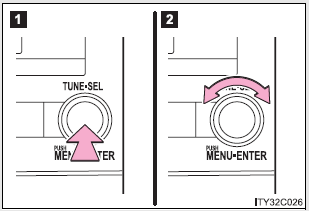
Pressing  selects the mode to be change in the following order.
“BAS” → “MID” → “TRE” → “FAD” → “BAL” → “ASL”
- Adjusting sound quality
Turning  adjusts the level.
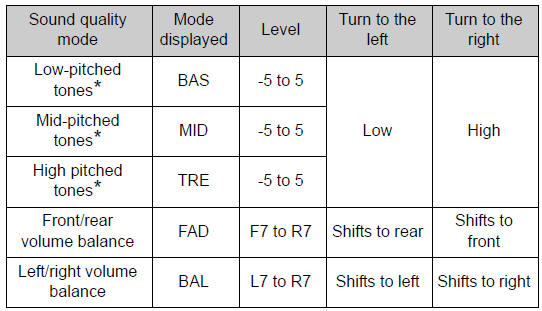
*: The sound quality level is adjusted individually in each audio mode.
Turning the Automatic Sound Levelizer (ASL) on/off
Turning clockwise turns on the ASL, and turning counterclockwise turns off the ASL.
ASL automatically adjusts the volume an
Using the AUX port
This port can be used to connect a portable audio device and listen to it using the vehicle’s speakers.
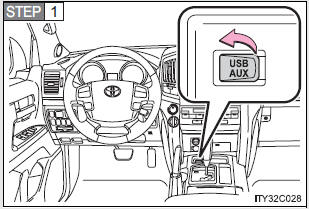
Open the cover and connect the portable audio device.
STEP 2
Press  .
.
- Operating portable audio devices connected to the audio system
The volume can be adjusted using the vehicle’s audio controls. All other adjustments must be made on the portable audio device itself.
Using the steering switches
Some audio features can be controlled using the switches on the steering wheel.
Operation may differ depending on the type of audio system or navigation system. For details, refer to the manual provided with the audio system or navigation system.
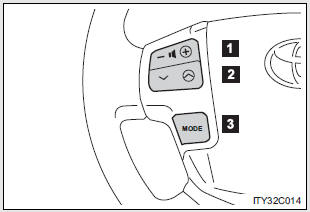
- Volume
- Radio mode:Selects a radio station
CD mode: Selects a track, file (MP3 and WMA) and disc
Bluetooth® audio mode: Selects a track and album
iPod mode: Selects a song
USB memory mode: Selects a file and folder
- Power on, select audio source
Turning on the power
Press  when the audio system is turned off.
The audio system can be turned off by holding the switch down until you hear a beep.
Changing the audio source
Press  when the audio system is turned on. The audio source changes as follows each time the button is pressed. If a mode cannot be used, it will be skipped.
Type A:
FM1 → FM2 → SAT1 → SAT2 → SAT3 → CD player → Bluetooth® audio → AUX → iPod or USB memory → AM
Type B:
FM1 → FM2 → CD player → Bluetooth® audio → AUX → iPod or USB memory → AM
Adjusting the volume
Press “+” on  to increase the volume and “-” to decrease the volume.
Hold down the button to continue increasing or decreasing the volume.
Selecting a radio station
STEP 1
Press  to select the radio mode.
STEP 2
Press “∧” or “∨” on  to select a radio station.
To scan for receivable stations, press and hold the switch until you hear a beep.
Selecting a track/file or song
STEP 1
Press to select CD, Bluetooth® audio, iPod or USB memory mode.
STEP 2
Press “∧” or “∨” on  to select the desired track/file or song.
Selecting an album
STEP 1
Press  to select Bluetooth® audio mode.
STEP 2
Press and hold “∧” or “∨” on  until you hear a beep.
Selecting a folder
STEP 1
Press  to select USB memory mode.
STEP 2
Press and hold “∧” or “∨” on  until you hear a beep.
Selecting a disc in the CD player
STEP 1
Press  to select the CD mode.
STEP 2
Press and hold “∧” or “∨” on  until you hear a beep.
- Canceling automatic selection of a radio station
Press  again.
| CAUTION
Exercise care when operating the audio switches on the steering wheel. |
Download Manual