Using the driving support systems
P. 226
P. 198
P. 235
208 4-5. Using the driving support systems
The pre-collision system does not record conversations, sounds or images of the inside of the vehicle.
Toyota may use the data recorded in this computer to diagnose malfunctions, conduct research and development, and improve quality.
Toyota will not disclose the recorded data to a third party except:
The image information recording function can be disabled. How- ever, if the function is disabled, data from when the pre-collision system operates will not be available.
4-5. Using the driving support systems
209
Radar sensor Camera sensor
210 4-5. Using the driving support systems
WARNING
Observe the following precautions.
Otherwise, the camera sensor may not operate properly, possibly leading to an accident resulting in death or serious injury.
A: From the top of the windshield to approximately 0.4 in. (1 cm) below the bottom of the camera sensor
B: Approximately 7.9 in. (20 cm) (Approximately 4.0 in. [10 cm] to the right and left from the center of the camera sensor)
If the wiper inserts or wiper blades need to be replaced, contact your Toyota dealer.
If the windshield needs to be replaced, contact your Toyota dealer.
When cleaning the inside of the windshield, do not allow glass cleaner to contact the lens. Also, do not touch the lens.
If the lens is dirty or damaged, contact your Toyota dealer.
4-5. Using the driving support systems
211
212 4-5. Using the driving support systems
4-5. Using the driving support systems
213
214 4-5. Using the driving support systems
When the system determines that the possibility of a frontal colli- sion is high, the system applies greater braking force in relation to how strongly the brake pedal is depressed.
When the system determines that the possibility of a frontal colli- sion is high, the system warns the driver. If the system determines that the possibility of a collision is extremely high, the brakes are automatically applied to help avoid the collision or reduce the colli- sion speed.
4-5. Using the driving support systems
215
WARNING
Do not use the pre-collision system instead of normal braking operations under any circumstances. This system will not prevent collisions or lessen collision damage or injury in every situation. Do not overly rely on this sys- tem. Failure to do so may lead to an accident, resulting in death or serious injury.
Read the following conditions carefully. Do not overly rely on this system and always drive carefully.
216 4-5. Using the driving support systems
4-5. Using the driving support systems
217
The system is automatically enabled each time the engine switch is turned to the“ON” position (vehicles without a smart key system) or IGNITION ON mode (vehicles with a smart key system).
The pre-collision warning timing can be changed on the settings display (P. 93) of the multi-information display.
The operation timing setting is retained when the engine switch is turned off.
The warning will begin to oper- ate earlier than with the default timing.
This is the default setting.
The warning will begin to oper- ate later than with the default timing.
218 4-5. Using the driving support systems
The pre-collision system is enabled and the system determines that the pos- sibility of a frontal collision with a vehicle or pedestrian is high.
Each function is operational at the following speeds:
The system may not operate in the following situations:
4-5. Using the driving support systems
The pre-collision system detects pedestri- ans based on the size, profile, and motion of a detected object. However, a pedes- trian may not be detected depending on the surrounding brightness and the motion, posture, and angle of the detected object, preventing the system from operating properly. (P. 222)
219
If either of the following occurs while the pre-collision braking function is oper- ating, it will be canceled:
220 4-5. Using the driving support systems
4-5. Using the driving support systems
221
222 4-5. Using the driving support systems
4-5. Using the driving support systems
223
224 4-5. Using the driving support systems
4-5. Using the driving support systems
225
The pre-collision system may be temporarily unavailable or there may be a malfunction in the system.
(Defogging the windshield: P. 368, 376)
226 4-5. Using the driving support systems
The LDA system recognizes visi- ble white (yellow) lines with the camera sensor on the upper por- tion of the windshield.
Functions included in LDA system
When the system determines that the vehicle might depart from its lane, a warning is dis- played on the multi-information display and the warning buzzer sounds to alert the driver.
When the warning buzzer sounds, check the surrounding road situation and carefully operate the steering wheel to move the vehicle back to the center of the lane.
4-5. Using the driving support systems
If the system detects that the steering wheel has not been operated for a fixed amount of time or the steering wheel is not being firmly gripped, a warning is displayed on the multi-infor- mation display and the warning buzzer sounds.
227
228 4-5. Using the driving support systems
WARNING
Do not rely solely upon the LDA system. The LDA system does not auto- matically drive the vehicle or reduce the amount of attention that must be paid to the area in front of the vehicle. The driver must always assume full responsibility for driving safely by paying careful attention to the surround- ing conditions and operating the steering wheel to correct the path of the vehicle. Also, the driver must take adequate breaks when fatigued, such as from driving for a long period of time.
Failure to perform appropriate driving operations and pay careful attention may lead to an accident, resulting in death or serious injury.
When not using the LDA system, use the LDA switch to turn the system off.
Do not use the LDA system in the following situations.
The system may not operate properly and lead to an accident, resulting in death or serious injury.
4-5. Using the driving support systems
229
LDA system on.
The LDA indicator illuminates and a message is displayed on the multi-information display.
Press the LDA switch again to turn the LDA system off.
When the LDA system is turned on or off, operation of the LDA system continues in the same condition the next time the engine is started.
230 4-5. Using the driving support systems
The illumination condition of the indicator informs the driver of the system operation status.
Illuminated in white:
LDA system is operating.
Illuminated in green:
Steering wheel assistance of the steering control function is operat- ing.
Flashing in orange:
Lane departure alert function is operating.
Indicates that steering wheel assistance of the steering control function is operating.
Lane departure alert function display
Displayed when the multi-information display is switched to the driving assist system information screen.
Inside of displayed white lines is white
Inside of displayed white lines is black
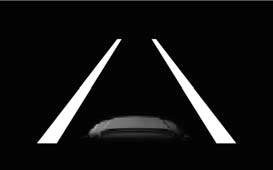
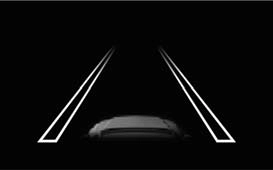 Indicates that the system is recog- nizing white (yellow) lines. When the vehicle departs from its lane, the white line displayed on the side the vehicle departs from flashes orange.
Indicates that the system is not able to recognize white (yellow) lines or is temporarily canceled.
4-5. Using the driving support systems
231
This function operates when all of the following conditions are met.
This function operates when all of the following conditions are met in addi- tion to the operation conditions for the lane departure alert function.
This function operates when all of the following conditions are met.
232 4-5. Using the driving support systems
When operation conditions are no longer met, a function may be temporarily canceled. However, when the operation conditions are met again, operation of the function is automatically restored. (P. 231)
Depending on the vehicle speed, lane departure situation, road conditions, etc., the driver may not feel the function is operating or the function may not operate at all.
The warning buzzer may be difficult to hear due to external noise, audio play- back, etc.
When the system determines that the driver has removed the hands from the steering wheel while the steering control function is operating, a warning message is displayed on the multi-information display.
If the driver continues to keep the hands off of the steering wheel, a buzzer sounds, a warning message is displayed. This alert also operates in the same way when the driver continuously operates the steering wheel only a small amount. However, depending on the road conditions, etc., the function may not cancel.
The LDA system will not operate for the side on which white (yellow) lines could not be recognized.
4-5. Using the driving support systems
233
In the following situations, the camera sensor may not detect white (yellow) lines and various functions may not operate normally.
234 4-5. Using the driving support systems
Warning messages are used to indicate a system malfunction or to inform the driver of the need for caution while driving. (P. 489)
The following settings can be changed.
|
Function |
Setting details |
|
Lane departure alert function |
Adjust alert sensitivity |
|
Steering control function |
Turn steering wheel assistance on and off |
|
Vehicle sway warning function |
Turn function on and off |
|
Adjust alert sensitivity |
For how to change settings, refer to P. 93
4-5. Using the driving support systems
235
Use the dynamic radar cruise control on freeways and highways.
Vehicles with a monochrome display
Vehicles with a color display
Vehicle-to-vehicle distance switch Set speed
Display Indicators
Cruise control switch
236 4-5. Using the driving support systems
WARNING
Driving safely is the sole responsibility of the driver. Do not rely solely on the system, and drive safely by always paying careful attention to your sur- roundings.
The dynamic radar cruise control provides driving assistance to reduce the driver's burden. However, there are limitations to the assistance provided.
Set the speed appropriately depending on the speed limit, traffic flow, road conditions, weather conditions, etc. The driver is responsible for checking the set speed.
Even when the system is functioning normally, the condition of the preced- ing vehicle as detected by the system may differ from the condition observed by the driver. Therefore, the driver must always remain alert, assess the danger of each situation and drive safely. Relying on this system or assuming the system ensures safety while driving can lead to an acci- dent, resulting in death or serious injury.
Observe the following precautions, as there are limitations to the assistance provided by the system.
Failure to do so may cause an accident resulting in death or serious injury.
The dynamic radar cruise control is only intended to help the driver in determining the following distance between the driver’s own vehicle and a designated vehicle traveling ahead. It is not a mechanism that allows care- less or inattentive driving, and it is not a system that can assist the driver in low-visibility conditions. It is still necessary for driver to pay close attention to the vehicle’s surroundings.
The dynamic radar cruise control determines whether the following dis- tance between the driver’s own vehicle and a designated vehicle traveling ahead is within a set range. It is not capable of making any other type of judgement. Therefore, it is absolutely necessary for the driver to remain vigilant and to determine whether or not there is a possibility of danger in any given situation.
The dynamic radar cruise control has limited capability to prevent or avoid a collision with a vehicle traveling ahead. Therefore, if there is ever any danger, the driver must take immediate and direct control of the vehicle and act appropriately in order to ensure the safety of all involved.
Switch the dynamic radar cruise control off using the“ON-OFF” button when not in use.
4-5. Using the driving support systems
237
238 4-5. Using the driving support systems
Note that vehicle-to-vehicle distance will close in when traveling on long downhill slopes.
|
|


The vehicle travels at the speed set by the driver. The desired vehicle-to- vehicle distance can also be set by operating the vehicle-to-vehicle dis- tance switch.
When a preceding vehicle driving slower than the set speed appears
When a vehicle is detected running ahead of you, the system automatically decelerates your vehicle. When a greater reduction in vehicle speed is necessary, the system applies the brakes (the stop lights will come on at this time). The system will respond to changes in the speed of the vehicle ahead in order to maintain the vehicle-to-vehicle distance set by the driver. Approach warning warns you when the system cannot decelerate suffi- ciently to prevent your vehicle from closing in on the vehicle ahead.
When there are no longer any preceding vehicles driving slower than the set speed
The system accelerates until the set speed is reached. The system then returns to constant speed cruising.
4-5. Using the driving support systems
239
Radar cruise control indicator will come on and a message will be displayed on the multi-information display.
Press the button again to deacti- vate the cruise control.
If the“ON-OFF” button is pressed and held for 1.5 seconds or more, the system turns on in constant speed control mode. (P. 243)
Cruise control“SET” indicator will come on.
The vehicle speed at the moment the lever is released becomes the set speed.
Vehicles with a color display
240 4-5. Using the driving support systems
Increases the speed Decreases the speed
Fine adjustment: Momentarily move the lever in the desired direction.
Large adjustment: Hold the lever up or down to change the speed, and release when the desired speed is reached.
In the vehicle-to-vehicle distance control mode, the set speed will be increased or decreased as follows:
Type A
Fine adjustment: By 1 mph (1.6 km/h)*1 or 1 km/h (0.6 mph)*2 each time the lever is operated
Large adjustment: Increases or decreases in 1 mph (1.6 km/h) *1 or 1 km/h (0.6 mph)*2 increments for as long as the lever is held
Type B
Fine adjustment: By 1 mph (1.6 km/h)*1 or 1 km/h (0.6 mph)*2 each time the lever is operated
Large adjustment: Increases or decreases in 5 mph (8 km/h)*1 or 5 km/h (3.1 mph)*2 increments for as long as the lever is held
Fine adjustment: By 1 mph (1.6 km/h)*1 or 1 km/h (0.6 mph)*2 each time the lever is operated
Large adjustment: The speed will continue to change while the lever is held.
*1: When the set speed is shown in“MPH”
*2: When the set speed is shown in“km/h”
4-5. Using the driving support systems
241
vehicle-to-vehicle distance as fol- lows:
Long Medium Short
The vehicle-to-vehicle distance is set automatically to long mode when the engine switch is turned to the“ON” position (vehicles without a smart key system) or IGNITION ON mode (vehicles with a smart key system).
If a vehicle is running ahead of you, the preceding vehicle mark will also be displayed.
|
Distance options |
Vehicle-to-vehicle distance |
|
Long |
Approximately 160 ft. (50 m) |
|
Medium |
Approximately 130 ft. (40 m) |
|
Short |
Approximately 100 ft. (30 m) |
242 4-5. Using the driving support systems
cancels the speed control.
The speed setting is also canceled when the brake pedal is depressed or the clutch pedal is depressed (vehicles with a manual transmis- sion) for some seconds.
However, cruise control does not resume when the vehicle speed is approximately 25 mph (40 km/h) or less.
In the following instances, warnings may not occur even when the vehicle-to-vehicle distance is small.
4-5. Using the driving support systems
243
With the cruise control off, press and hold the“ON-OFF” button for 1.5 seconds or more.
Immediately after the“ON-OFF” button is pressed, the radar cruise control indicator will come on. Afterwards, it switches to the cruise control indicator.
Switching to constant speed con- trol mode is only possible when operating the lever with the cruise control off.
Cruise control“SET” indicator will come on.
The vehicle speed at the moment the lever is released becomes the set speed.
Adjusting the speed setting: P. 240
Canceling and resuming the speed setting: P. 242
Vehicles with a color display
244 4-5. Using the driving support systems
Vehicles with a continuously variable transmission
(vehicles with paddle shift switches)
Vehicles with a manual transmission
The vehicle can accelerate by operating the accelerator pedal. After acceler- ating, the set speed resumes. However, during vehicle-to-vehicle distance control mode, the vehicle speed may decrease below the set speed in order to maintain the distance to the preceding vehicle.
If vehicle-to-vehicle distance control mode is automatically canceled for any other reason, there may be a malfunction in the system. Contact your Toyota dealer.
4-5. Using the driving support systems
245
Constant speed control mode is automatically canceled in the following situa- tions:
If constant speed control mode is automatically canceled for any other rea- son, there may be a malfunction in the system. Contact your Toyota dealer.
In the case of the following and depending on the conditions, operate the brake pedal when deceleration of the system is insufficient or operate the accelerator pedal when acceleration is required.
As the sensor may not be able to correctly detect these types of vehicles, the approach warning (P. 242) may not be activated.
246 4-5. Using the driving support systems
In the case of the following conditions, operate the brake pedal (or accelera- tor pedal, depending on the situation) as necessary.
As the sensor may not be able to correctly detect vehicles ahead, the system may not operate properly.
4-5. Using the driving support systems
247
Vehicles with a smart key system: The rear view image is displayed when the shift position is in R and the engine switch is in IGNITION ON mode.
The rear view monitor system will be deactivated when the shift lever is in any position other than R.
248 4-5. Using the driving support systems
|
|

The line indicates a guide path when the vehicle is being backed straight up.
The displayed width is wider than the actual vehicle width.
The line indicates the estimated vehicle center on the ground.
The line shows points approximately 1.5 ft. (0.5 m) (red) from the edge of the bumper.
The line shows distance behind the vehicle, a point approximately 3 ft. (1 m) (blue) from the edge of the bumper.
4-5. Using the driving support systems
249
To adjust the image on the rear view monitor system screen. (P. 282)
250 4-5. Using the driving support systems
If dirt or foreign matter (such as water droplets, snow, mud etc.) is adhering to the camera, it cannot transmit a clear image. In this case, flush it with a large quantity of water and wipe the cam- era lens clean with a soft and wet cloth.
The distance guide lines and the vehicle width guide lines may not actually be parallel with the dividing lines of the parking space, even when they appear to be so. Be sure to check visually.
The distances between the vehicle width guide lines and the left and right dividing lines of the parking space may not be equal, even when they appear to be so. Be sure to check visually.
The distance guide lines give a distance guide for flat road sur- faces. In any of the following situations, there is a margin of error between the fixed guide lines on the screen and the actual dis- tance/course on the road.
4-5. Using the driving support systems
appear to be closer to the
vehicle than the actual dis- tance. Because of this, objects will appear to be far- ther away than they actually are. In the same way, there will be a margin of error between the guidelines and the actual distance/course on the road.
appear to be farther from the
vehicle than the actual dis- tance. Because of this, objects will appear to be closer than they actually are. In the same way, there will be a margin of error between the guidelines and the actual distance/course on the road.
251
252 4-5. Using the driving support systems
When any part of the vehicle sags due to the number of passengers or the distribu- tion of the load, there is a margin of error between the fixed guide lines on the screen and the actual dis- tance/course on the road.
The distance guide lines are displayed according to flat surfaced objects (such as the road). It is not possible to determine the posi- tion of three-dimensional objects (such as vehicles) using the vehi- cle width guide lines and distance guide lines. When approaching a three-dimensional object that extends outward (such as the flatbed of a truck), be careful of the following.
Visually check the surround- ings and the area behind the vehicle. On the screen, it appears that a truck is parked at point . However, in reality if you back up to point , you will hit the truck. On the screen, it appears that is closest and is farthest away. However, in reality, the dis-
tance to 1
same, and
and is the
2 is farther than
and 3 .
4-5. Using the driving support systems
253
Vehicle width guide lines
254 4-5. Using the driving support systems
If the symptom is not resolved by the solution, have the vehicle inspected by your Toyota dealer.
|
Likely cause |
Solution |
|
The image is difficult to see
|
|
|
The vehicle is in a dark area
The temperature around the lens is either high or low
The outside temperature is low
There are water droplets on the camera
It is raining or humid
Foreign matter (mud etc.) is adhering to the camera
Sunlight or headlights are shining directly into the camera
The vehicle is under fluorescent lights, sodium lights, mercury lights etc.
|
If this happens due to these causes, it does not indicate a malfunction. Back up while visually checking the vehicle’s surroundings. (Use the monitor again once conditions have been improved.) To adjust the image on the rear view monitor system screen. (P. 282) |
|
The image is blurry
|
|
|
Dirt or foreign matter (such as water droplets, snow, mud etc.) is adher- ing to the camera. |
Flush the camera with a large quan- tity of water and wipe the camera lens clean with a soft and wet cloth. |
|
The image is out of alignment
|
|
|
The camera or surrounding area has received a strong impact. |
Have the vehicle inspected by your Toyota dealer. |
|
The fixed guide lines are very far out of alignment
|
|
|
The vehicle is tilted (there is a heavy load on the vehicle, tire pressure is low due to a tire punc- ture, etc.)
The vehicle is used on an incline.
|
If this happens due to these causes, it does not indicate a malfunction. Back up while visually checking the vehicle's surroundings. |
|
The camera position is out of align- ment. |
Have the vehicle inspected by your Toyota dealer. |
4-5. Using the driving support systems
255
WARNING
The rear view monitor system is a supplemental device intended to assist the driver when backing up. When backing up, be sure to visually check all around the vehicle both directly and using the mirrors before proceeding. If you do not, you may hit another vehicle, and could possibly cause an acci- dent.
Pay attention to the following precautions when using the rear view monitor system.
Use caution, just as you would when backing up any vehicle.
When and how much to turn the steering wheel will vary according to traf- fic conditions, road surface conditions, vehicle condition, etc. when park- ing. It is necessary to be fully aware of this before using the rear view monitor system.
256 4-5. Using the driving support systems
4-5. Using the driving support systems
257
Generates an increased level of braking force after the brake pedal is depressed when the system detects a panic stop situation
Helps the driver to control skidding when swerving suddenly or turning on slippery road surfaces
Helps to maintain drive power and prevent the drive wheels from spinning when starting the vehicle or accelerating on slippery roads
Helps to reduce the backward movement of the vehicle when start- ing on an uphill
Employs an electric motor to reduce the amount of effort needed to turn the steering wheel
258 4-5. Using the driving support systems
while the TRAC/VSC systems are operating.
If the vehicle gets stuck in mud, dirt or snow, the TRAC system may
reduce power from the engine to the wheels. Pressing to turn the
system off may make it easier for you to rock the vehicle in order to free it.
To turn the TRAC system off, quickly press and release .
 Press again to turn the system back on.
The“TRAC OFF” indicator light will come on.
Vehicles with a color display
“Traction Control Turned Off” will be shown.
4-5. Using the driving support systems
259
 To turn the TRAC and VSC systems off, press and hold for more than 3 seconds while the vehicle is stopped.
The“TRAC OFF” indicator light and VSC OFF indicator light will come on.* (vehicles with a monochrome display)
“Traction Control Turned Off” will be shown and VSC OFF indicator light will come on.* (vehicles with a color display)
Press  again to turn the systems back on.
 *: Pre-collision brake assist and pre-collision braking will also be disabled. The pre-collision system warning light will come on and the message will be shown on the multi-information display. (P. 225)
TRAC cannot be operated. Contact your Toyota dealer.
 has not been pressed (vehicles with a color display)
TRAC cannot be operated. Contact your Toyota dealer.
When the steering wheel is operated, a motor sound (whirring sound) may be heard. This does not indicate a malfunction.
After turning the TRAC and VSC systems off, the systems will be automati- cally re-enabled in the following situations:
Vehicles with a smart key system: When the engine switch is turned off
If both the TRAC and VSC systems are turned off, automatic re-enabling will not occur when vehicle speed increases.
260 4-5. Using the driving support systems
The effectiveness of the EPS system is reduced to prevent the system from overheating when there is frequent steering input over an extended period of time. The steering wheel may feel heavy as a result. Should this occur, refrain from excessive steering input or stop the vehicle and turn the engine off. The EPS system should return to normal within 10 minutes.
When the following four conditions are met, the hill-start assist control will operate:
The hill-start assist control will turn off in any of the following situations:
4-5. Using the driving support systems
261
262 4-5. Using the driving support systems
Download Manual