Disclaimer: Not affiliated with or endorsed by Toyota Motor Company. For informational purposes only. Full Disclaimer

2018 Toyota Corolla Owners Manual - Basic Operations


Basic Operations

P. 273

Entune Audio Plus or Entune Premium Audio

Refer to the“NAVIGATION AND MULTIMEDIA SYSTEM OWNER’S MANUAL”.

5-1. Basic Operations

271

Type A Type B

    Increases/decreases volume
    Press and hold: Continuously increases/decreases volume

Cursor switch

    Selects (radio stations/radio presets/tracks/files/songs)
    Moves cursor
    Press and hold: Seeks up/down (radio stations)
    Fast up/down (tracks/files)

“MODE/HOLD” switch:

    Changes audio source
    Press and hold: Mutes or pauses the current operation. To cancel the mute or pause, press and hold again.

272 5-1. Basic Operations

    iPod

Turn on the power of the iPod if it is not turned on.

    USB memory

Turn on the power of the USB memory device if it is not turned on.

    Portable audio player

Turn on the power of the portable audio player if it is not turned on.

5-1. Basic Operations

273

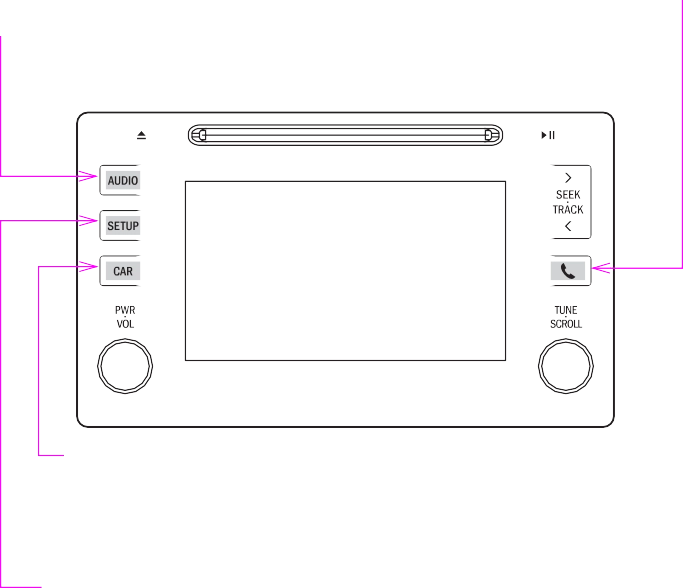
Display the“Select Audio Source” Press this button to access the screen or audio top screen. Bluetooth® hands-free system. (P. 284) (P. 322)

Press this button to access the fuel consumption screen. (P. 96)

Press this button to customize the function settings. (P. 278)

*: If equipped

274 5-1. Basic Operations

    Drag*

Touch the screen with your finger, and move the screen to the desired position.

    Scrolling the lists
    Flick*

Touch the screen with your finger and quickly move the screen by flicking your finger.

    Scrolling the main screen page

*: The above operations may not be performed on all screens.

    Capacitive touch switches

The control panel uses capacitive touch sensors.

    In the following cases, incorrect operation or non-response may occur.
    If the operating section is dirty or has liquid attached to it, incorrect opera- tion or non-response may occur.
    If the operating section receives electromagnetic waves, incorrect opera- tion or non-response may occur.
    If wearing gloves during operation, non-response may occur.
    If fingernails are used to operate the system, non-response may occur.
    If a touch pen is used to operate the system, non-response may occur.
    If the palm of your hand touches the operating section during operation, incorrect operation may occur.
    If the palm of your hand touches the operating section, incorrect opera- tion may occur.
    If operations are performed quickly, non-response may occur.
    Please do not reach your hand to the part of button when Entune Audio turn on. Because the button may become unresponsive for a while. But it will be back to normal for a given time even if Entune Audio turned on under the condition.
    When using the touch screen
    If the screen is cold, the display may be dark, or the system may seem to be operating slightly slower than normal.
    The screen may seem dark and hard to see when viewed through sun- glasses. Change your angle of viewing, adjust the display on the“Display Settings” screen (P. 282) or remove your sunglasses.
    Flick operations may not be performed smoothly in high altitudes.

5-1. Basic Operations

275

276 5-1. Basic Operations

Press the“>” or“<” button to

Press this button seek up or down for a radio

to eject a disc station, or to access a desired track or file.

Insert a disc into Press to pause or

the disc slot resume playing music.

:Select to pause music. Turn this knob to select radio

station bands, tracks and files.

:Select to resume playing music. Also the knob can be used to

select items in the list display.

Press this knob to turn Entune Audio on and off, and turn it to adjust the volume.

5-1. Basic Operations

277

    Using cellular phones

Interference may be heard through Entune Audio’s speakers if a cellular phone is being used inside or close to the vehicle while Entune Audio is oper- ating.


Download Manual