VOICE RECOGNITION QUICK TIPS
Start using Uconnect Voice Recognition (VR) with these helpful quick tips. It provides the key Voice Commands and tips you need to know to control your Uconnect system.
If you see the NAV icon on the bottom bar, or in the Apps menus, of your touchscreen, you have the Uconnect 4C NAV With 8.4-inch Display or the Uconnect 4C NAV With 12-inch Display system. If not, you have a Uconnect 4C With 8.4-inch Display system.
All you need to control your Uconnect system with your voice are the buttons on your steering wheel.
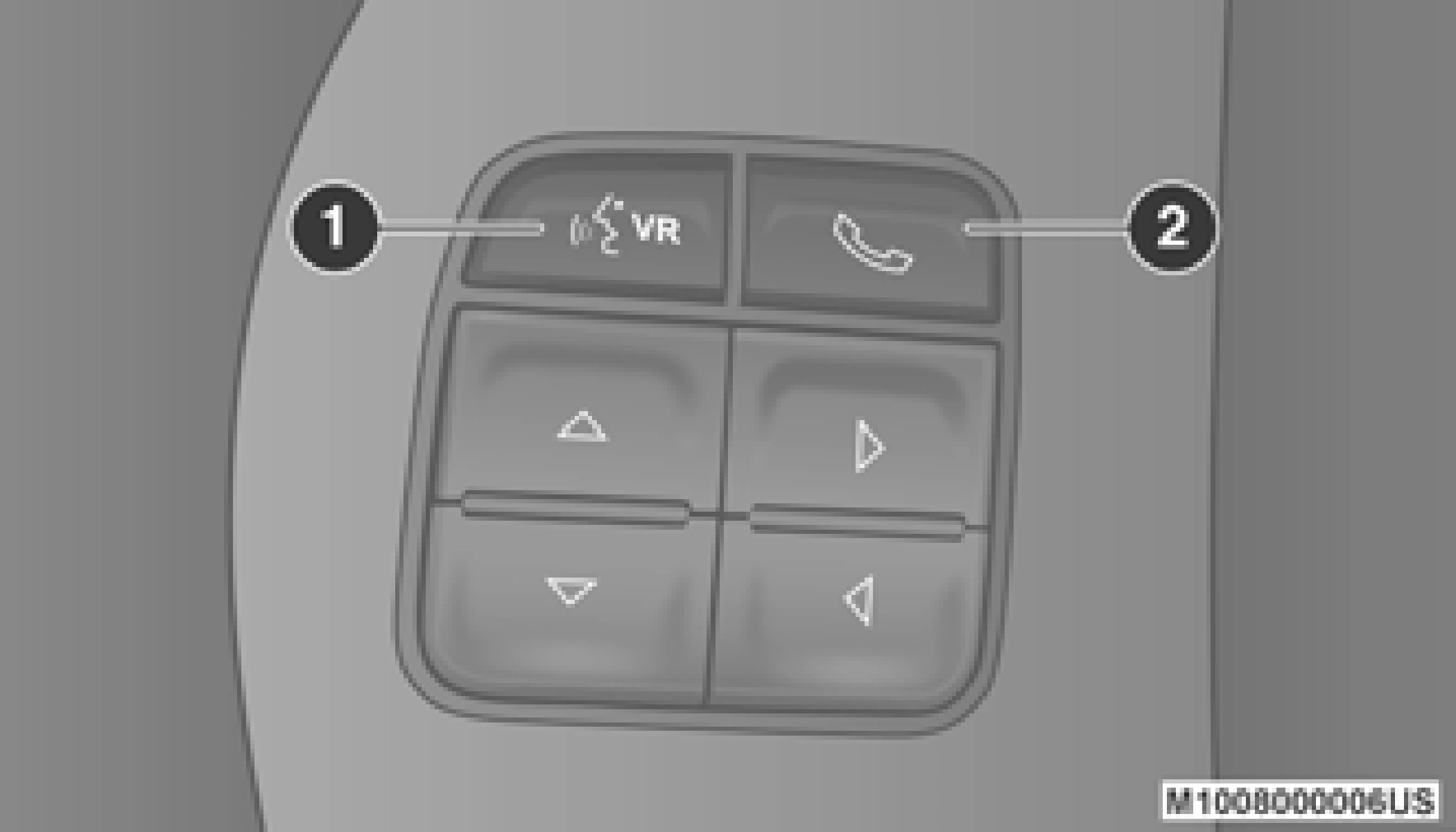
Uconnect Voice Command Buttons
The basic Voice Commands below can be given at any point while using your Uconnect system.
Push the VR button  on the steering wheel. After the beep, say:
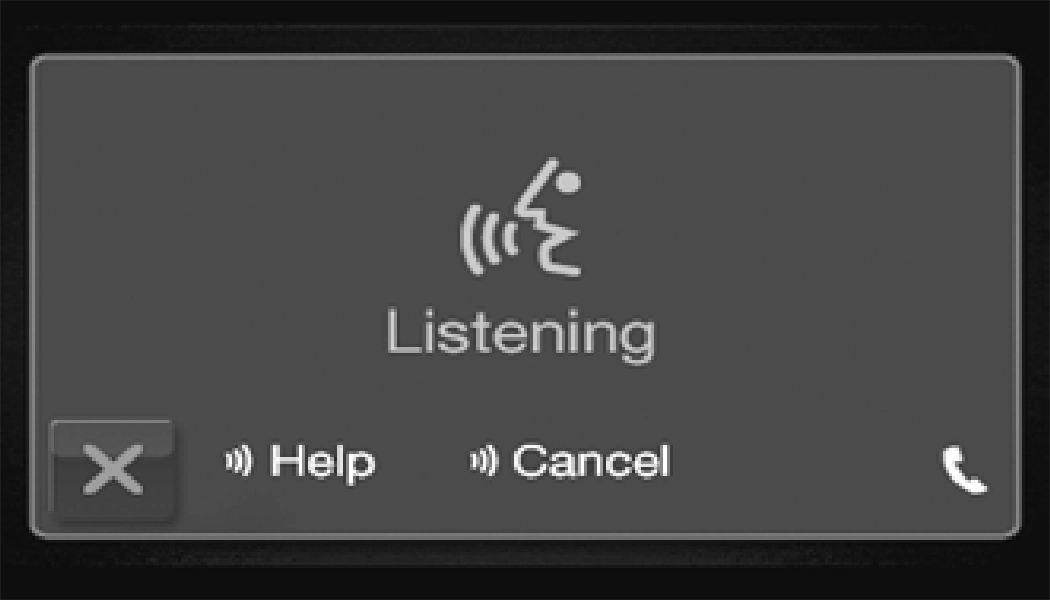
Notice the visual cues that inform you of your voice recognition system’s status. Cues appear on the top of the touchscreen.
Uconnect 3 With 5-inch Display
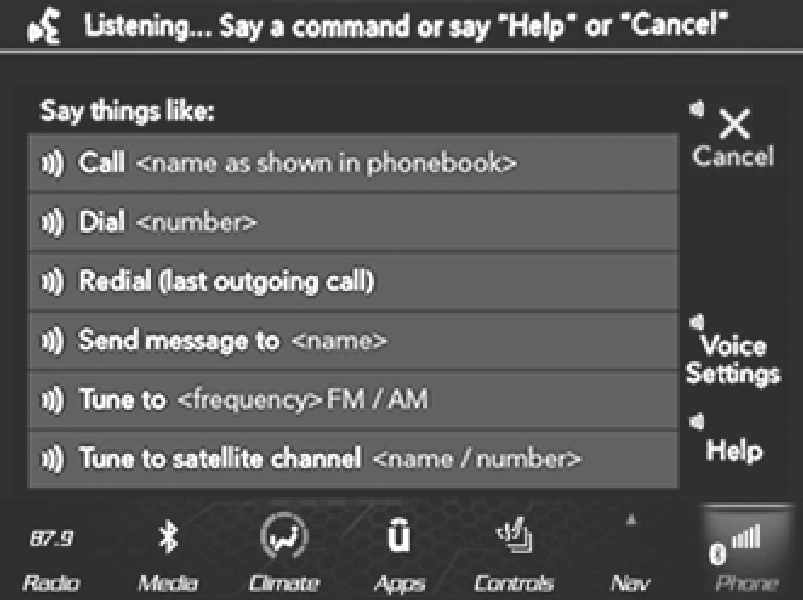
Uconnect 4/4C/4C NAV With 8.4-inch Display
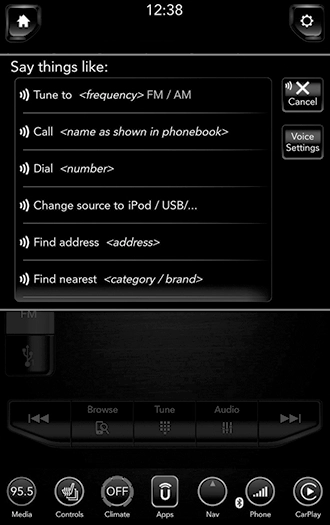
Uconnect 4C NAV With 12-inch Display
Use your voice to quickly get to the AM, FM or SiriusXM® Satellite Radio stations you would like to hear. (Subscription or included Siri- usXM® Satellite Radio trial required.)
Push the VR button  on the steering wheel. After the beep, say:
At any time, if you are not sure of what to say or want to learn a Voice Command, push the VR button  on the steering wheel and say “Help.”
The system provides you with a list of
commands.
Uconnect offers connections via USB, Blue- tooth® and auxiliary ports (if equipped). Voice operation is only available for connected USB and AUX devices.
Push the VR button  on the steering wheel. After the beep, say one of the following commands and follow the prompts to switch your media source or choose an artist.
Press the Browse button on the touchscreen to see all of the music on your USB device. Your Voice Command must match exactly how the artist, album, song and genre information is displayed.
Making and answering hands-free phone calls is easy with Uconnect. When the Phonebook button is illuminated on your touchscreen, your system is ready. Check UconnectPhone.com for mobile phone compatibility and pairing instruc- tions.
Push the Phone button  . After the beep, say one of the following commands:
When providing a Voice Command, push the Phone button  and say “Call,” then pronounce the name exactly as it appears in
your phone book. When a contact has multiple
phone numbers, you can say “Call John Smith work.”
Uconnect announces incoming text messages. Push the VR button  on the steering wheel or
Phone button  (if enabled) and say “Listen.” (Must have compatible mobile phone paired to Uconnect system.)
wheel or Phone button (if enabled). After the beep, say: “Reply.”
Only use the numbering listed, otherwise the system does not transpose the message.
Your mobile phone must have the full imple- mentation of the Message Access Profile (MAP) to take advantage of this feature. For details about MAP, visit UconnectPhone.com.
Apple® iPhone® iOS 6 or later supports reading incoming text messages only. For further infor- mation on how to enable this feature on your Apple® iPhone®, refer to your iPhone’s® “User Manual”.
Voice Text Reply is not compatible with iPhone®, but if your vehicle is equipped with Siri® Eyes Free, you can use your voice to send a text message.
Adjust vehicle temperatures hands-free and keep everyone comfortable while you keep moving ahead. (If vehicle is equipped with climate control.)
Push the VR button  on the steering wheel. After the beep, say one of the following commands:
Voice Command for Climate may only be used to adjust the interior temperature of your vehicle. Voice Command will not work to adjust the heated seats or steering wheel if equipped.
The Uconnect navigation feature helps you save time and become more productive when you know exactly how to get to where you want to go.
 on the steering wheel. After the beep, say: “Find address 800 Chrysler Drive
Auburn Hills, Michigan.”
To start a POI search, push the VR button  on the steering wheel. After the beep, say: “Find nearest coffee shop.”
Siri lets you use your voice to send text messages, select media, place phone calls and much more. Siri uses your natural language to understand what you mean and responds back to confirm your requests. The system is designed to keep your eyes on the road and your hands on the wheel by letting Siri help you perform useful tasks.
To enable Siri, push and hold, then release the Uconnect Voice Recognition (VR) button on the steering wheel. After you hear a double beep you can ask Siri to play podcasts and music, get directions, read text messages and many other useful requests.
With Do Not Disturb, you can disable notifica- tions from incoming calls and texts, allowing you to keep your eyes on the road and hands on the wheel. For your convenience, there is a counter display to keep track of your missed calls and text messages while you were using Do Not Disturb.
Do Not Disturb can automatically reply with a text message, a call, or both, when declining an incoming call and send it to voicemail.
Automatic reply messages can be:
While in Do Not Disturb, Conference Call can be selected so you can still place a second call without being interrupted by incoming calls.
Feature availability depends on your carrier and mobile phone manufacturer. Some Android Auto™ features may or may not be available in every region and/or language.
Android Auto™ allows you to use your voice to interact with Android’s™ best-in-class speech technology through your vehicle’s voice recogni- tion system, and use your smartphone’s data plan to project your Android™-powered smart- phone and a number of its apps onto your Ucon- nect touchscreen. Connect your Android™ 5.0 (Lollipop) or higher to one of the media USB ports, using the factory-provided USB cable, and press the new Android Auto™ icon that replaces your “Phone” icon on the main menu bar to begin Android Auto™. Push and hold the VR button on the steering wheel, or press and hold the “Microphone” icon within Android Auto™, to activate Android’s™ VR, which recognizes natural voice commands, to use a list of your smartphone’s features:
- Maps
- Music
- Phone
- Text Messages
- Additional Apps
Refer to your Uconnect Owner’s Manual Supple- ment for further information.
Requires compatible smartphone running Android™ 5.0 (Lollipop) or higher and download app on Google Play. Android™, Android Auto™, and Google Play are trademarks of Google Inc.
Feature availability depends on your carrier and mobile phone manufacturer. Some Apple CarPlay® features may or may not be available in every region and/or language.
Apple CarPlay® allows you to use your voice to interact with Siri through your vehicle’s voice recognition system, and use your smartphone to project your iPhone® and many apps onto your Uconnect touchscreen (smartphone’s data plan will be used for certain apps). Connect your iPhone® 5 or higher to one of the media USB ports, using the Apple® factory-provided Lightning cable, and press the new Apple CarPlay® icon that replaces your Phone icon on the main menu bar to begin Apple CarPlay®. Push and hold the VR button on the steering wheel, or press and hold the Home button within Apple CarPlay®, to activate Siri, which recognizes natural voice commands to use certain iPhone’s® features such as:
- Phone
- Music
- Messages
- Maps
- Additional Apps
Download Manual