LANESENSE — IF EQUIPPED
The LaneSense system is operational at speeds above 37 mph (60 km/h) and below 112 mph (180 km/h). It uses a forward looking camera to detect lane markings and measure vehicle posi- tion within the lane boundaries.
When both lane markings are detected and the driver unintentionally drifts out of the lane while no turn signal has been applied OR the driver departs the lane on the opposite side of the applied turn signal (if the left turn signal is applied and the vehicle departs to the right), the LaneSense system provides a haptic warning in the form of torque applied to the steering wheel to prompt the driver to remain within the lane boundaries. The LaneSense system will also provide a visual warning through the instrument cluster display to prompt the driver to remain within the lane boundaries.
The driver may manually override the haptic warning by applying torque into the steering wheel at any time.
When only a single lane marking is detected and the driver unintentionally drifts across that lane marking (no turn signal applied), the Lane- Sense system provides a visual warning through the instrument cluster display to prompt the driver to remain within the lane. When only a single lane marking is detected, a haptic (torque) warning will not be provided. When operating conditions have been met, the LaneSense system will monitor if the driver’s hands are on the steering wheel and provides an audible and visual warning to the driver when the driver’s hands are not detected on the steering wheel. The system will cancel if the driver does not return their hands to the wheel.
 The LaneSense button is located on the switch panel below the Uconnect display.
If your vehicle is equipped with a 12–inch Ucon- nect Display screen, the LaneSense button is located above the display.
To turn the LaneSense system on, push the LaneSense button (LED turns off). A “Lane- Sense On” message is shown in the instrument cluster display.
Lane Sense On Message
To turn the LaneSense system off, push the LaneSense button again (LED turns on).
The LaneSense system will retain the last system state (on or off) from the last ignition cycle when the ignition is placed in the ON/RUN position.
The LaneSense system will indicate the current lane drift condition through the instrument cluster display.
When the LaneSense system is on, the lane lines are gray when both of the lane boundaries have not been detected and the LaneSense tell-
 tale is solid white.
System ON (Gray Lines) With White Telltale
Sense Telltale is solid white when only the left lane marking has been detected and the system is ready to provide visual warnings in the instrument cluster display if an uninten- tional lane departure occurs on the left side.
Sense telltale changes from solid white to flashing yellow.
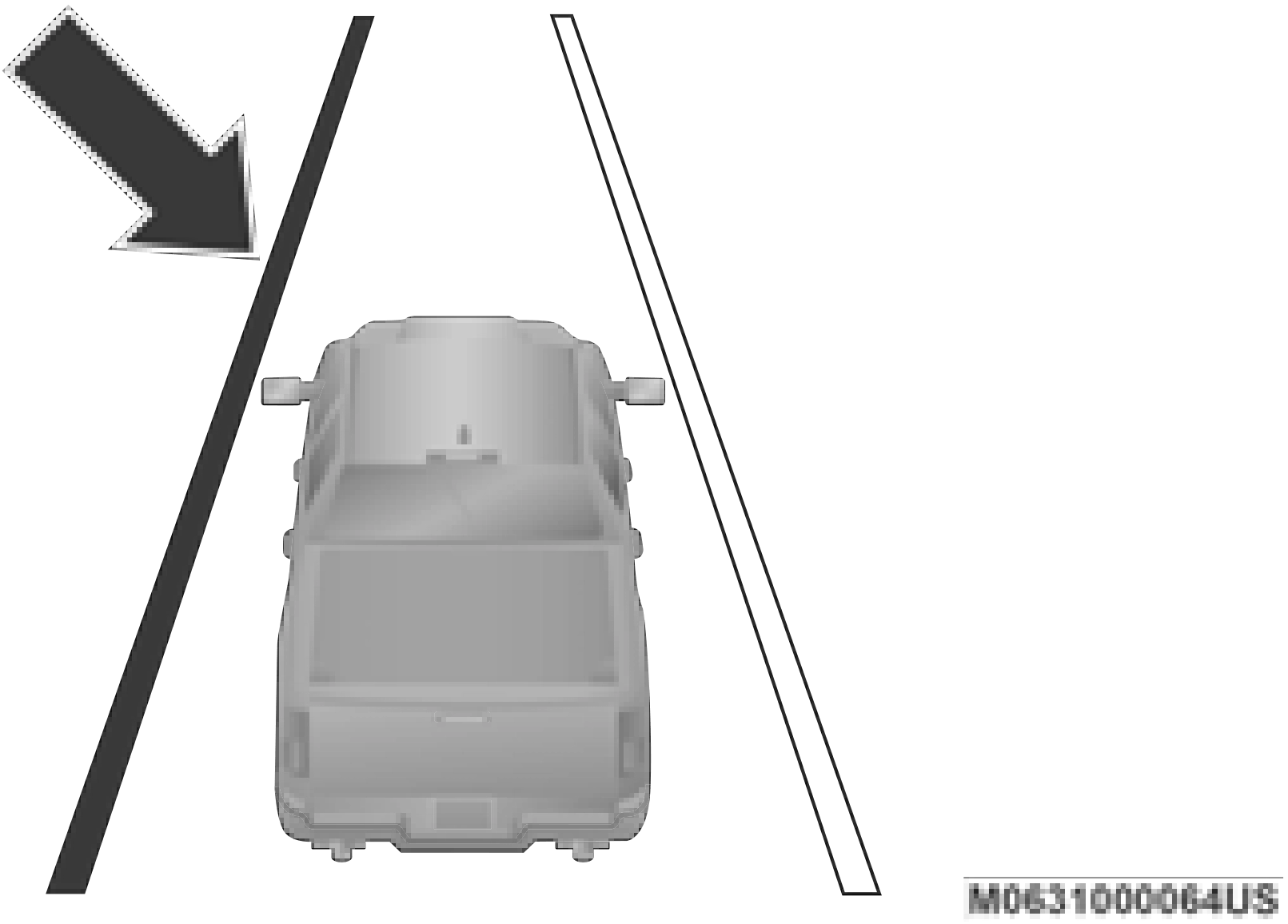
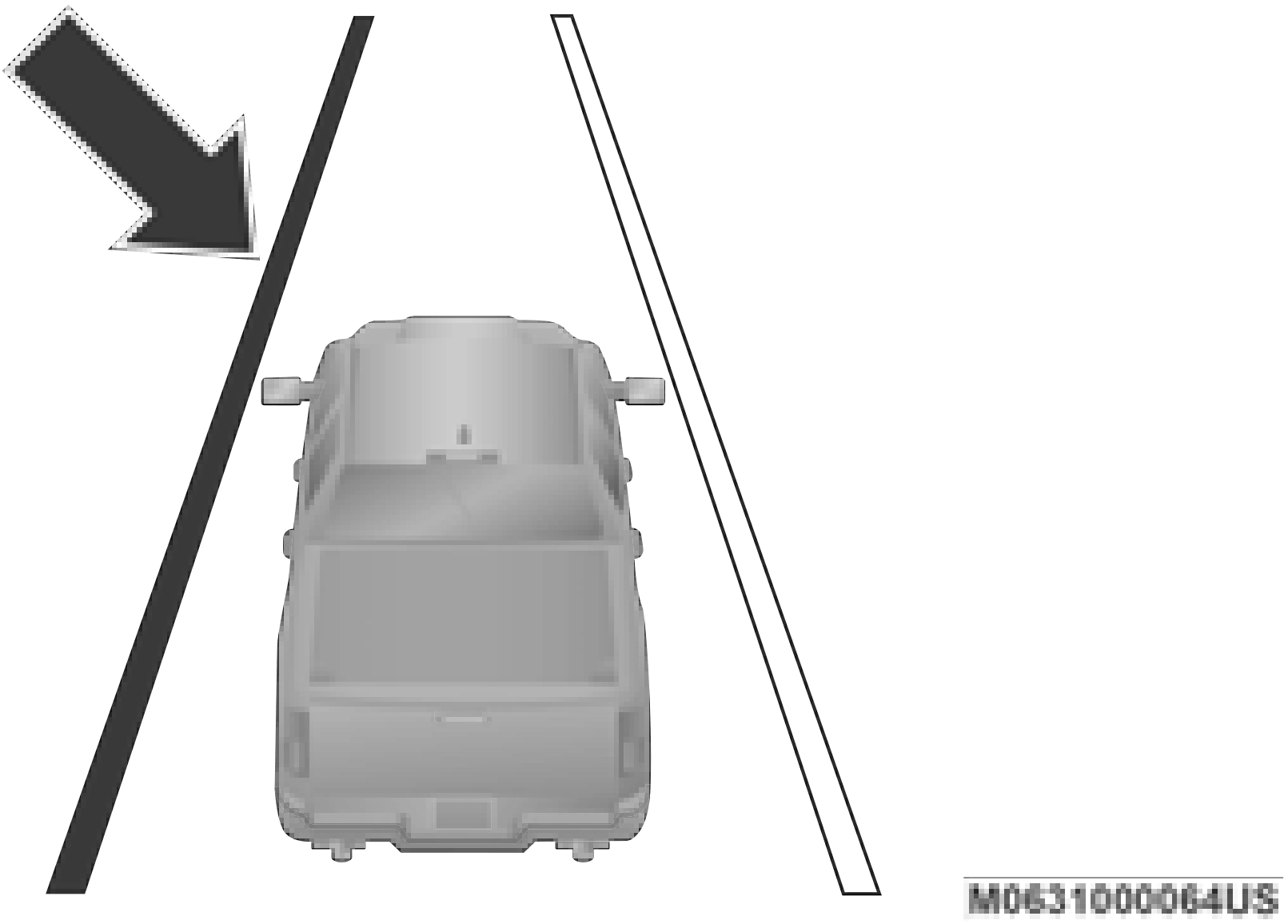
Lane Crossed (Flashing Yellow Lane Line) With Yellow
Telltale
The LaneSense system operates with similar behavior for a right lane departure when only the right lane marking has been detected.
telltale is solid green.
Lanes Sensed (White Lines) With Green Telltale
changesfrom solid green to solid yellow. At this time
torque is applied to the steering wheel in the opposite direction of the lane boundary.
For example: If approaching the left side of the lane the steering wheel will turn to the right.
Lane Approached (Solid Yellow Lane Line) With Solid
Yellow Telltale
has been approached and is in a lane depar-
ture situation, the left lane line flashes yellow
(on/off). The LaneSense telltale changes from solid yellow to flashing yellow. At this time torque is applied to the steering wheel in the opposite direction of the lane boundary.
For example: If approaching the left side of the lane the steering wheel will turn to the right.
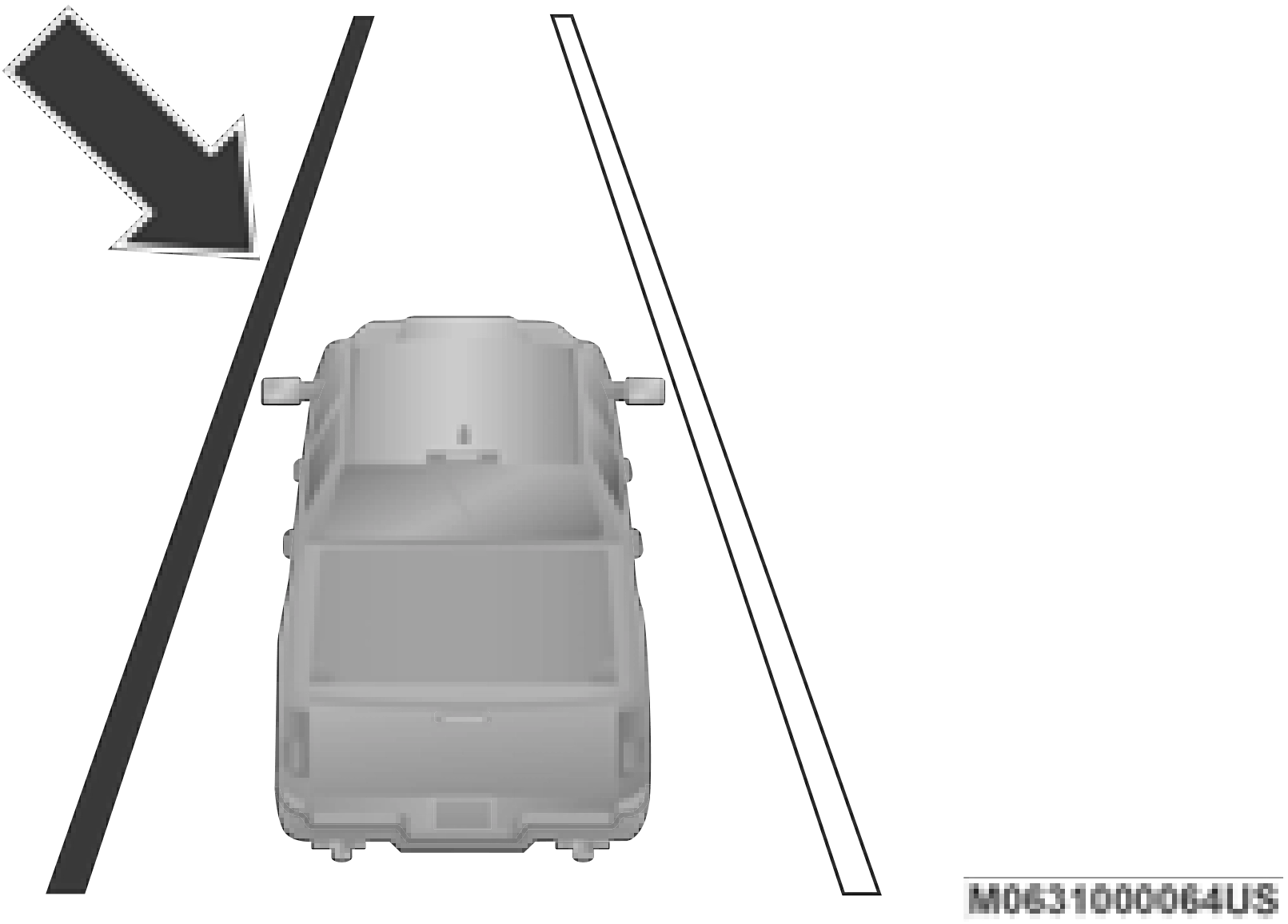
Lane Crossed (Flashing Yellow Lane Line) With Flash- ing Yellow Telltale
The LaneSense system operates with similar behavior for a right lane departure.
Changing LaneSense Status
The LaneSense system has settings to adjust the intensity of the torque warning and the warning zone sensitivity (Early/Medium/Late) that you can configure through the Uconnect system screen. Refer to “Uconnect Settings” in “Multimedia” for further information.
Download Manual