PICKUP BOX
The pickup box has many features designed for utility and convenience.
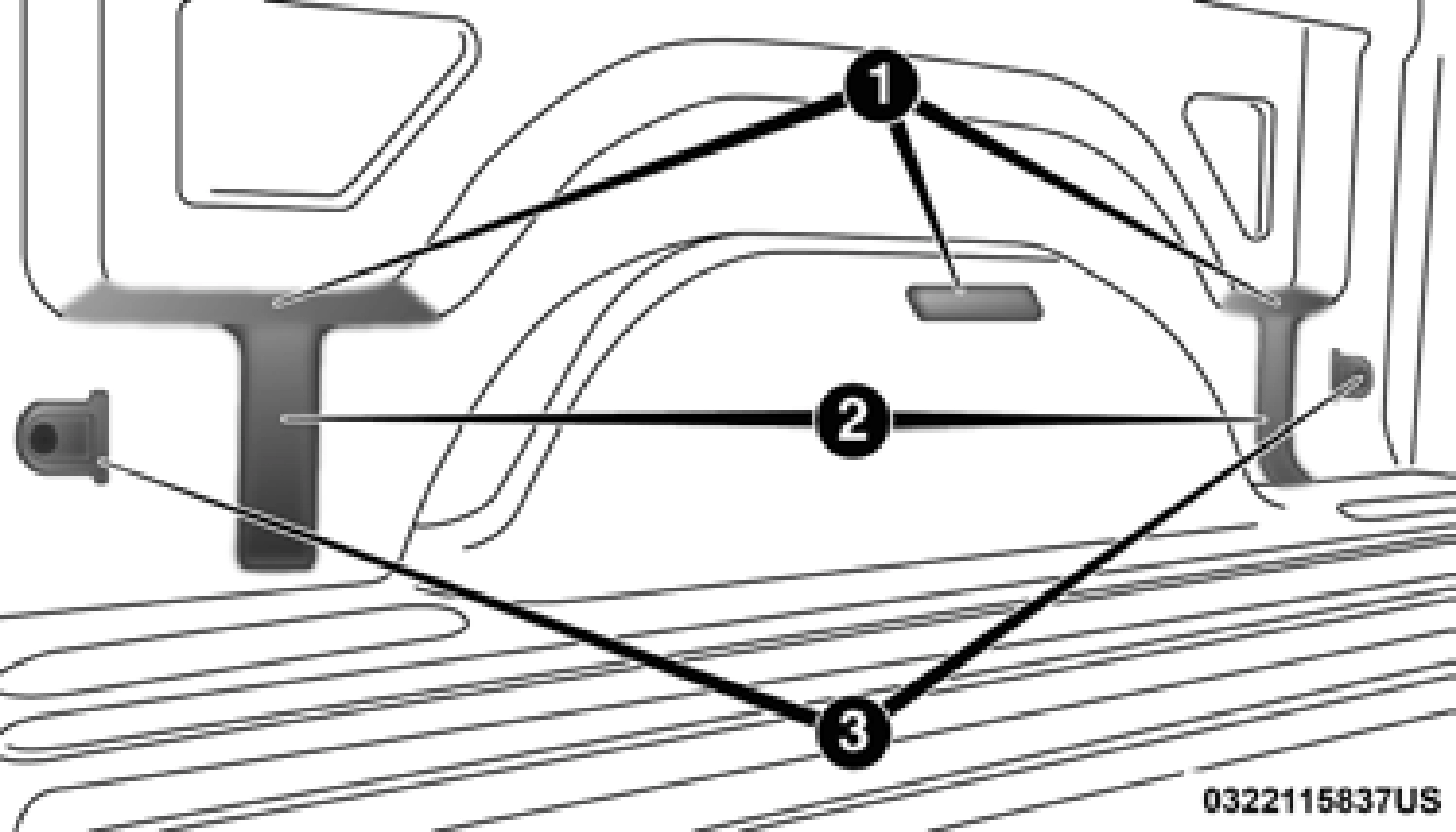
Pick Up Box Features
1 — Upper Load Floor Indents 2 — Bulk Head Dividers
3 — Cleats
NOTE:
If you are installing a Toolbox, Ladder Rack or Headache Rack at the front of the Pickup Box, you must use Mopar Box Reinforcement Brackets that are available from an autho-
rized dealer. 2
You can carry wide building materials (sheets of plywood, etc.) by building a raised load floor. Place lumber across the box in the indentations provided above the wheel housings and in the bulkhead dividers to form the floor.
There are stampings in the sheet metal on the inner side bulkheads of the box in front of and behind both wheel hous- ings. Place wooden boards across the box from side to side to create separate load compartments in the pickup box.
There are four tie-down cleats bolted to the lower sides of the pickup box that can sustain loads up to 1000 lbs (450 kg) total.
(Continued)
Your vehicle may be equipped with the Cargo Camera that allows you to see an image of the inside of the pickup box. The image will be displayed in the Uconnect screen.
The Cargo Camera is located in the bottom center area of the center high-mounted stoplamp (CHMSL).
 A touchscreen button to indicate the current active camera image being displayed is made available whenever the Cargo Camera image is displayed.
 A touchscreen button to switch the display to rear view camera image is made available whenever the Cargo Camera image is displayed.
A touchscreen button "X" to disable display of the camera image is made available when the vehicle is not in REVERSE gear.
A display timer is initiated when the Cargo Camera image is displayed. The image will continue to be displayed until the display timer exceeds 10 seconds and the vehicle speed is above 8 mph (13 km/h) or the touchscreen button "X" to disable display of the Cargo Camera image is pressed.
NOTE:
Cargo Camera With Dynamic Centerline (Available With Surround View Camera Only) — If Equipped
The Dynamic Centerline feature provides an overlay on the Cargo Camera display screen that aligns to the center of the pickup box to aid in hooking up a fifth wheel camper or gooseneck trailer. The centerline auto aligns to the center of the pickup box, and can also be manually adjusted. The centerline will adjust in response to steering angle inputs, and will not obstruct the gooseneck receiver or an approaching trailer gooseneck in the camera feed.
Activation
The Dynamic Centerline feature can be activated through the Uconnect settings by pressing the Cargo Camera soft button,
Deactivation
The Dynamic Centerline feature will automatically be deac- tivated whenever the Cargo Camera display is deactivated.
followed by the “Dynamic Centerline” soft button on the
It can also be manually deactivated through the Uconnect 2
touchscreen.
If the Dynamic Centerline feature is turned on, the overlay will display anytime the Cargo Camera image is displayed.
Adjusting Centerline
Follow the steps below to manually adjust the centerline:
settings.
For further information, refer to “Surround View Camera” in “Starting And Operating.”
 Press the “Cargo Camera” button to turn the Cargo Camera system on.
NOTE:
Once initiated by the "Cargo Camera" button, the Cargo Camera image will be displayed until the vehicle speed remains below 8 mph (13 km/h) and the 10 second timer runs out. The image may be deactivated by pressing the "X" soft button, turning the ignition OFF, placing the gear selector in PARK, or pressing the image defeat [X] button. On deactivation, the previous selected screen will appear.
Download Manual