UCONNECT SETTINGS
The Uconnect system uses a combination of buttons on the touchscreen and buttons on the faceplate located on the center of the instrument panel. These buttons allow you to access and change the Customer Programmable Features. Many features can vary by vehicle.
Buttons on the faceplate are located below and/or beside the Uconnect system in the center of the instrument panel. In addition, there is a Scroll/Enter control knob located on the right side. Turn the control knob to scroll through menus and change settings. Push the center of the control knob one or more times to
— UCONNECT 4 SETTINGS
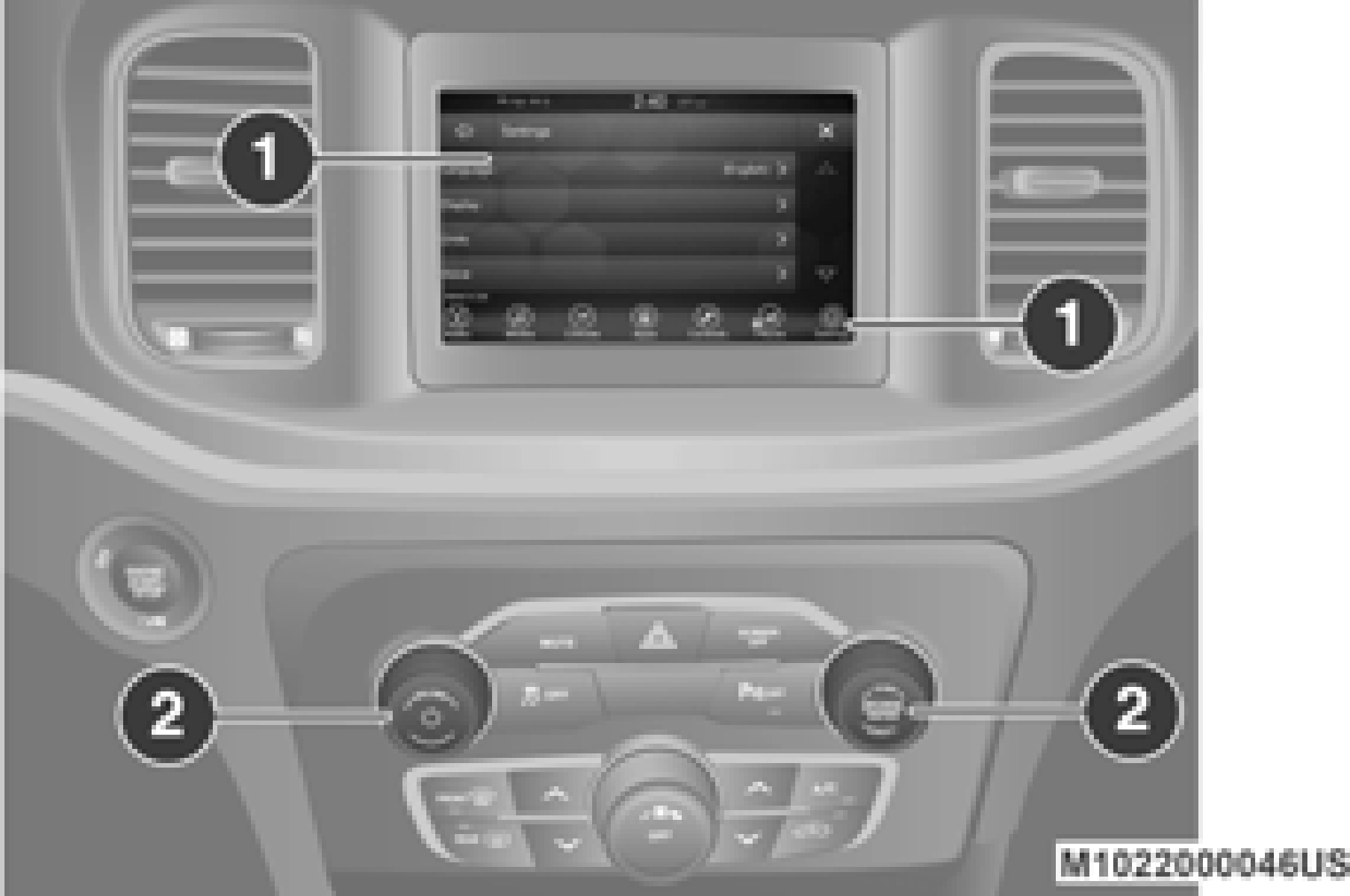
Uconnect 4 With 7-inch Display Buttons On The Touchscreen And Buttons On The Faceplate
1 — Uconnect Buttons On The Touchscreen 2 — Uconnect Buttons On The Faceplate
communications cannot be assured. Third
select or change a setting.
parties may unlawfully intercept information and private communications without your consent. For further information, refer to“Data Collection & Privacy” in your Uconnect Owner’s Manual Supplement or“Onboard Diagnostic System (OBD II) Cybersecurity” in“Getting To Know Your Instrument Panel”.
Your Uconnect system may also have Screen Off and Mute buttons on the faceplate.
Push the Screen Off button on the faceplate to turn off the Uconnect screen. Push the button again or tap the screen to turn the screen on.
Press the Back Arrow button to exit out of a Menu or certain option on the Uconnect system.
Press the Settings button on the bottom bar, or
press the Apps  button, then press the Settings button on the touchscreen to display the menu setting screen. In this mode the Uconnect system allows you to access all of the available programmable features.
Depending on the vehicle’s options, feature settings may vary.
When making a selection, press the button on the touchscreen to enter the desired menu. Once in the desired menu, press and release the preferred setting“option” until a check mark appears next to the setting, showing that setting has been selected. Once the setting is
Language
complete, press the X button on the touchscreen to close out of the settings screen. Pressing the Up or Down Arrow button on the right side of the screen will allow you to toggle up or down through the available settings.
The following tables list the settings that may be found within the Uconnect 4 with 7-inch display radio, along with the selectable options pertaining to each setting.
After pressing the Language button on the touchscreen, the following setting will be available:
|
Setting Name |
Selectable Options |
||
|
Language |
English |
Français |
Español |
After pressing the Display button on the touchscreen, the following settings will be available:
9
|
Setting Name |
Selectable Options |
|
|
Display Brightness With Headlights OFF |
+ |
– |
|
NOTE: When in the“Display Brightness With Headlights OFF” display, you may select the brightness with the headlights off. Adjust the brightness from (1–10) with the + and – buttons on the touchscreen.
To make changes to the "Display Brightness With Headlights OFF" setting, the headlights must be off and the interior dimmer switch must not be in the "party" or "parade" position.
|
||
|
Set Theme |
On |
Off |
|
NOTE: When in the“Set Theme” display, you may select the theme for the display screen. To make your selection, press the Set Theme button on the touch- screen, then select the desired theme option button until a check mark appears showing that the setting has been selected. |
||
|
Touchscreen Beep |
On |
Off |
|
Controls Screen Time-Out — If Equipped |
On |
Off |
|
NOTE: When the“Controls Screen Time-Out” feature is selected, the Controls Screen will stay open for five seconds before the screen times out. With the feature deselected, the screen will stay open until it is manually closed. |
|
Setting Name |
Selectable Options |
|
|
Navigation Turn-By-Turn Displayed In Cluster — If Equipped |
On |
Off |
|
NOTE: When the“Navigation Turn-By-Turn Displayed In Cluster” feature is selected, the turn-by-turn directions will appear in the instrument cluster display as the vehicle approaches a designated turn within a programmed route. |
After pressing the Units button on the touchscreen you may select each unit of measurement independently displayed in the instrument cluster display. The following selectable units of measurement are listed below:
9
After pressing the Voice button on the touchscreen, the following settings will be available:
|
Setting Name |
Selectable Options |
||
|
Voice Response Length |
Brief |
Detailed |
|
|
Show Command List |
Always |
With Help |
Never |
After pressing the Clock button on the touchscreen, the following settings will be available:
|
Setting Name |
Selectable Options |
|
|
Sync Time With GPS — If Equipped |
On |
Off |
|
NOTE: The“Sync Time With GPS” feature will allow you to automatically have the radio set the time. |
||
|
Set Time |
+ |
– |
|
Set Time Minutes |
+ |
– |
|
Time Format |
12 hrs |
24 hrs |
|
Show Time In Status Bar — If Equipped |
On |
Off |
|
NOTE: The“Show Time In Status Bar” feature will allow you to turn on or shut off the digital clock in the status bar. |
After pressing the Camera button on the touchscreen, the following settings will be available:
|
Setting Name |
Selectable Options |
|
|
ParkView Backup Camera Delay |
On |
Off |
|
NOTE: The“ParkView Backup Camera Delay” setting determines whether or not the screen will display the rear view image with dynamic grid lines for up to 10 seconds after the vehicle is shifted out of REVERSE. This delay will be canceled if the vehicle’s speed exceeds 8 mph (13 km/h), the transmission is shifted into PARK, or the ignition is switched to the OFF position. |
|
Setting Name |
Selectable Options |
|
|
Active ParkView Backup Camera Guidelines — If Equipped |
On |
Off |
|
NOTE: The“Active ParkView Backup Camera Guidelines” feature overlays the Rear Backup Camera image with active, or dynamic, grid lines to help illustrate the width of the vehicle and its projected backup path, based on the steering wheel position when the option is checked. A dashed center line overlay indicates the center of the vehicle to assist with parking or aligning to a hitch/receiver. |
After pressing the Safety & Driving Assistance button on the touchscreen, the following settings will be available:
9
|
Setting Name |
Selectable Options |
||
|
Electric Power Steering Default— If Equipped |
Sport |
Normal |
Comfort |
|
NOTE: When "Electric Power Steering Default" is selected, it allows you to change the default setting of your vehicle to Normal, Sport, or Comfort. |
|||
|
ParkSense — If Equipped |
Sound Only |
Sound and Display |
|
|
NOTE: The ParkSense system will scan for objects behind the vehicle when the gear selector is in REVERSE and the vehicle speed is less than 7 mph (11 km/h). It will provide an alert (audible and/or visual) to indicate the proximity to other objects. The system can be enabled with Sound Only or Sound and Display. |
|||
|
Rear ParkSense Volume — If Equipped |
Low |
Medium |
High |
|
NOTE: The Rear ParkSense Volume settings can be selected from the instrument cluster display or Uconnect System. The chime volume settings include Low, Medium, and High. The factory default volume setting is Medium. To make your selection, press the Rear ParkSense Volume button on the touch- screen, until a check mark appears next to setting, indicating that the setting had been selected. ParkSense will retain its last known configuration state through ignition cycles. |
|||
|
Rear ParkSense Braking Assist— If Equipped |
On |
Off |
9
|
Setting Name |
Selectable Options |
|
|
Rain Sensing Auto Wipers |
On |
Off |
|
NOTE: When this feature is selected and the wipers are on, the system will automatically activate the windshield wipers if it senses moisture on the wind- shield. |
||
|
Hill Start Assist — If Equipped |
On |
Off |
|
NOTE: When this feature is selected, the Hill Start Assist (HSA) system is active. |
After pressing the Lights button on the touchscreen, the following settings will be available:
|
Setting Name |
Selectable Options |
|
|
Headlight Off Delay |
0 |
60 |
|
30 |
90 |
|
|
Headlight Illumination On Approach |
0 |
60 |
|
30 |
90 |
|
|
Headlights With Wipers — If Equipped |
On |
Off |
|
Auto Dim High Beams — If Equipped |
On |
Off |
|
Daytime Running Lights — If Equipped |
On |
Off |
|
NOTE: When the“Daytime Running Lights” feature is selected, the daytime running lights can be turned On or Off. This feature is only allowed by law in the country of the vehicle purchase. |
|
Setting Name |
Selectable Options |
|
|
Steering Directed Lights |
On |
Off |
|
Flash Lights With Lock |
On |
Off |
After pressing the Doors & Locks button on the touchscreen, the following settings will be available:
9
|
Setting Name |
Selectable Options |
|
|
Personal Settings Linked To Key Fob — If Equipped |
On |
Off |
|
NOTE: This feature provides automatic recall of all settings stored to a memory location (driver’s seat, exterior mirrors, steering column position and radio station presets) to enhance driver mobility when entering and exiting the vehicle.
The seat returns to the memorized seat location (if Personal Settings Linked To Key Fob is set to On) when the key fob is used to unlock the door.
|
After pressing the Auto-On Comfort Systems button on the touchscreen, the following setting will be available:
|
Setting Name |
Selectable Options |
||
|
Auto-On Driver Heated/Vented Seat & Heated Steering Wheel — If Equipped |
Off |
Remote Start |
All Starts |
|
NOTE: When this feature is selected, the driver's heated seat and heated steering wheel will automatically turn on when temperatures are below 40°F (4.4°C). When temperatures are above 80°F (26.7°C) the driver vented seat will turn on. |
After pressing the Engine Off Options button on the touchscreen, the following settings will be available:
|
Setting Name |
Selectable Options |
|
|
Headlight Off Delay |
0 |
60 |
|
30 |
90 |
|
Setting Name |
Selectable Options |
|
|
Engine Off Power Delay |
0 sec |
5 mins |
|
45 sec |
10 mins |
|
|
NOTE: When this feature is selected, the power window switches, radio, Uconnect phone system (if equipped), DVD video system (if equipped), power sunroof (if equipped), and power outlets remain active for up to 10 minutes after the ignition is cycled to OFF. Opening either front door cancels this feature. |
After pressing the Audio button on the touchscreen, the following settings will be available:
9
|
Setting Name |
Selectable Options |
|
|
Surround Sound — If Equipped |
On |
Off |
|
NOTE: The“Surround Sound” feature provides simulated surround sound mode. To make your selection, press the Surround Sound button on the touch- screen, and select On or Off. |
||
|
AUX Volume Offset — If Equipped |
+ |
– |
|
NOTE: The“AUX Volume Offset” feature provides the ability to tune the audio level for portable devices connected through the AUX input. To make your selec- tion, press the AUX Volume Offset button on the touchscreen, select + or –. |
||
|
Auto Play — If Equipped |
On |
Off |
|
NOTE: The Auto Play feature allows a media device to begin playing when the media device is plugged in. To make your selection, press the On or Off button to activate or deactivate Auto Play. |
After pressing the Phone/Bluetooth® button on the touchscreen, the following settings will be available:
|
Setting Name |
Selectable Options |
|
Do Not Disturb |
List of Settings |
|
NOTE: Press Do Not Disturb to access the available settings. The following settings are: Auto Reply (Both, Text, Call), Auto Reply Message (Custom, Default), and Custom Auto Reply Message (Create Message). |
|
Setting Name |
Selectable Options |
|
Paired Phones/Devices |
List of Paired Phones/Devices |
|
NOTE: This feature shows which phones are paired to the Phone/Bluetooth® system. For further information, refer to“Phone Mode” in the“Uconnect 4 with 7-inch Display” section. |
After pressing the SiriusXM® Setup button on the touchscreen, the following settings will be available:
9
After pressing the Restore Settings button on the touchscreen, the following settings will be available:
|
Setting Name |
Selectable Options |
|
|
Restore Settings |
Yes |
Cancel |
|
NOTE: When the“Restore Settings” feature is selected it will reset the Display, Clock, Audio, and Radio Settings to their default settings. If“Yes” is selected, a pop-up will appear asking "Are you sure you want to reset your settings to default?” Select“Yes” to restore, or“Cancel” to exit. |
||
|
Reset App Drawer to Default Order |
Ok |
Cancel |
|
NOTE: When this feature is selected, it will reset all settings to their default settings. To restore the settings to their default setting, press the Restore Settings button on the touchscreen. A pop-up will appear asking "Are you sure you want to reset your settings to default?” |
||
|
Restore Apps |
Ok |
Cancel |
|
Clear Personal Data |
Yes |
Cancel |
|
NOTE: When the“Clear Personal Data” feature is selected it will remove all personal data including Clock, Audio, Radio, Bluetooth® devices, Apps, and Favor- ites. |
||
|
Modem Reset |
Ok |
Cancel |
After pressing the Clear Personal Data button on the touchscreen, the following setting will be available:
|
Setting Name |
Selectable Options |
|
|
Clear Personal Data |
Yes |
Cancel |
|
NOTE: When this feature is selected it will remove all personal data including Bluetooth® devices and presets. If“Yes” is selected a pop-up will appear asking "Are you sure you want to clear all personal data?” select“Yes” to Clear, or“Cancel” to exit. |
— UCONNECT 4C/4C NAV SETTINGS
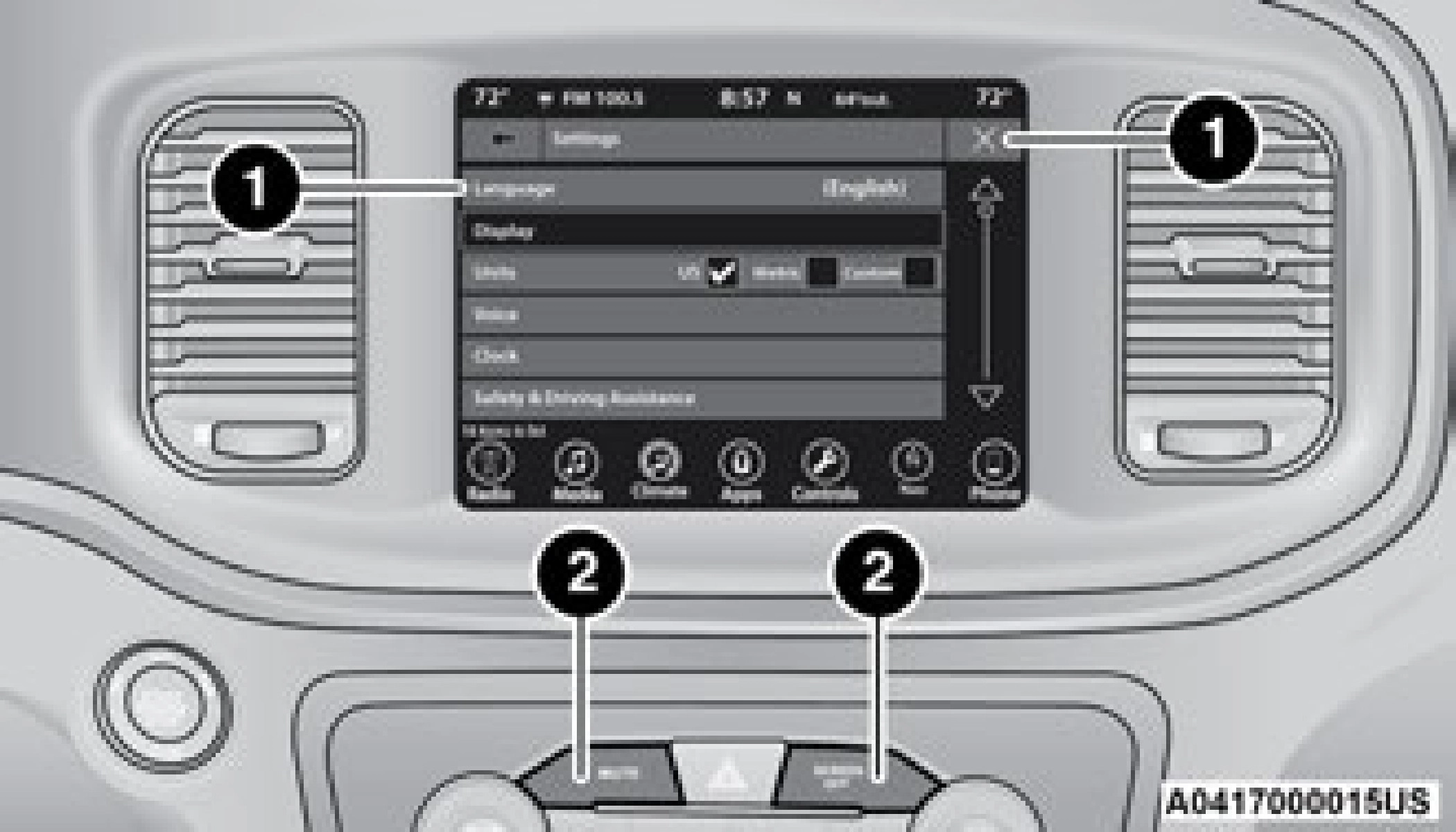
Uconnect 4C/4C NAV With 8.4-inch Display Buttons On The Touchscreen And Buttons On The Faceplate
1 — Uconnect Buttons On The Touchscreen 2 — Uconnect Buttons On The Faceplate
Press the Apps  button, then press the Settings
  button on the touchscreen to display the menu setting screen. In this mode,
the Uconnect system allows you to access
programmable features that may be equipped such as Language, Display, Units, Voice, Clock & Date , Camera, Safety & Driving Assistance, Mirrors & Wipers (if equipped), Lights, Doors & Locks, Seats & Comfort (if equipped), Key Off Options, Audio, Phone/Bluetooth® Settings, SiriusXM® Setup (if equipped), Reset, and System Information (if equipped).
Depending on the vehicle’s options, feature settings may vary.
When making a selection, press the button on the touchscreen to enter the desired menu. Once in the desired menu, press and release the preferred setting“option” until a check mark appears next to the setting, showing that setting has been selected. Once the setting is complete, press the X button on the touchscreen to close out of the settings screen. Pressing the Up or Down Arrow button on the right side of the screen will allow you to toggle up or down through the available settings.
The following tables list the settings that may be 9
found within the Uconnect 4C/4C NAV radio, along with the selectable options pertaining to each setting.
After pressing the Language button on the touchscreen, the following setting will be available:
|
Setting Name |
Selectable Options |
||
|
Language |
English |
Français |
Español |
After pressing the Display button on the touchscreen, the following settings will be available:
|
Setting Name |
Selectable Options |
|
|
Display Mode |
Auto |
Manual |
|
Display Brightness With Headlights On |
+ |
– |
|
NOTE: When in the“Display Brightness With Headlights On” display, you may select the brightness with the headlights on.
To make changes to the "Display Brightness With Headlights On" setting, the headlights must be on and the interior dimmer switch must not be in the "party" or "parade" position.
|
||
|
Display Brightness With Headlights Off |
+ |
– |
|
NOTE: When in the“Display Brightness With Headlights Off” display, you may select the brightness with the headlights off. Adjust the brightness from (1–10) with the + and – buttons on the touchscreen.
To make changes to the "Display Brightness With Headlights Off" setting, the headlights must be off and the interior dimmer switch must not be in the "party" or "parade" position.
|
|
Setting Name |
Selectable Options |
|
|
Set Theme — If Equipped |
List Of Themes |
|
|
NOTE: When in the“Set Theme” display, you may select the theme for the display screen. To make your selection, press the Set Theme button on the touch- screen, then select the desired theme option button until a check mark appears showing that the setting has been selected. |
||
|
Touchscreen Beep |
On |
Off |
|
Controls Screen Timeout — If Equipped |
On |
Off |
|
NOTE: When the“Controls Screen Timeout” feature is selected, the Controls Screen will stay open for five seconds before the screen times out. With the feature deselected, the screen will stay open until it is manually closed. |
||
|
Navigation Next Turn Pop-Ups Displayed In Cluster — If Equipped |
On |
Off |
|
NOTE: When the“Navigation Next Turn Pop-Ups Displayed In Cluster” feature is selected, the turn-by-turn directions will appear in the instrument cluster display as the vehicle approaches a designated turn within a programmed route. |
9
After pressing the Units button on the touchscreen, you may select each unit of measurement independently displayed in the instrument cluster display, and navigation system (if equipped). The following selectable units of measurement are listed below:
|
Setting Name |
Selectable Options |
|||
|
Units |
US |
Metric |
Custom |
|
|
NOTE: When the“Custom” setting is selected, units will appear according to your personally configured settings. To configure these settings, press the Custom bar. The following settings will appear: |
||||
|
Speed |
MPH |
km/h |
||
|
Distance |
mi |
km |
||
|
Fuel Consumption |
MPG (US) |
MPG (UK) |
L/100 km |
km/L |
|
Pressure |
psi |
kPa |
bar |
|
|
Temperature |
°F |
°C |
||
|
Power — If Equipped |
hp (US) |
kW |
hp (UK) |
|
|
Torque — If Equipped |
lb-ft |
Nm |
After pressing the Voice button on the touchscreen, the following settings will be available:
|
Setting Name |
Selectable Options |
||
|
Voice Response Length |
Brief |
Detailed |
|
|
Show Command List |
Never |
w/Help |
Always |
After pressing the Clock & Date button on the touchscreen, the following settings will be available:
|
Setting Name |
Selectable Options |
|
|
Sync Time With GPS — If Equipped |
On |
Off |
|
NOTE: The“Sync Time With GPS” feature will allow you to automatically have the radio set the time. |
||
|
Set Time Hours |
+ |
– |
|
Set Time Minutes |
+ |
– |
|
Time Format |
12 hrs |
24 hrs |
|
Show Time In Status Bar — If Equipped |
On |
Off |
|
NOTE: The“Show Time In Status Bar” feature will allow you to turn on or shut off the digital clock in the status bar. |
After pressing the Camera button on the touchscreen, the following settings will be available:
9
|
Setting Name |
Selectable Options |
|
|
Active ParkView Backup Camera Guidelines — If Equipped |
On |
Off |
|
NOTE: The“Active ParkView Backup Camera Guidelines” feature overlays the Rear Backup Camera image with active, or dynamic, grid lines to help illustrate the width of the vehicle and its projected backup path, based on the steering wheel position when the option is checked. A dashed center line overlay indicates the center of the vehicle to assist with parking or aligning to a hitch/receiver. |
After pressing the Safety & Driving Assistance button on the touchscreen, the following settings will be available:
|
Setting Name |
Selectable Options |
|
|
Forward Collision Warning Sensitivity — If Equipped |
Near |
Far |
|
NOTE: The“Forward Collision Warning Sensitivity” setting determines at what relative distance the vehicle directly in front of you needs to be at, before the system will warn you of a possible collision, based on the option selected.“Far” will give you the most amount of reaction time, whereas“Near” will give you the least amount of reaction time, based on the distance between the two vehicles. |
||
|
Forward Collision Warning — If Equipped |
On |
Off |
|
NOTE: Changing the FCW status to“Off” prevents the system from warning you of a possible collision with the vehicle in front of you. The FCW system state is kept in memory from one ignition cycle to the next. If the system is turned Off, it will remain off when the vehicle is restarted. |
9
|
Setting Name |
Selectable Options |
||
|
Blind Spot Alert — If Equipped |
Off |
Lights |
Lights & Chime |
|
NOTE: When this feature is selected, the Blind Spot Alert feature provides alerts, visual and/or audible, to indicate objects in your blind spot. The Blind Spot Alert feature can be activated in“Lights” mode. When this mode is selected, the Blind Spot Monitor (BSM) system is activated and will only show a visual alert in the exterior mirrors. When“Lights & Chime” mode is activated, BSM will show a visual alert in the exterior mirrors as well as sound an audible alert when the turn signal is on. When“Off” is selected, the BSM system is deactivated.
If your vehicle has experienced any damage in the area where the sensor is located, even if the fascia is not damaged, the sensor may have become misaligned. Take your vehicle to an authorized dealer to verify sensor alignment. Having a sensor that is misaligned will result in the BSM not oper- ating to specification.
|
|||
|
Hill Start Assist — If Equipped |
On |
Off |
|
|
NOTE: When this feature is selected, the Hill Start Assist (HSA) system is active. |
|||
|
Paddle Shifters — If Equipped |
On |
Off |
After pressing the Mirrors & Wipers button on the touchscreen, the following settings will be available:
|
Setting Name |
Selectable Options |
|
|
Rain Sensing Auto Wipers |
On |
Off |
|
NOTE: When this feature is selected and the wipers are on, the system will automatically activate the windshield wipers if it senses moisture on the wind- shield. |
|
Setting Name |
Selectable Options |
|
|
Tilt Side Mirrors in Reverse — If Equipped |
On |
Off |
|
NOTE: When the“Tilt Side Mirror In Reverse” feature is selected, the exterior sideview mirrors will tilt downward when the ignition is in the ON/RUN position and the transmission gear selector is in the REVERSE position. The mirrors will move back to their previous position when the transmission is shifted out of REVERSE. |
||
|
Headlights with Wipers |
On |
Off |
After pressing the Lights button on the touchscreen, the following settings will be available:
9
|
Setting Name |
Selectable Options |
|
|
Steering Directed Lights — If Equipped |
On |
Off |
|
Flash Lights With Lock |
On |
Off |
After pressing the Doors & Locks button on the touchscreen, the following settings will be available:
|
Setting Name |
Selectable Options |
||
|
Auto Door Locks — If Equipped |
On |
Off |
|
|
Auto Unlocks On Exit |
On |
Off |
|
|
NOTE: When the“Auto Unlocks On Exit” feature is selected, all doors unlock when the vehicle is stopped, the transmission is in the PARK or NEUTRAL position and the driver's door is opened. |
|||
|
Flash Lights With Lock |
On |
Off |
|
|
NOTE: When the“Flash Lights With Lock” feature is selected, the exterior lights flash when the doors are locked or unlocked with the key fob, or when using the passive entry feature. This feature may be selected with or without the“Sound Horn With Lock” feature selected. |
|||
|
Sound Horn With Lock |
Off |
1st Press |
2nd Press |
|
Sound Horn With Remote Start — If Equipped |
On |
Off |
|
|
1st Press Of Key Fob Unlocks — If Equipped |
Driver Door |
All Doors |
9
After pressing the Seats & Comfort button on the touchscreen, the following settings will be available:
|
Setting Name |
Selectable Options |
||
|
Auto-On Dr Heat Seat & Steering Wheel |
Off |
Remote Start |
All Starts |
|
NOTE: When this feature is selected the driver's heated seat and heated steering wheel will automatically turn on when temperatures are below 40°F (4.4°C). When temperatures are above 80°F (26.7°C) the driver vented seat will turn on. |
After pressing the Key Off Options button on the touchscreen, the following settings will be available:
|
Setting Name |
Selectable Options |
|
|
Easy Exit Seat — If Equipped |
On |
Off |
|
NOTE: When the“Easy Exit Seat” feature is selected, the driver’s seat will automatically move rearward once the engine is shut off. |
||
|
Key Off Power Delay |
0 sec |
45 sec |
|
5 mins |
10 mins |
|
|
NOTE: When the“Key Off Power Delay” feature is selected, the power window switches, radio, Uconnect Phone system (if equipped), DVD video system (if equipped), power sunroof (if equipped), and power outlets will remain active for up to 10 minutes after the ignition is cycled to OFF. Opening either front door will cancel this feature. To change the Key Off Power Delay setting, press the + or - button on the touchscreen to select your desired time interval, and choose from“0 seconds,”“45 seconds,”“5 minutes” or“10 minutes.” |
|
Setting Name |
Selectable Options |
|
|
Headlight Off Delay |
0 sec |
30 sec |
|
60 sec |
90 sec |
|
|
NOTE: When the“Headlight Off Delay” feature is selected, the driver can choose to have the headlights remain on for 0, 30, 60, or 90 seconds when exiting the vehicle. To change the Headlight Off Delay status press the + or – button on the touchscreen to select your desired time interval. |
After pressing the Audio button on the touchscreen, the following settings will be available:
9
|
Setting Name |
Selectable Options |
|
|
Surround Sound — If Equipped |
On |
Off |
|
NOTE: The“Surround Sound” feature provides simulated surround sound mode. To make your selection, press the Surround Sound button on the touch- screen, select“On” or“Off.” |
||
|
AUX Volume Offset — If Equipped |
-3 |
+3 |
|
NOTE: The“AUX Volume Offset” feature provides the ability to tune the audio level for portable devices connected through the AUX input. To make your selec- tion, press the AUX Volume Match button on the touchscreen, choose a level from –3 to +3. |
||
|
Auto Play |
On |
Off |
|
NOTE: The“Auto Play” feature allows a media device to begin playing when the media device is plugged in. To make your selection, press the On or Off buttons to activate or deactivate Auto Play. |
After pressing the Phone/Bluetooth® Settings button on the touchscreen, the following settings will be available:
|
Setting Name |
Selectable Options |
|
Do Not Disturb |
List of Settings |
|
NOTE: Press“Do Not Disturb” to access the available settings. The following settings are: Auto Reply (Both, Text, Call), Auto Reply Message (Custom, Default), and Custom Auto Reply Message (Create Message). |
|
Setting Name |
Selectable Options |
|
|
Paired Phones and Audio Sources |
List Of Paired Phones and Audio Sources |
|
|
NOTE: The“Paired Phones and Audio Sources” feature shows which phones and audio sources are paired to the Phone and Audio Sources Settings system. For further information, refer to the Uconnect Owner’s Manual Supplement. |
||
|
Smartphone Projection Manager |
On |
Off |
|
NOTE: Pressing“Smartphone Projection Manager” feature allows you to see a list of all connected phones and gives you the option to determine which phone will be used for projection (Apple CarPlay® or Android Auto™). |
After pressing the SiriusXM® Setup button on the touchscreen, the following settings will be available:
9
|
Setting Name |
Selectable Options |
|
Subscription Information |
Subscription Info |
|
NOTE: New vehicle purchasers or lessees will receive a free limited time subscription to SiriusXM® Satellite Radio with your radio. Following the expiration of the free services, it will be necessary to access the information on the Subscription Information screen to re-subscribe. Press the Subscription Info button on the touchscreen to access the Subscription Information screen.
Write down the SIRIUS ID numbers for your receiver. To reactivate your service, either call the number listed on the screen or visit the provider online.
SiriusXM® Travel Link is a separate subscription. |
After pressing the Reset button on the touchscreen, the following settings will be available:
|
Setting Name |
Selectable Options |
||
|
Reset App Drawer to Default Order |
OK |
Cancel |
|
|
Restore Apps — If Equipped |
OK |
Cancel |
|
|
Restore Settings to Default |
OK |
Cancel |
X |
|
NOTE: When this feature is selected, it will reset all of the radio features to their default settings. To restore the settings to their default setting, press the Restore Settings button on the touchscreen. A pop-up will appear asking "Are you sure you want to reset your settings to default?” |
|
Setting Name |
Selectable Options |
||
|
Clear Personal Data |
OK |
Cancel |
X |
|
NOTE: When this feature is selected, it will remove all personal data including Bluetooth® devices and presets. To remove personal information, press the Clear Personal Data button and a pop-up will appear asking“Are you sure you want to clear all personal data?” |
|||
|
Modem Reset — If Equipped |
OK |
Cancel |
After pressing the System Information button on the touchscreen, the following setting will be available:
|
Setting Name |
Selectable Options |
|
Software License |
System Software Information Screen |
|
NOTE: When the“Software License” feature is selected, a“System Software Information” screen will appear, displaying the system software version. You can also update your maps with a USB device. Please see an authorized dealer for further information. |
9
Download Manual