Famcam System — If Equipped
Your vehicle may be equipped with a FamCam system that consists of an interior monitoring camera mounted on the headliner that allows you to view cargo/passengers in the rear interior of the vehicle through the Uconnect screen.
To activate the feature, press the FamCam button under “Controls” in the Vehicle Menu of the Uconnect system "⇨UCONNECT SETTINGS". Alternatively, the feature can be accessed through the App Drawer or a shortcut for the feature can be added to the Favorites bar at the top of the screen for quick access.
The display will show the entire vehicle cabin view on the left side of the display, and a zoomed-in view of a selected seat on the right side of the display.
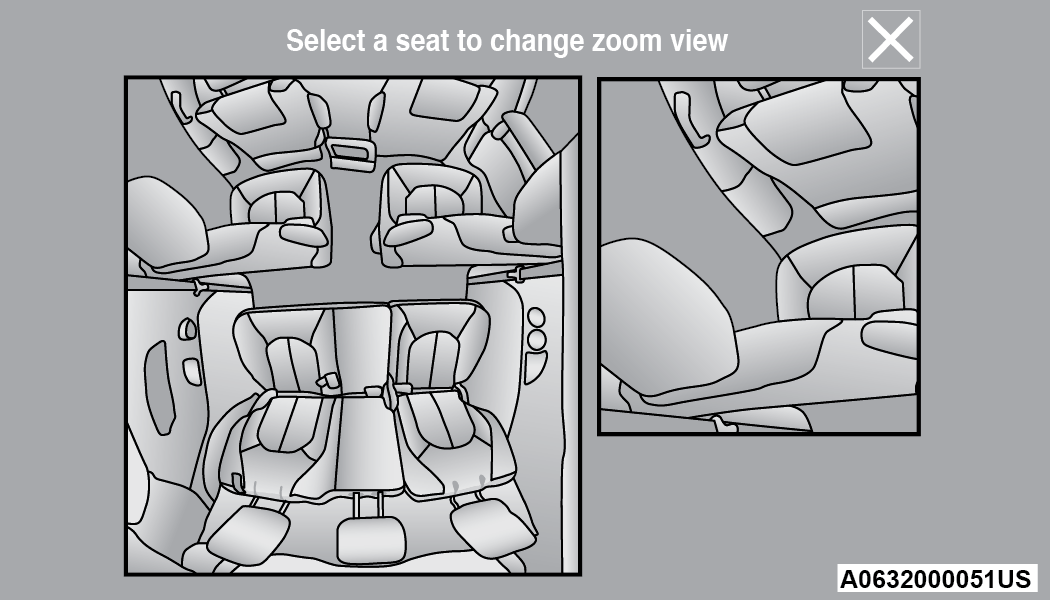
FamCam Display (7 Passenger Vehicle Shown)
To change the seat shown in the zoomed-in view, press a different seat location on the left side of the display. The zoomed-in view will then show the new seat location. By default, the second row driver’s side seat will be displayed in the zoomed-in view.
The display will appear in color in well-lit conditions and will appear black and white in low-light conditions.
If the driver shifts into REVERSE or presses the touchscreen X button, the view will close. Otherwise, the FamCam view will remain on the display.
Note:
When FamCam is turned off, the selected seat in the zoomed-in view on the right side of the display will be retained. The next time the feature is activated, the same seat will be shown in the zoomed-in view.
Download Manual