Basic Operations
Multimedia system types
Entune Audio
P. 324
|
|
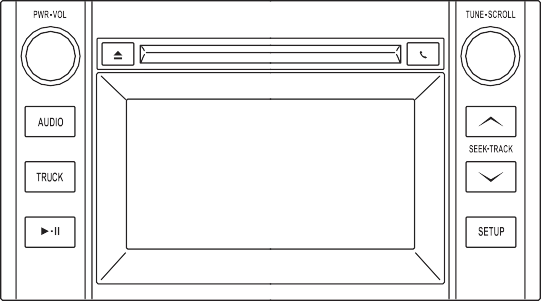

Entune Audio Plus
Refer to the “NAVIGATION AND MULTIMEDIA SYSTEM OWNER’S MANUAL”.
|
|
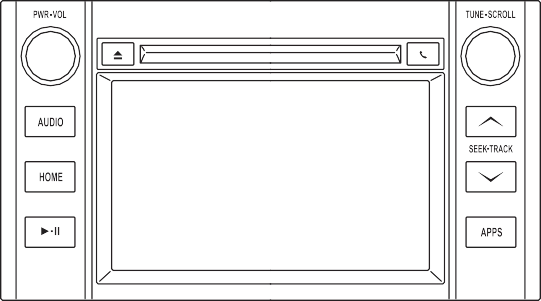

Entune Premium Audio
Refer to the “NAVIGATION AND MULTIMEDIA SYSTEM OWNER’S MANUAL”.
|
|
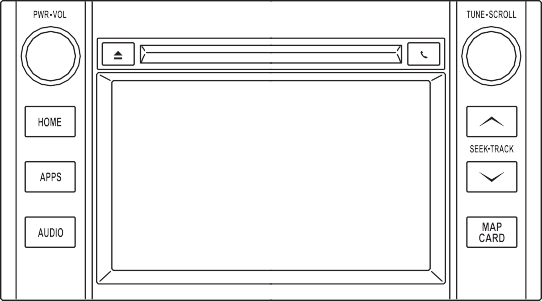

Entune Audio
|
|
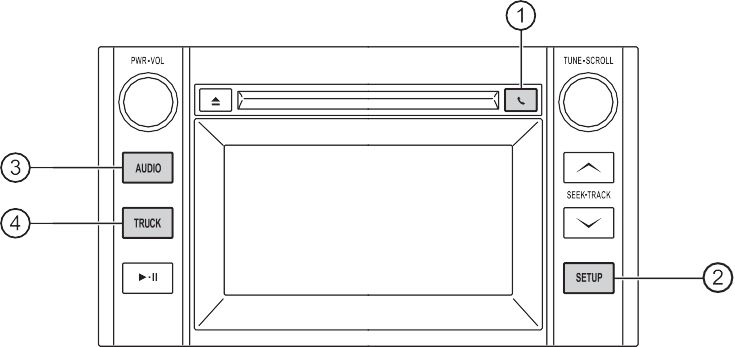

 button
“SETUP” button
Press this button to customize the function settings. (P. 329) “AUDIO” button
Display the “Select Audio Source” screen or audio control
screen. (P. 336) “TRUCK” button
Press this button to access the fuel consumption information.
(P. 107)
By touching the screen with your finger, you can control the Audio system, hands-free system, etc.
Touch the screen with your finger and move the screen to the desired position.
Touch the screen with your finger and then quickly move the screen.
*: The above operations may not be performed on all screens.
Interference may be heard through the multimedia system's speakers if a cel- lular phone is being used inside or close to the vehicle while the multimedia system is operating.
CD, MP3/WMA disc, Blue- tooth®, iPod or USB mode:
Volume switch
“MODE/HOLD” switch
USB Port/AUX Port
Open the cover and connect an iPod using an iPod cable.
Turn on the power of the iPod if it is not turned on.
Turn on the power of the USB memory device if it is not turned on.
Turn on the power of the portable audio player if it is not turned on.
Download Manual