Disclaimer: Not affiliated with or endorsed by Subaru Motor Company. For informational purposes only. Full Disclaimer

2021 Subaru Forester Owners Manual - Multi-function display (color LCD)


Multi-function display (color LCD)

& Features

The multi-function display (color LCD) has the following functions.

Description

Page

Displays useful messages, such as notification, etc.

210

Displays basic screens (e.g. fuel consumption screen, etc.)

211

Sets and adjusts maintenance notification

229

Also, the multi-function display (color LCD) can also be used to set and initialize the multi-function display (color LCD) itself.

    When the vehicle is in motion, certain functions and selections may not be available.
    You can set the language and units for both the multi-function display (color LCD) and the combination meter at the same time. For details about setting the language and units, refer to “Menu screens”  P200.
    The images displayed in this Own- er’s Manual are sample images. The actual image may vary depending on the market and vehicle specifications.
    Welcome screen

When the driver’s door is opened and closed, the welcome screen will appear for a short time.

    The welcome screen will disappear when the ignition switch is turned to the “ON” position while the welcome screen is displayed.
    The welcome screen can be set to on or off. For details, refer to “Screen Settings”  P200.
    For a certain period of time after the welcome screen has once appeared, it may not appear again even when the driver’s door is opened and closed again. This does not indicate a mal- function.
    Self-check screen NOTE

When the setting is “On”, the self-

check screen appears. For details about this setting, refer to “On/Off setting”  P230.

When the ignition switch is turned to the “ON” position, the vehicle self-check will be performed. The screens corresponding to the following items will appear one after another for several seconds each.
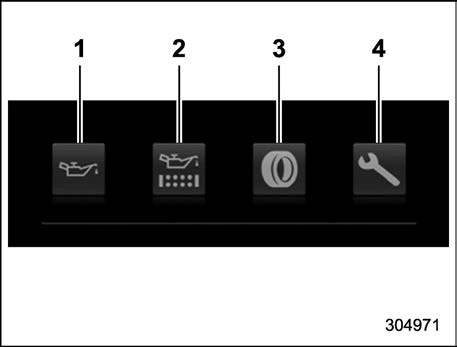
    Engine oil: Checks the interval of engine oil replacement.
    Oil filter: Checks the interval of oil filter replacement.
    Tires: Checks the interval of tire rotation.
    Inspection and maintenance: Checks the interval of inspection and maintenance.

When the checks are performed, the color

of the icon corresponding to the checked item will change.

If there is a notification, the message will be displayed. Take the appropriate actions based on the message indicated.

After the self-check is completed, today’s date, the stored birthday or the stored anniversary is displayed.

    After performing the maintenance, change the setting of the correspond- ing maintenance item. For details, refer to “Maintenance settings”  P229.
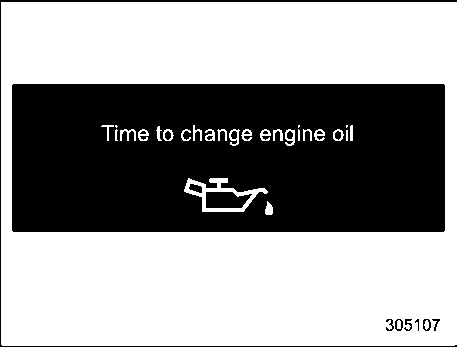
    The maintenance notification screen will be displayed under either of the following conditions.
    The period of time remaining until the registered notification date is 15 days or less.
    The total driving distance remain- ing until the registered notification distance is approximately 311 miles (500 km) or less.
    The maintenance notification screen will be displayed until either of the following conditions is satisfied.
    The period of time passed after the registered notification date is 15 days or more.
    The total distance driven after the registered notification distance is

approximately 311 miles (500 km) or more.
    Interruption screen

Example

Useful messages, such as reminder in- formation, weather information (if equipped) and traffic information (if equipped) may interrupt the current screen and appear on the display accompanied by a beep. Take proper action according to the message.

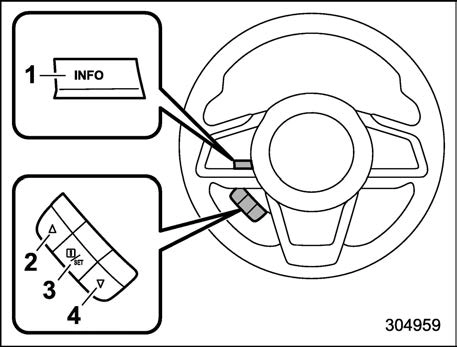
The interruption screen will return to the original screen after a few seconds. Also, you can press the INFO button to skip the interruption screen.
Control switch

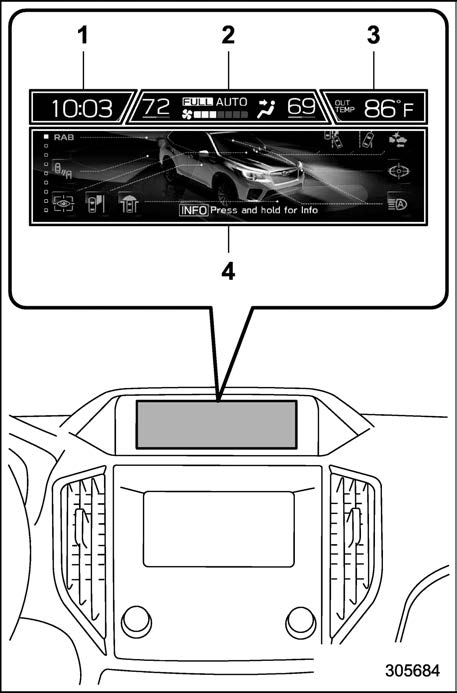
tton

Press the INFO button on the steering wheel to switch the item displayed on the basic screen. You can operate the items on the setting screen by using the “ ”, “ ” and “ /SET” switches.

    Clock
    Climate control*
    Outside temperature
    Information screen

*: This is not displayed on the multi-function display (color LCD) when the ignition switch

is in the “ACC” position.

While the ignition switch is in the “ACC” or “ON” position, the basic screen will be displayed.

The outside temperature is displayed on the multi-function display (color LCD).

    The outside temperature indicator shows the temperature around the sensor. However, the temperature may not be indicated correctly or the update may be delayed in the following condi- tions.
    While parking or driving at low speeds
    When the outside temperature changes suddenly (example: when going in and out of an underground parking area or when passing through a tunnel)
    When starting the engine after being parked for a certain period of time
    The temperature unit cannot be changed.

! Climate control screen

The climate control status is displayed on the multi-function display (color LCD).
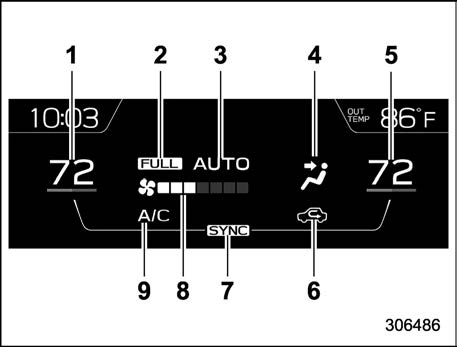
Climate control screen

    Set temperature indicator (left-hand side)
    FULL AUTO indicator
    AUTO indicator
    Airflow mode indicator
    Set temperature indicator (right-hand side)*1
    Air inlet selection indicator
    SYNC indicator*1
    Fan speed indicator
    Air conditioner ON indicator

*1: Models with the SYNC function only

When operating the climate control sys- tem, the basic screen switches to the climate control screen. For details about climate control operation, refer to “Climate

control panel”  P265.

! Clock

The clock can be displayed in either 12- hour display or 24-hour display. For details about the setting, refer to “Clock”  P232.

Press the INFO button on the steering wheel to switch the item displayed on the information screen.

Content

Description

Page

Electric components operating status screen*1

Displays the operating status of the electric components and equipment.

214

Prevention safety screen

Displays the status of your vehicle.

214

EyeSight screen

Displays the operating status of EyeSight.

215

Favorite screen

Displays up to 3 optional items.

215

Weather information screen*2

Displays weather information.

216

Traffic information*2/Navigation*3 screen

Displays information linked with the navigation system.

216

Audio screen*3

Displays audio system information.

217

Fuel consumption screen

Displays fuel consumption information.

217

Clock/date screen

Displays the clock.

217

Guidance screen

Moves to the setting screen.

218

*1: If equipped

*2: Models with SiriusXM Satellite Radio

*3: Models with navigation system
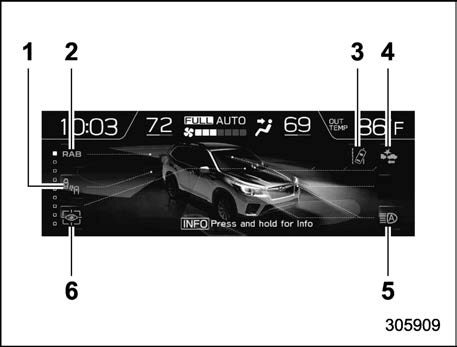
    BSD/RCTA*
    Reverse Automatic Braking (RAB) sys- tem*
    Lane Departure Warning indicator*
    Pre-Collision Braking System indicator*
    High beam assist*
    Driver Monitoring System*

*: If equipped

This screen displays the electric compo- nents operation status of the vehicle.

    Press and hold the “INFO” button to enter the menu screen.
    Operate the “ ” or “ ” button to select the preferred item.
    Pull the “ /SET” switch to enter the selected item.
    Indicators do not display for func- tions that are not equipped to the vehicle.
    The indicators of functions that are not operating are displayed in gray.

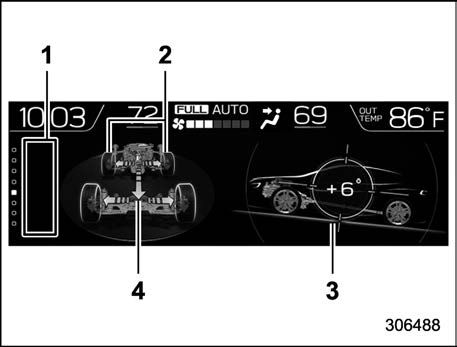
! Prevention safety screen

    Telltale screen
    Steering angle
    Vehicle posture
    Running condition

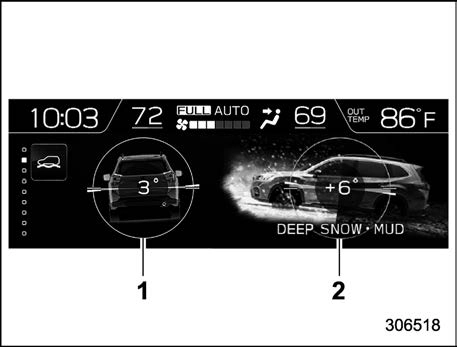
X-MODE screen

    Vehicle posture
    X-MODE

This screen displays the driving status of the vehicle and the operation status func- tions. For functions that are operating, the indicator will illuminate or flash.

    The vehicle posture indication may differ from the actual vehicle posture.
    When X-MODE has turned on, the screen of the multi-function display is switched to the prevention safety screen.
    The vehicle posture angle varies not only due to the angle of the road surface, but also due to the vehicle tilt caused by the occupants, cargo, and

acceleration or deceleration.

! EyeSight screen
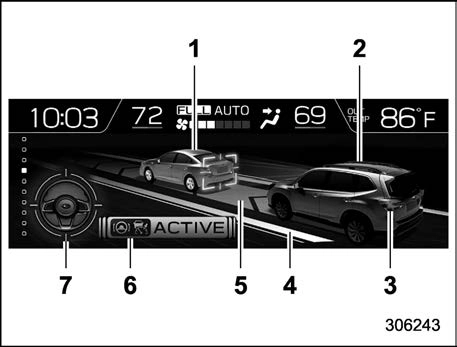
EyeSight system. The lead vehicle indica- tor moves forward and backward depend- ing on the distance with the vehicle in front. For details, refer to the Owner’s Manual supplement for the EyeSight system.
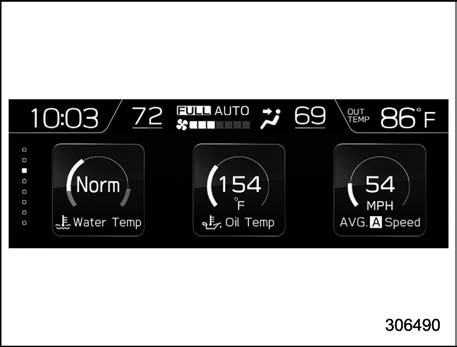
Favorite screen (display example)

This screen displays up to three optional pieces of information that can be selected from the following items.

Item

Details

The posted speed limit of the road you are currently driving on is displayed.*1

The calendar is displayed.

Driver Monitoring System infor- mation is displayed.*1

Nothing is displayed.

*1: If equipped

*2: Models with SiriusXM Satellite Radio

The items shown in the favorite screen can be changed. For details, refer to “Favorite setting”  P228.
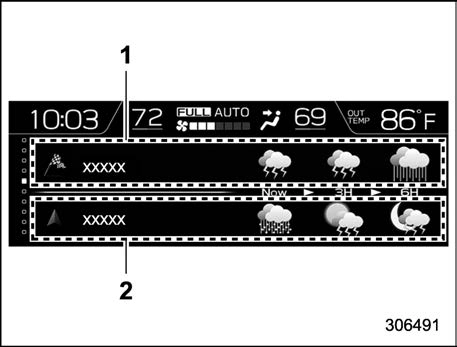
    Weather information for the destination*
    Weather information for the current loca- tion

*: Only when a destination is set in the navigation system

The weather information is displayed on the screen.

    When all of the following conditions are satisfied, weather information is displayed.
    The vehicle is equipped with an audio and navigation system for SiriusXM satellite radio.
    You have a current SiriusXM satellite radio subscription.
    The weather forecast for the set destination remains displayed until a new destination is set or until you reach the destination.
    Depending on the reception timing of XM, the display of weather informa- tion may be delayed.

! Navigation screen (models with navigation system)
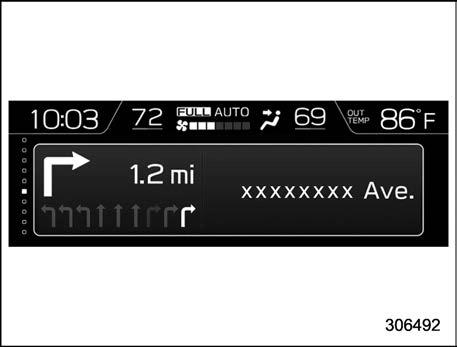
The navigation system information to the destination is displayed on the screen.

! Audio screen
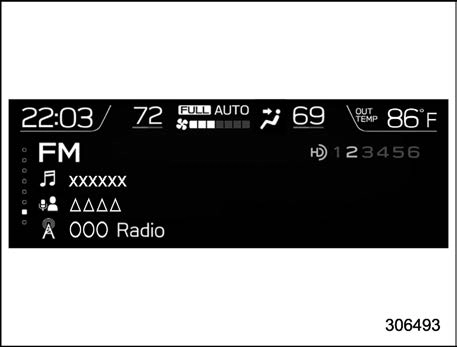
The screen of the currently selected audio source is displayed.

For details about how to use the audio set, refer to the separate navigation/audio Owner’s Manual.
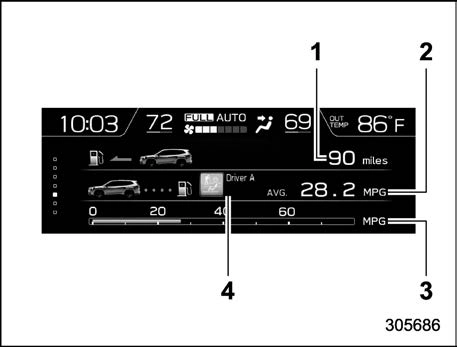
    Driving range on remaining fuel
    Average fuel consumption corresponding to the driving distance of each trip meter
    Current fuel consumption
    User information (if equipped)

The fuel consumption information is dis- played on the screen.

If the driver is recognized by the Driver Monitoring System, average fuel con- sumption for the driver will be displayed.

warning light illuminates.

! Clock/date screen
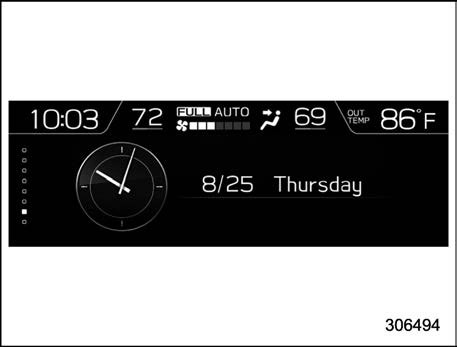
The time and date are displayed.

You can adjust the time and date. For details, refer to “Clock”  P232.
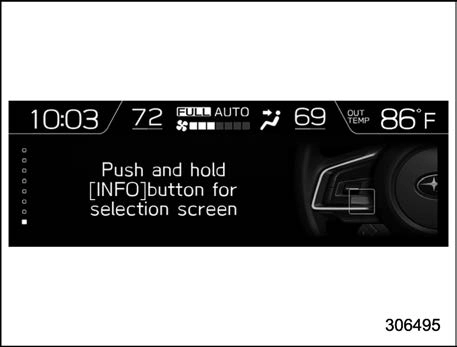
When the INFO button on the steering wheel is pressed and held on this screen, the setting screen can be displayed.

For details, refer to “Setting screen”

 P218.
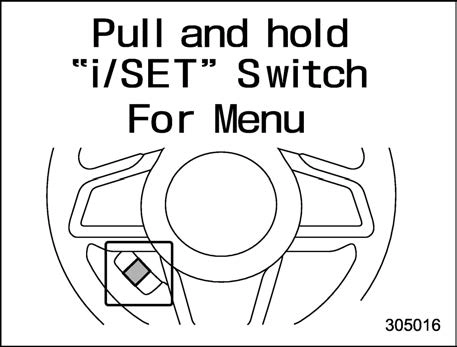
    Setting screen
    Press and hold the INFO button on the guidance screen. The top menu is dis- played.
    Operate the “ ” or “ ” switch to select the preferred menu from the top menu.
    Pull the “ /SET” switch to enter the selected menu.
    Operate the “ ” or “ ” switch to select the preferred menu from the 2nd menu.
    Pull the “ /SET” switch to enter the selected menu.

The menu lists are as follows.

Items that can be set when stopped:

Top menu

2nd menu

Description

Page

Date

Birthday

Set a birthday.

221

Anniversary

Set an anniversary day.

221

Go Back

Return to the 1st menu.

Driver Moni- toring System

Repeat facial scan

Perform the user recognition.

221

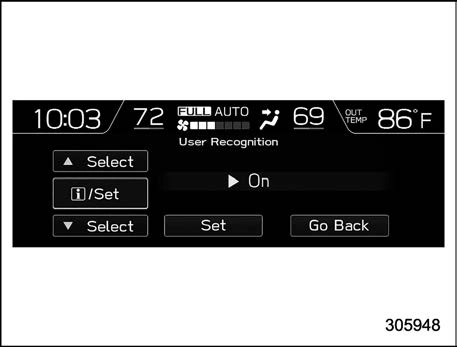
User Recognition

Turn the user recognition settings on or off.

On or Off

227

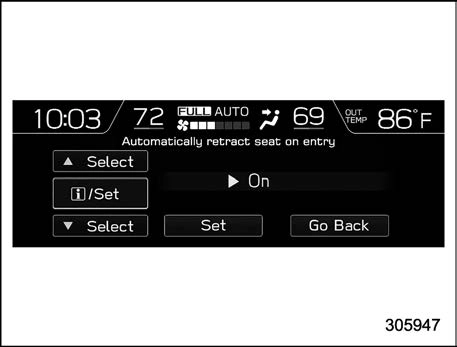
Automatically retract seat on entry

Turn the automatically retract seat on entry function on or off.

On or Off

226

Register User

Register the user.

222

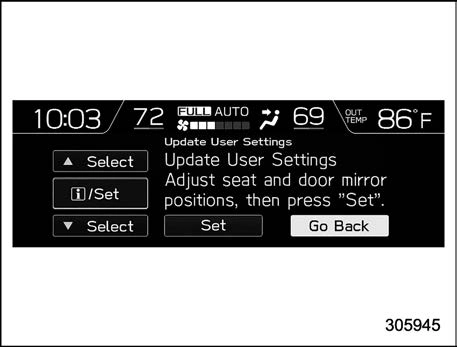
Update User Settings

Re-register the driver’s position.

225

Delete Driver Position

Delete the registered driver’s position.

226

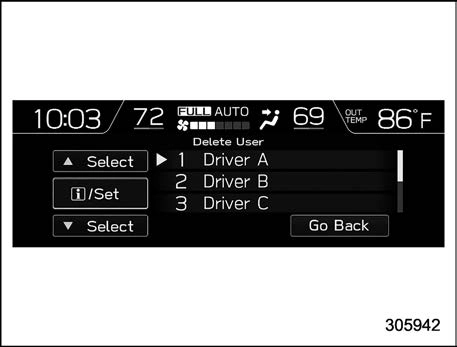
Delete User

Delete the registered user.

224

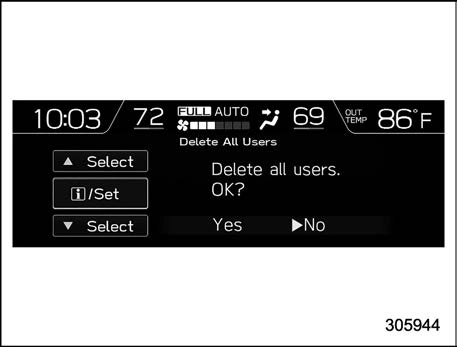
Delete All Users

Delete the registered all user.

225

Go Back

Return to the 1st menu.

Display/Beep

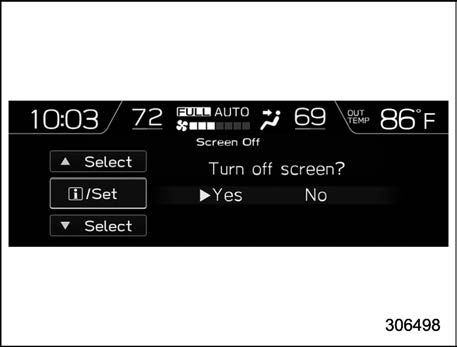
Screen Off*

Turn the screen off.

Yes or No

227

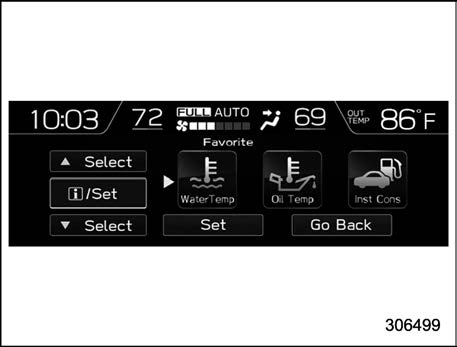
Favorite

Set and customize the triple meter.

228

Bypass Screen

Set the bypass screen for each item.

On or Off

228

Beep

Adjust the beep sound volume.

High, Low or Off

228

Go Back

Return to the 1st menu.

Climate con- trol

Mode Setting

Set the operation of the automatic climate control.

Normal, Mild, ECO or Power

229

Occupant Detection

Set the operation of the climate control depend- ing on passenger.

On or Off

229

Go Back

Return to the 1st menu.

Top menu

2nd menu

Description

Page

Maintenance

Engine Oil

Set and adjust the oil maintenance notification date.

229

Oil Filter

Set and adjust the oil filter maintenance notification date.

230

Tires

Set and adjust the tire maintenance notification date.

230

Maintenance Schedule

Set and adjust the vehicle maintenance notification date.

230

ON/OFF

Turn on or off the self-check screen that is activated when the ignition switch is turned to the “ON” position.

On or Off

230

Clear All Settings

Clear all settings for maintenance items.

Yes or No

231

Go Back

Return to the 1st menu.

Initialize

Reset all settings to the default settings.

Yes or No

231

Go Back

Return to the setting screen.

*: You can also set this while driving.

Items that can be set while driving:

Menu

Description

Page

Screen Off

Turn the screen off.

Yes or No

227

Go Back

Return to the settings screen.

For safety reasons, we recommend stopping the vehicle in a safe location while setting.

You can set the date, time and 12h or 24h format settings.

For details about clock setting, refer to “Clock”  P232.

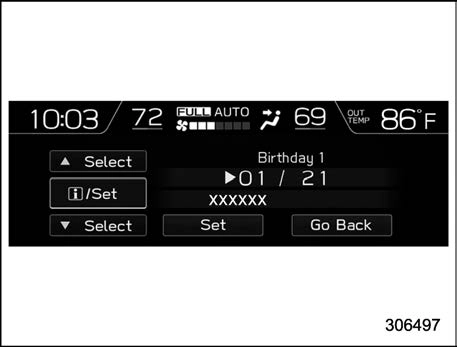
If a birthday or anniversary is approaching, a message will be displayed when the ignition switch is turned to the “ON” position. This function can be set to on or off. For details, refer to “Bypass screen setting”  P228.
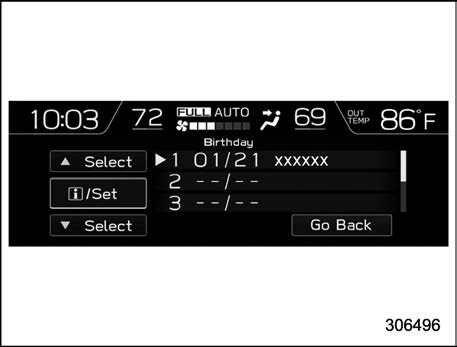
    Select “Birthday” from the 2nd menu in the setting screen. Refer to “Setting screen”  P218.

    Select from the list the number that you want to register.

    Enter the date and the text by using the control switches.
    Select “Set” to exit settings. Select “Go Back” to return to the previous screen

without applying the setting changes.

! Anniversary setting

1. The procedure for setting an anniver- sary is the same as “Birthday setting”

 P221, except that in step 1 “Anniversary” is selected.

! Driver Monitoring System settings

You can set the Driver Monitoring System settings.
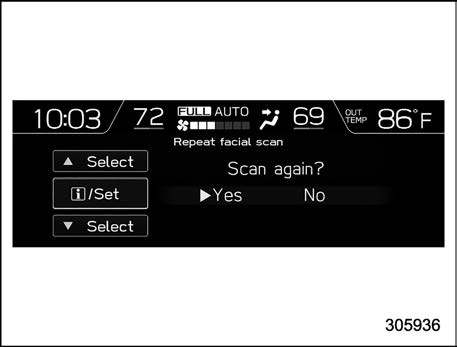
    Select “Repeat facial scan” from the 2nd menu in the settings screen. Refer to “Setting screen”  P218.

    Select “Yes” to start the repeat facial scan. Select “No” to return to the previous screen.
    While seated in the driver’s seat, face straight forward and wait for a few mo- ments.

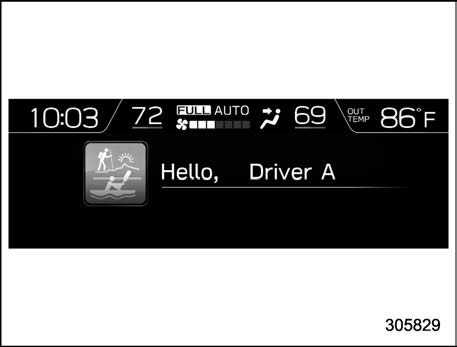
When user recognition is completed, the Hello screen appears and the screen then switches to the basic screen associated with the user information.
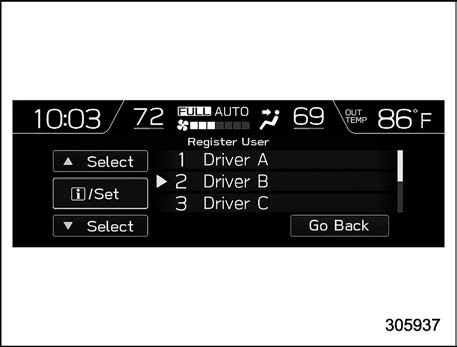
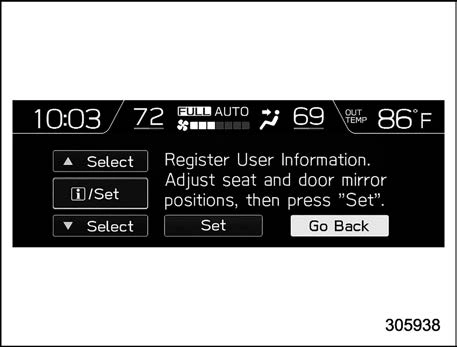
    Adjust the seat position, outside mirror angle, and reverse tilt-down outside mirror angle so that you are seated in the correct driving posture.
    Start the user registration after ad- justing the seat position, outside mirror angle, and reverse tilt-down outside mirror angle. If they are adjusted during user registration, it may be disrupted. Refer to “Power seat”  P36 or “Out- side mirrors”  P255.
    If the ignition switch is turned to the “OFF” position before user registration is complete, the information of the adjusted seat position, outside mirror angle, and reverse tilt-down outside mirror angle will not be saved.
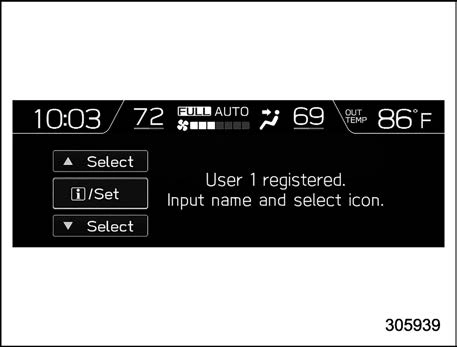
    Select “Register User” from the 2nd menu in the settings screen. Refer to “Setting screen”  P218.

    Select from the list the number that you want to register.

    Select “Set” to start the registration facial scan. Select “Go Back” to return to the previous screen.
    While seated in the driver’s seat, face straight forward and wait for a few mo- ments.

When the screen changes, the registration facial scan is completed.
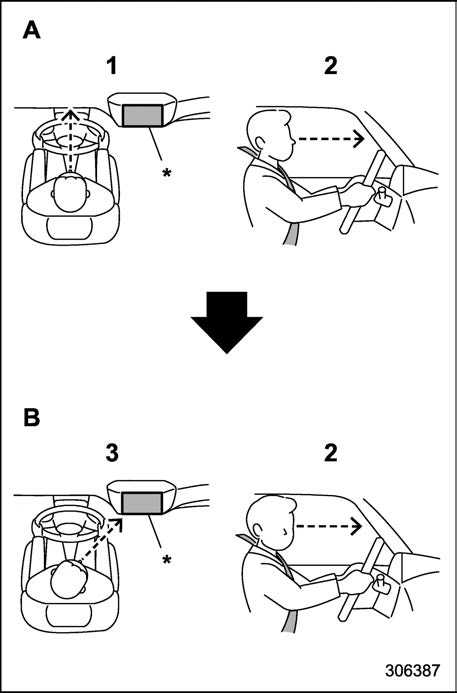
    Forward direction
    Display direction
    Face forward.
    Do not lower your chin.
    Face the display.

*: Display

    If user registration cannot be per- formed, turn your face forward as shown in the illustration, then turn to the display.
    If “Unable to register” appears, re- peat the procedure beginning from step 4.
    There are some cases where user registration cannot be registered prop- erly. In those cases, refer to “Driver Monitoring System”  P382.

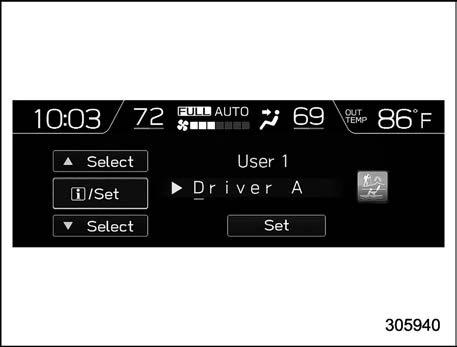
    Enter the text using the control switches.
    Set the desired icons using the control switches.
    Select “Set” to exit the settings screen.

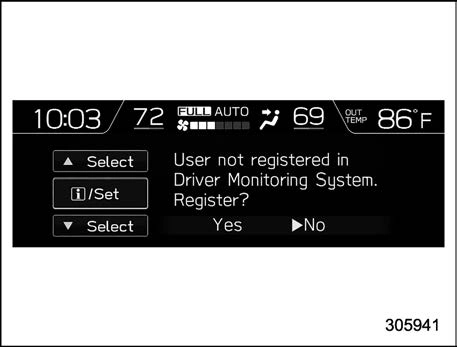
    A screen recommending user regis- tration appears at the following times.
    When the driver has not com- pleted user registration
    When there are 4 or fewer regis- tered users

Operate the control switch and select “Yes” to display the screen in step 3. Then follow the registra- tion procedure to complete user registration.

    An existing user can be overwritten by selecting a registered number. When a user is registered by overwriting, the individual fuel economy data is reset.
    When “User Recognition” is set to OFF, user registration cannot be se- lected.

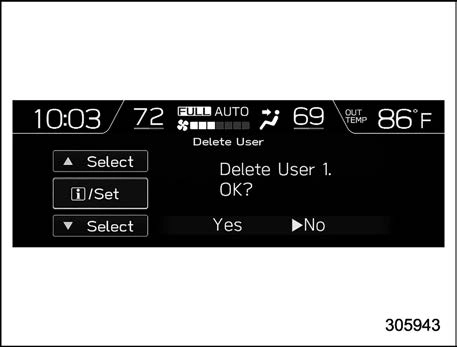
! Delete User

    Select “Delete User” from the 2nd menu in the settings screen. Refer to “Setting screen”  P218.

    Select from the list the number that you want to register.

    Select “Yes” to delete the number. Select “No” to return to the previous screen.
    Select “Delete All Users” from the 2nd menu in the settings screen. Refer to “Setting screen”  P218.

    Select “Yes” to delete all the users. Select “No” to return to the previous screen.
    Select “Update User Settings” from the 2nd menu in the settings screen. Refer to “Setting screen”  P218.

    Select “Set” to re-register the driver position. Select “Go Back” to return to the previous screen.
    Start the user registration after ad- justing the seat position, outside mirror angle, and reverse tilt-down outside mirror angle. If they are adjusted during user registration, it may be disrupted. Refer to “Power seat”  P36 or “Out- side mirrors”  P255.

. If the ignition switch is turned to the “OFF” position before user registration is complete, the information of the adjusted seat position, outside mirror angle, and reverse tilt-down outside mirror angle will not be saved.

! Delete Driver Position
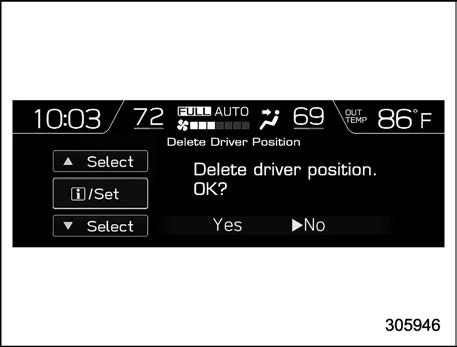
    Select “Delete Driver Position” from the 2nd menu in the settings screen. Refer to “Setting screen”  P218.

    Select “Yes” to delete the driver posi- tion. Select “No” to return to the previous screen.
    Select “Automatically retract seat on entry” from the 2nd menu in the settings screen. Refer to “Setting screen”  P218.

    Select “On” or “Off” to turn the auto entry/exit function on or off by using the control switches.
    Select “Set” to exit settings. Select “Go Back” to return to the previous screen.
    Select “User Recognition” from the 2nd menu in the settings screen. Refer to “Setting screen”  P218.

    Select “On” or “Off” to turn the User Recognition settings on or off by using the control switches.
    Select “Set” to exit settings. Select “Go Back” to return to the previous screen.

You can set the display settings and volume settings.

    Select “Screen Off” from the 2nd menu in setting screen. Refer to “Setting screen”

 P218.

    Select “Yes” to turn off the screen. Select “No” to return to the previous screen.

When the INFO button is operated after the ignition switch is turned to the “ON” or “ACC” position, the screen will be restored. The screen will be restored with the basic screen that was displayed when the screen was turned off.

! Favorite setting

    Select “Favorite” from the 2nd menu in setting screen. Refer to “Setting screen”

 P218.

    Set the desired items by using the control switches. For details about items, refer to “Favorite screen”  P215.
    Select “Set” to exit settings. Select “Go Back” to return to the previous screen without applying the setting changes.
    You can display a maximum of the 3 items.
    The same item cannot be selected for the left, center or right location.
    Weather information for 3 hours later or 6 hours later can be displayed.

! Bypass screen setting

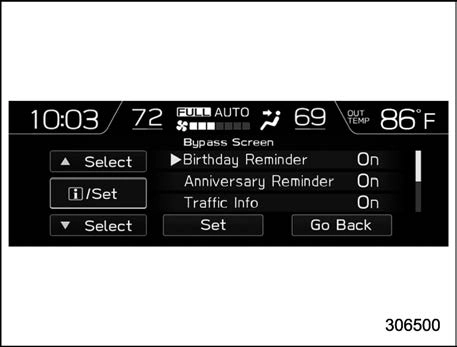
    Select “Bypass Screen” from the 2nd menu in the setting screen. Refer to “Setting screen”  P218.

    Select “On” or “Off” to turn the display of items on or off by using the control switches.
    Select “Set” to exit settings. Select “Go Back” to return to the previous screen without applying the setting changes.

! Beep setting

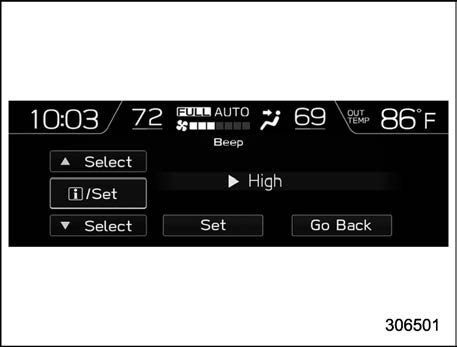
    Select “Beep” from the 2nd menu in the setting screen. Refer to “Setting screen”

 P218.

    Set the beep volume by using the control switches.
    Select “Set” to exit settings. Select “Go Back” to return to the previous screen without applying the setting changes.

You can set the climate control settings.
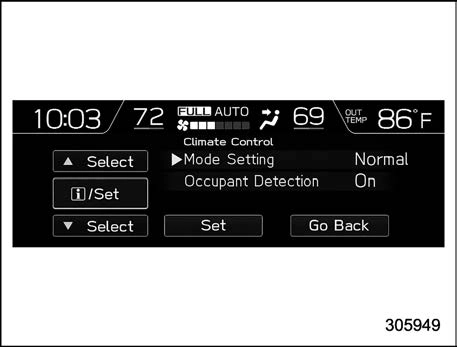
    Select “Mode Setting” from the 2nd menu in the setting screen. Refer to “Setting screen”  P218.

    Select “Normal”, “Mild”, “Power” or “ECO” by using the control switches. For details about “Mode Setting”, refer to “Automatic climate control customization (for type B and C)”  P270.
    Select “Set” to exit settings. Select “Go Back” to return to the previous screen without applying the setting changes.
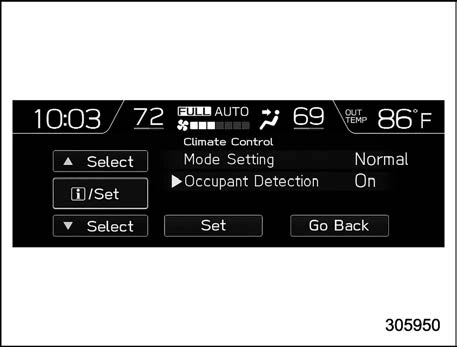
    Select “Occupant Detection” from the 2nd menu in the setting screen. Refer to “Setting screen”  P218.

    Select on or off to turn the occupant detection on or off by using the control switches.
    Select “Set” to exit settings. Select “Go Back” to return to the previous screen without applying the setting changes.

You can set maintenance reminders.
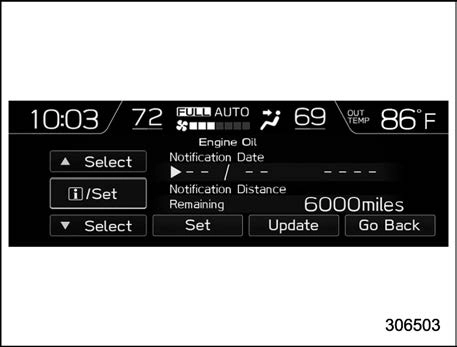
    Select “Engine Oil” from the 2nd menu in the setting screen. Refer to “Setting screen”  P218.

    Set the date and distance of the reminder by using the control switches.
    Select “Set” to exit settings. Select “Update” to change the notification dis- tance to the default value. Select “Go Back” to return to the previous screen without applying the setting changes.
    The reminder will be displayed by either date or distance in accordance with the setting.
    Even when either “Day” or “Dis- tance” are displayed as “_ _” a pop-up screen will appear.
    The reminder will be displayed until either of the following conditions is satisfied.
    The period of time passed after the registered notification date is 15 days or more.
    The total distance driven after the registered notification distance is approximately 311 miles (500 km) or more.

! Oil filter setting

The setting procedure is the same as “Engine oil setting”  P229, but select the “Oil Filter” item in step 1.

The setting procedure is the same as “Engine oil setting”  P229, but select the “Tires” item in step 1.

The setting procedure is the same as “Engine oil setting”  P229, but select the “Maintenance Schedule” item in step 1.
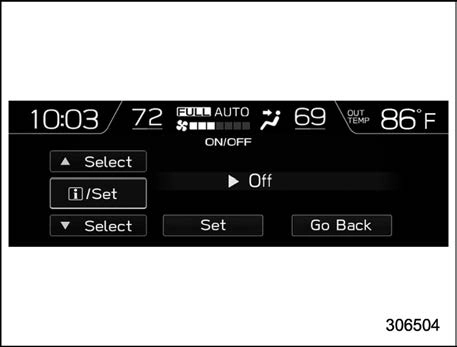
    Select “On/Off” from the 2nd menu on the setting screen. Refer to “Setting screen”  P218.

    Select “On” or “Off” to turn the opening screen on or off by using the control switches.
    Select “Set” to exit settings. Select “Go Back” to return to the previous screen without applying the setting changes.
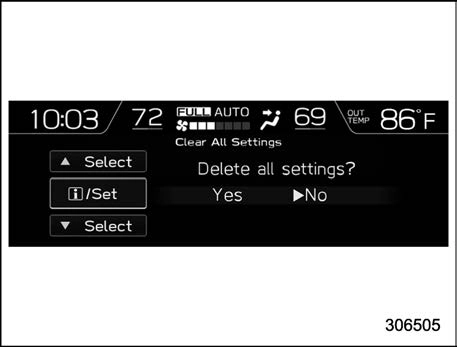
    Select “Clear All Settings” from the 2nd menu on the setting screen. Refer to “Setting screen”  P218.

    Select “Yes” or “No” by using the control switches.

! Initialize

You can initialize the items that have been set to your preference.
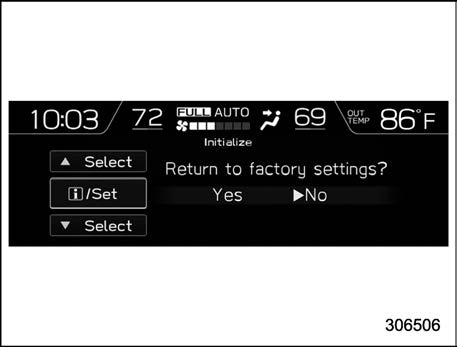
    Select “Initialize” from the 2nd menu on the setting screen. Refer to “Setting screen”  P218.

    Select “Yes” or “No” by using the control switches.
    How to get the source code using the open source

Free/Open Source Software Information

This product contains Free/Open Source Software (FOSS).

The license information and/or the source code of such FOSS can be found at the following URL.

http://www.globaldenso.com/en/open- source/ivi/subaru/


Download Manual