Disclaimer: Not affiliated with or endorsed by Ford Motor Company. For informational purposes only. Full Disclaimer
How to Connect Android Auto to Ford Focus ST
Updated:
Driving has evolved beyond the mere act of navigating from point A to point B. With advancements in technology, we now seek an integrated driving experience that seamlessly connects our smartphones with our vehicles.
If you own a Ford Focus ST and crave the convenience of having your Android device seamlessly integrated into your driving experience, you're in the right place. This extensive guide will walk you through every detail, ensuring you make the most of Android Auto in your Ford Focus ST.
First of all, you have to verify compatibility. Ford vehicles equipped with the SYNC 3 infotainment system typically support Android Auto. Delve into your car's manual or reach out to Ford's customer support to confirm compatibility, laying the foundation for a smooth integration.
To guarantee a flawless connection, it will be imperative to ensure that both your Android device and the SYNC 3 system in your Ford Focus ST are running the latest software versions.
Regular software updates address bugs and enhance overall performance. Take a moment to check for updates on your Android device and your car's infotainment system, setting the stage for an optimized experience.
The Wired Connection - Establishing the Link

Start by turning on your car's ignition without starting the engine. This prepares the vehicle for the upcoming connection. Then, employ a high-quality USB cable that supports both data transfer and charging.
Connect your Android device to the car's USB port, laying the physical groundwork for the Android Auto connection. Be prepared to grant necessary permissions as your car's infotainment system prompts you. These permissions are pivotal for the seamless integration of Android Auto into your Ford Focus ST.
The moment of connection heralds the detection of your Android device. Navigate to the Android Auto option from the main menu on your car's display.
Launch the Android Auto app on your Android device if it doesn't activate automatically. Follow any on-screen instructions that guide you through the setup process.
Shop From Amazon
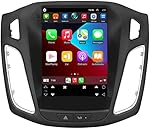


Witness the transformation as the Android Auto interface materializes on your car's display. This interface mirrors key apps from your Android device, seamlessly integrating them into your driving experience.
Harness the power of voice commands with the "OK Google" prompt. This feature facilitates hands-free operation, enabling you to make calls, send messages, or navigate without diverting your attention from the road.
Leverage navigation apps like Google Maps for real-time directions. Experience turn-by-turn guidance directly on your car's display, enhancing your journey's efficiency.
You can also dive into a world of entertainment by playing music from your preferred apps—be it Spotify, Google Play Music, or others—delivered seamlessly through your car's speakers.
Other Useful Tips

A) USB Cable Selection
If connectivity issues arise, experiment with different USB cables. Some cables may be designed solely for charging and not for data transfer.
B) Permission Precision
Ensure that Android Auto has the necessary permissions on your Android device. Grant access, especially for location, to maximize the capabilities of navigation.
C) Restart Ritual
When encountering persistent issues, embark on the tried-and-true method of restarting both your Android device and your Ford Focus ST's SYNC 3 system.
Common Android Auto Connection Issues

Restarting the Ford Focus ST Infotainment System
If you encounter any problems with the Android Auto connection, try restarting your Ford Focus ST's infotainment system. Sometimes, a simple reboot can resolve minor connectivity issues.
Checking USB Cable and Port
If you are having trouble establishing a connection via USB, check both the USB cable and the USB port in your car. Ensure that the cable is securely plugged in and that there are no visible signs of damage or debris in the USB port.
Shop From Amazon


Updating Android Auto App
If you are encountering any type of issues with the Android Auto app itself, try updating it to the latest version. Open the Google Play Store, go to 'My Apps and Games', and check if there are any available updates for the Android Auto app. Updating the app can often fix bugs and improve overall performance.
By following these steps, you'll be well on your way to connecting your Android device to your Ford Focus ST and enjoying all the conveniences that Android Auto has to offer. So get ready to hit the road with your favorite apps and features right at your fingertips!
FAQs

What is Android Auto?
Android Auto is a platform created by Google that lets you connect your Android device to your car's infotainment system.
With Android Auto, you can access various apps and features from your phone on your car's display, making it easier and safer to stay connected while driving. The platform is user-friendly and smartly designed to enhance your driving experience.
Can I connect any Android device to my Ford Focus ST using Android Auto?
Yes, Android Auto is compatible with most Android devices running Android 5.0 (Lollipop) or higher.
Can I use Android Auto wirelessly in my Ford Focus ST?
Yes, certain Ford Focus ST models support wireless Android Auto connectivity. However, it is essential to ensure that your smartphone and vehicle are compatible with wireless Android Auto.
Please refer to your vehicle's manual or contact your vehicle manufacturer for more information on wireless Android Auto compatibility.
Can I use Android Auto while driving my Ford Focus ST?
Yes, Android Auto is designed to provide a safer and more convenient driving experience. The user interface is simplified, and voice commands play a significant role in controlling the system. But prioritize road safety and avoid distractions while using any infotainment system, including Android Auto.
Can I use apps other than the default Android Auto apps in my Ford Focus ST?
Android Auto supports a range of compatible apps that are specially designed for use in the car, such as navigation, messaging, and media apps.
While the default selection of apps is extensive, it is limited to those that meet the safety and distraction guidelines for driving. As a result, not all apps available on your Android device may be accessible through Android Auto.

Nick Marchenko, PhD
Industrial Engineer & Automotive Content Specialist
Nick writes in-depth guides on car clubs, engine specs, vehicle ownership, and modifications, combining engineering knowledge with automotive passion.
Full profile → LinkedIn →You May Also Like
How to Fix a Ford Focus ST Brake Lamp Bulb Fault - DIY Guide
2 years agoIf you've been driving your Ford Focus ST and have come across the daunting "Brake Lamp Bulb Fault" message glaring back at you from the dash, fear not. It’s a simple DIY fix that...
Transmission Fault Service Now On Ford Focus ST: How To Diagnose And Troubleshoot
2 years agoFixing a transmission fault on a Ford Focus ST can be a daunting task. However, with a systematic approach, the right tools, and a bit of patience, it's possible to diagnose and often resolve comm...
How to Fix Power Steering Assist Fault in a Ford Focus ST
2 years agoIf you own a Ford Focus ST and are experiencing a power steering assist fault, it’s a problem that can not only be frustrating but also potentially dangerous. Here’s a step-by-step guide o...
Restoring Flawlessness: How to Repair Your Ford Focus ST's Dents and Dings
2 years agoYour Ford Focus ST is more than simply a vehicle; it's a representation of performance and flair. Regrettably, dings and dents might occur, detracting from your cherished car's visual appeal....